A complete troubleshooting walkthrough for deploying Qwen3-TTS locally on Windows — clearing network blocks, dependency conflicts, and hardware misconfigurations. The payoff: packaging your tuned setup into a portable, zero-install, click-to-run bundle. Made for content creators who want their own free AI voice engine without touching Python or wrestling with environments.
Executive Summary: Why Do We Need a Local TTS Engine?
In the era of content automation, having a high-quality, free, and privacy-focused AI voice engine is essential. Qwen3-TTS has become the gold standard for its stunning voice cloning and expressive capabilities. However, deploying it locally on Windows often leads to a frustrating series of errors related to network blocking, dependency conflicts, and hardware misconfiguration.
This post documents the complete troubleshooting process. At the end, I will teach you how to package your tuned Qwen3-TTS environment into a “portable, zero-install, click-to-run” bundle—no Python knowledge or environment variable configuration required. Download links are provided at the end.
If you prefer a manual, from-scratch installation, you can check out my previous guide:
Phase 1: Resolving Dependency Conflicts and Network Barriers
Running pip install -r requirements.txt on open-source projects is often the start of a nightmare. Here are the two most common hurdles and how to bypass them.
1. Downgrade Hugging Face Hub to Fix Crashes
If you encounter ImportError crashes during startup, it is usually because the default huggingface-hub version is too high. We need to force a downgrade within the virtual environment:
Bash
pip install huggingface_hub==0.36.22. Bypassing SSLError Network Blocks
When downloading .safetensors model files that can reach several gigabytes, network connections often trigger SSLEOFError. Abandon the automated downloader and use the ModelScope CLI tool to pull files at high speeds:
Bash
modelscope download --model Qwen/Qwen3-TTS-12Hz-1.7B-Base(Note: If the folder name contains triple underscores ___ after download, manually rename them to periods . to match the official naming convention.)
Phase 2: Activating GPU Acceleration for Lightning-Fast Generation
If you find that generating a few seconds of audio takes minutes, and your console reports torch.cuda.is_available() == False, it means you are stuck using your CPU for heavy lifting.
This happens because the default pip install often pulls a CPU-only version of PyTorch (~100MB). We need to replace it with the full 2.5GB CUDA-enabled version.
Cleaning Old Versions and Reinstalling via Mirror
Using a high-speed mirror (like Shanghai Jiao Tong University’s) ensures maximum download speed and perfect compatibility with Windows CUDA 12.1:
Bash
pip uninstall torch torchvision torchaudio -y
pip install torch torchvision torchaudio --index-url https://mirror.sjtu.edu.cn/pytorch-wheels/cu121Phase 3: Building a True ‘Portable One-Click Package’
Once you’ve configured your virtual environment, moving it usually breaks the hardcoded absolute paths. To make this setup portable, we need a physical migration.
1. Prepare a Portable Python Build
Download the Python 3.11 Windows embeddable package from the official Python site, extract it, and rename the folder to python_embeded. To enable third-party library discovery, edit the python311._pth file in Notepad and uncomment the last line to look like this:
Plaintext
python311.zip
.
Lib\site-packages
import site2. Porting Core Dependencies
Create a Lib\site-packages folder within your python_embeded directory. Use Windows xcopy to clone your configured virtual environment dependencies perfectly:
DOS
xcopy "source_venv\Lib\site-packages" "target_portable_env\Lib\site-packages" /E /I /H /Y3. The Final Boss: Including Missing DLLs
If you hit [WinError 126] The specified module could not be found or experience onnxruntime crashes, your portable build is missing C++ runtimes. Search your system’s C:\Windows\System32 folder and copy these files into the root of your python_embeded folder:
msvcp140.dllvcruntime140.dllvcruntime140_1.dll
4. Standardizing Model Storage
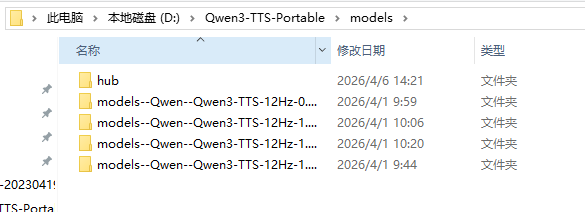
Create a models folder in your package root. You must create a subfolder named hub inside it. Move your model folder (e.g., models--Qwen--Qwen3-TTS-12Hz-1.7B-CustomVoice) into this hub folder so the app can detect your models offline.
Phase 4: The Ultimate Startup Batch Script
Create a text file in your package root, save it as Start.bat, and paste the following:
DOS
@echo off
chcp 65001 >nul
title Qwen3-TTS Portable
color 0A
echo =========================================
echo    🚀 Launching Qwen3-TTS local service...
echo    🌐 Access at: http://127.0.0.1:8080
echo    ⚠️ Select your downloaded model in the WebUI!
echo =========================================

:: 1. Set HF mirror for quick config file retrieval
set HF_ENDPOINT=https://hf-mirror.com

:: 2. Point Hugging Face cache to the local models folder
set HF_HOME=%~dp0models

:: 3. Run via portable Python
.\python_embeded\python.exe -m uvicorn app.main:app --port 8080 --host 0.0.0.0

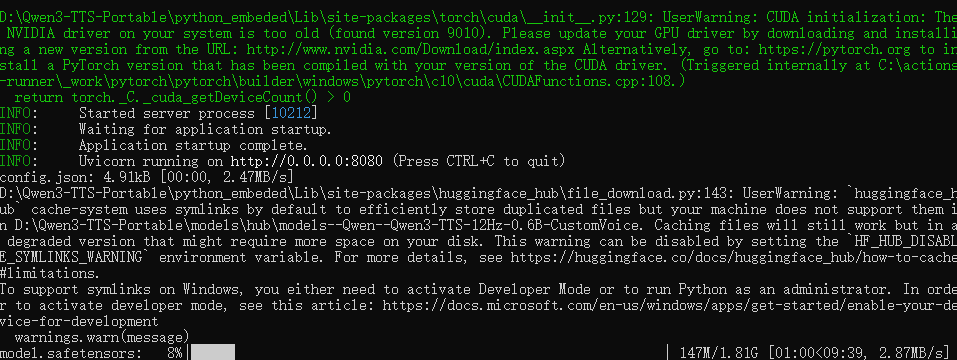
pauseYou’re done! Double-click the file. When you see Uvicorn running on http://0.0.0.0:8080, your portable workstation is ready.
Advanced: Automating Your AI Workflow
Since the service runs on port 8080, it functions as a local API. You can use tools like n8n to connect it to your WordPress blog, enabling fully automated article-to-audio podcast generation.
FAQ
Why is my generation slow and reporting a driver error?
A: Your NVIDIA driver is likely too old for the CUDA 12.1 environment. Update your drivers via the NVIDIA website to enable GPU acceleration, which will speed up generation by orders of magnitude.
Why do I get a DLL error on a different PC?
A: The embeddable Python package doesn’t pull system libraries. Manually copy msvcp140.dll, vcruntime140.dll, and vcruntime140_1.dll from your System32 folder to the root of your portable python_embeded directory.
Why is it trying to re-download models?
A: Ensure you have a hub subfolder inside your models directory, and that the HF_HOME variable in your batch script is set correctly to point to your models folder.