Are you tired of handing your sensitive data over to the cloud? While ChatGPT is undeniably powerful, the constant privacy concerns, subscription fees, and the frustration of being useless without an internet connection are major pain points.
Well, that changes today. With Google’s Gemma 4 and LM Studio, you can turn your computer or smartphone into a fully offline AI powerhouse. It’s completely free, runs entirely on your local hardware, and ensures your data never leaves your device.
Let’s dive into getting Gemma 4 up and running.
1. Why is Local AI Suddenly a Big Deal?
- Cloud AI providers frequently censor or monitor your prompts.
- Uploading proprietary documents, meeting notes, or personal data to the cloud is a major security risk.
- No internet? No problem. Local AI works on planes, high-speed trains, and in remote areas.
- Ditch the recurring monthly subscription fees.
Gemma 4 makes running sophisticated AI accessible to everyone.
2. Which Gemma 4 Version Should You Choose?
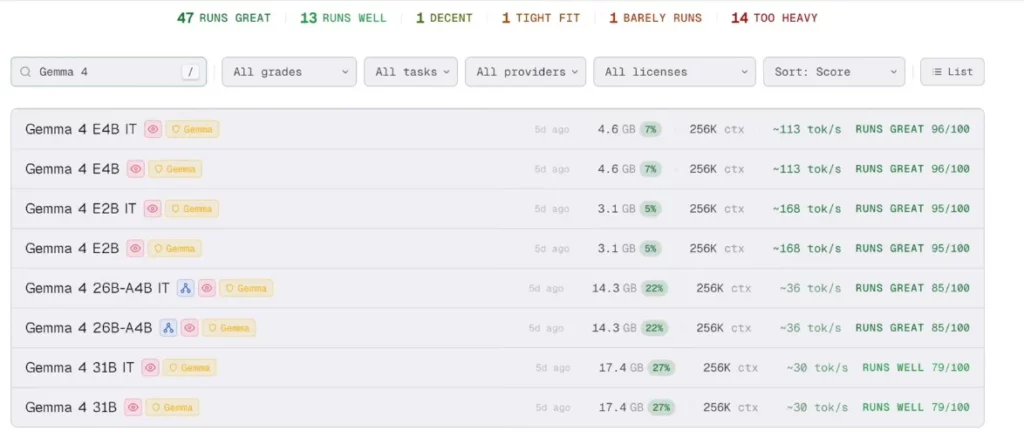
Google has released four distinct versions to cover different use cases:
- E2B: Ultra-lightweight, optimized for smartphones and tablets.
- E4B: The sweet spot for beginners—it runs smoothly on most modern laptops (Highly recommended for starters).
- 26B / 31B: Feature-packed with superior reasoning, ideal for coding and complex data analysis (requires a dedicated GPU).
Unsure if your hardware can handle it? Head over to Can I Run AI Locally. It will automatically detect your GPU and VRAM to tell you if your machine is ready to go.
3. The Best Beginner Tool: LM Studio (Intuitive UI)
Don’t want to mess with terminal commands? LM Studio is like an “App Store” for local AI.
Download and Install LM Studio:
- Official Download: https://lmstudio.ai/download (Available for Windows, Mac, and Linux)
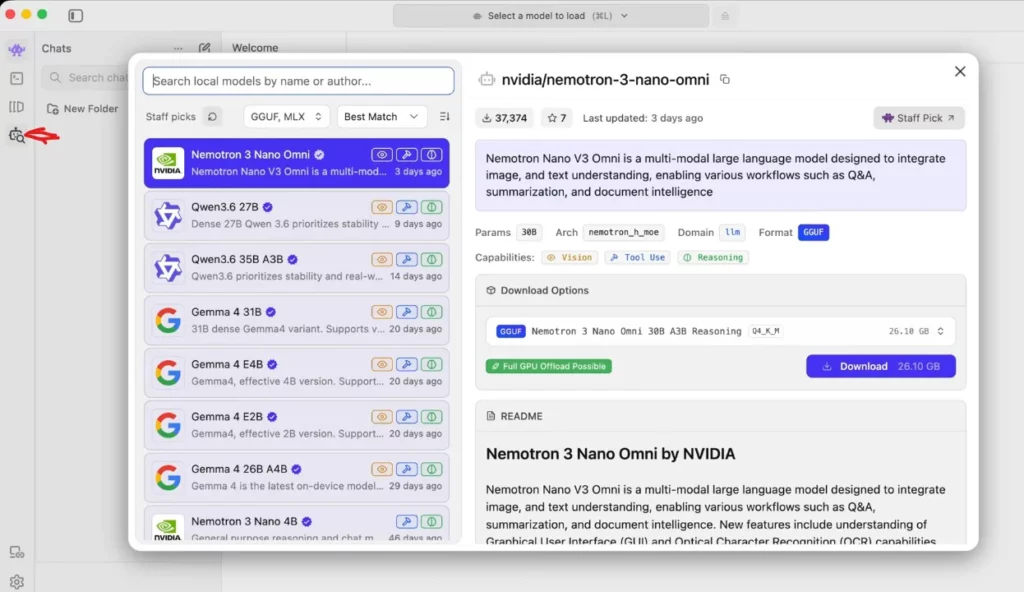
Once installed, open the app and click the Search Models icon on the left.
Downloading the Gemma 4 Model:
- Search for Gemma E4B (Our top pick for newcomers).
- Look for the green compatibility tag and click Download.
Your models will be managed in the My Models section.
Pro-tips:
- Higher parameter counts mean smarter models, but they consume more VRAM.
- Look for “A3B” models—they balance efficiency and performance effectively.
4. Getting Started: Chat and System Prompts
- Start a new chat and load your Gemma model.
- System Prompts are crucial! Use something like: “Please reply in English. If you are unsure about a fact, state that you do not know.”
Gemma’s output quality is genuinely impressive; it provides clear, relatable explanations that rival many cloud-based models.
Useful Features:
- Branching: Test different prompt variations without losing your main thread.
- Exporting: Every response can be copied, deleted, or exported as Markdown/PDF.

5. Document Processing (Meetings and Data Analysis)
Drag and drop Word, CSV, or Excel files directly into the chat:
- Summarize meeting minutes and draft formal emails.
- Analyze spreadsheets to identify demographic trends or survey insights.
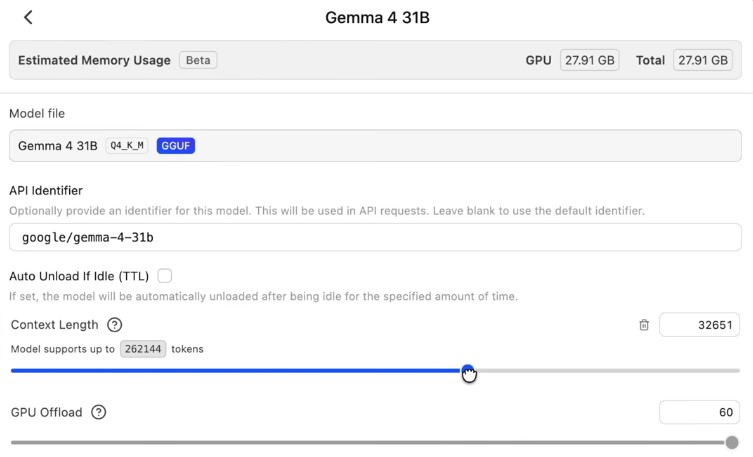
Running out of context? Head to the parameter panel on the left and increase the Context Length before reloading.
6. Multimodal Support: Image and Audio
Desktop: Upload images (like magazines or documents) for instant translation.
Mobile:
- Download the Google AI Edge Gallery App (Android): Google Play Store
- Use the E2B model for Ask Image (translation) and Audio Scribe (transcription)—the perfect travel companions.

7. Advanced: Supercharge Gemma with MCP Tools
Want your AI to browse the web or manage local files? You can do this using MCP (Model Context Protocol).
- Brave Search (1,000 free queries/month): Get your API Key at Brave Search API.
- Ensure you have Node.js installed.
Configuration can be technical, but don’t hesitate to ask Claude or ChatGPT to help you generate the configuration files.
8. Coding Made Easy: Gemma + VS Code
Use a larger 26B or 31B model paired with the Continue extension in VS Code:
- Download VS Code: https://code.visualstudio.com/download
- Install the Continue extension and link it to your local LM Studio instance.
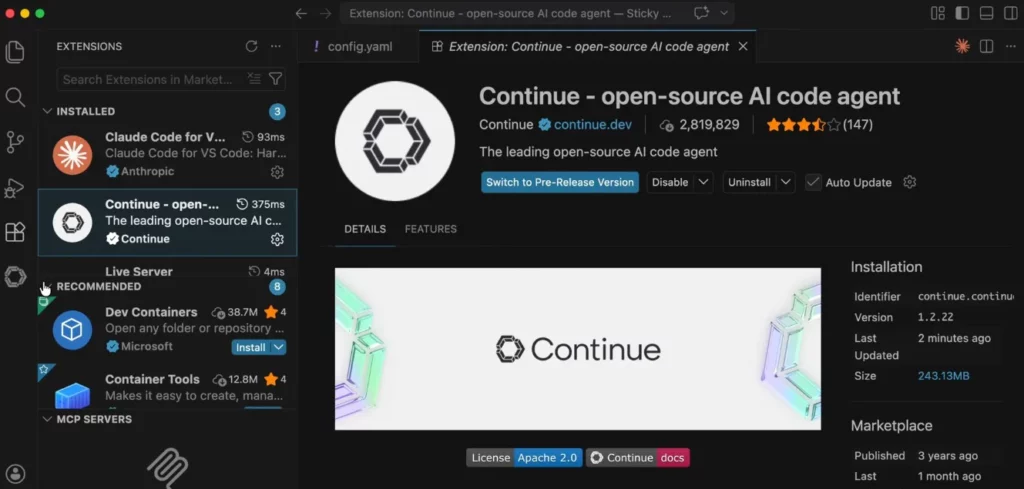
The synergy between local AI and your IDE allows you to build, debug, and iterate applications entirely offline.
Final Thoughts: Local AI is Finally Ready for Prime Time
The combination of Gemma 4 and LM Studio has removed the barriers to entry, putting powerful AI in the hands of everyone. Privacy, free access, and true offline capability are finally unified in one workflow.
Frequently Asked Questions (FAQ)
Q1: My computer isn’t top-tier. Can I run Gemma 4?
A: Start with the E4B version; it runs comfortably on most laptops from the last two years. If you’re unsure, use the Can I Run AI Locally tool.
Q2: What is the difference between LM Studio and Ollama?
A: Ollama is geared toward developers who prefer command-line interfaces, whereas LM Studio provides a polished, user-friendly GUI perfect for beginners.
Q3: Is local AI significantly dumber than ChatGPT?
A: For daily tasks, document analysis, and coding, the gap has closed significantly. While cloud models retain an edge in highly complex reasoning, local AI is now more than “good enough” and continues to improve rapidly.