A new AI video model called Sulphur 2 is making waves as the “open-source Sora,” with its core selling point being that it is completely uncensored. You can generate whatever content you want locally, free from the constraints of cloud-based services. The buzz is real, with countless demonstrations (many of which require blurring) flooding the internet.
The best part? It’s not just a toy for expensive server-grade hardware. It runs on consumer GPUs with as little as 8GB of VRAM, making it accessible to anyone with a decent gaming rig.
Let’s dive into the details: What problems does it solve? How do you deploy it? And how do you actually start generating videos?
What is Sulphur 2 and why does it matter?
Common issues with traditional cloud-based AI video tools include:
- Strict Censorship: Many creative projects get flagged or blocked entirely.
- High Costs: Pay-per-minute billing adds up quickly.
- Latency: Being stuck in a long generation queue.
- Privacy Concerns: Your creative data is stored on third-party servers.
Sulphur 2 addresses these pain points directly:
- Supports both Text-to-Video and Image-to-Video.
- Local and Uncensored: Create whatever you want, whenever you want.
- VRAM Efficient: Works on 8GB cards using fp8 or distilled versions.
- ComfyUI Deployment: Deeply customizable workflows.
In short: it brings enterprise-grade AI capabilities directly to your local workstation.
Hardware Requirements and Model Selection
- Full bf16 Version: Highest quality, recommended for 32GB+ VRAM.
- fp8 Quantized Version: A great balance; runs on 8GB+ VRAM with faster speeds.
- Distilled/GGUF Version: The savior for low-VRAM setups; lowers the barrier to entry even further.
Model Download Links (Official Hugging Face/Community sources):
- Main Repo: https://huggingface.co/SulphurAI/Sulphur-2-base
- Recommended fp8/Quantized: https://huggingface.co/vantagewithai/Sulphur-2-Base-Split (Includes bf16 and fp8)
- GGUF Low-VRAM Version: https://huggingface.co/vantagewithai/LTX2.3-10Eros-GGUF/tree/main
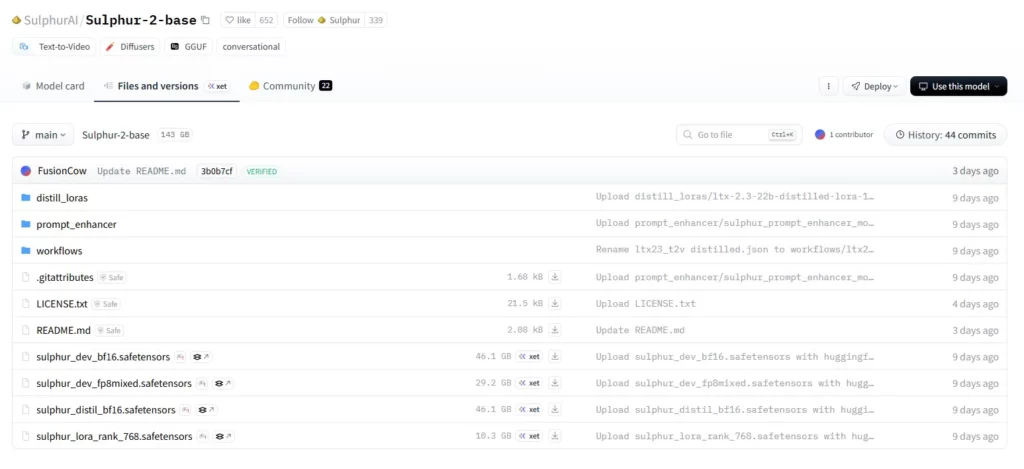
Tip: Model files are large, but VRAM usage depends on the version chosen. Start with fp8 or GGUF to test before committing to the massive full-precision files.
Step-by-Step Local Deployment
1. Download and Install the Latest ComfyUI
- Official (Portable recommended): https://comfy.org/download/ or via GitHub Releases https://github.com/Comfy-Org/ComfyUI/releases/latest
- Look for the NVIDIA portable 7z archive on GitHub.
Once extracted, launch it to ensure the interface loads correctly.
2. Download the Sulphur 2 Model
Place the downloaded .safetensors file into the ComfyUI/models/checkpoints or unet folder, following standard ComfyUI directory structure.
3. Image-to-Video Workflow
- Workflow Download: Search for “LTX-2.3 Image-to-Video” in the ComfyUI workflow library or use a community version: https://www.runcomfy.com/comfyui-workflows/ltx-2-3-sulphur-image-to-video-workflow-in-comfyui-cinematic-motion-creator
- Load the workflow → Select Sulphur 2 as your main model → Upload your base image → Write your prompt → Generate.
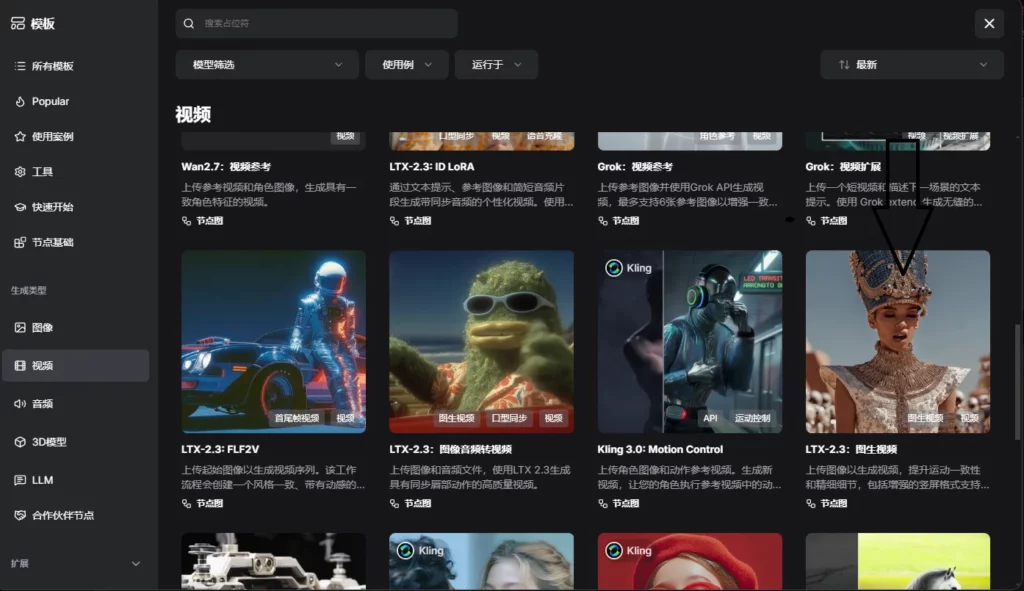
Expected Results: A static image will transform into a video in minutes, with impressive natural motion for characters and objects.
4. Text-to-Video Workflow
- Workflow Download: Community-recommended versions are available at the Sulphur-2-Base-Split repository (includes JSON workflows).
- Drag the JSON into ComfyUI → Input a detailed prompt (e.g., “cinematic, smooth motion, 4k, high detail”) → Generate.
Prompting Tip: Be structural. Describe the scene, camera movement, and artistic style clearly to get the best results.
Performance and Optimization
While the motion consistency and creative freedom are top-tier, newer models can occasionally suffer from artifacts or flickering.
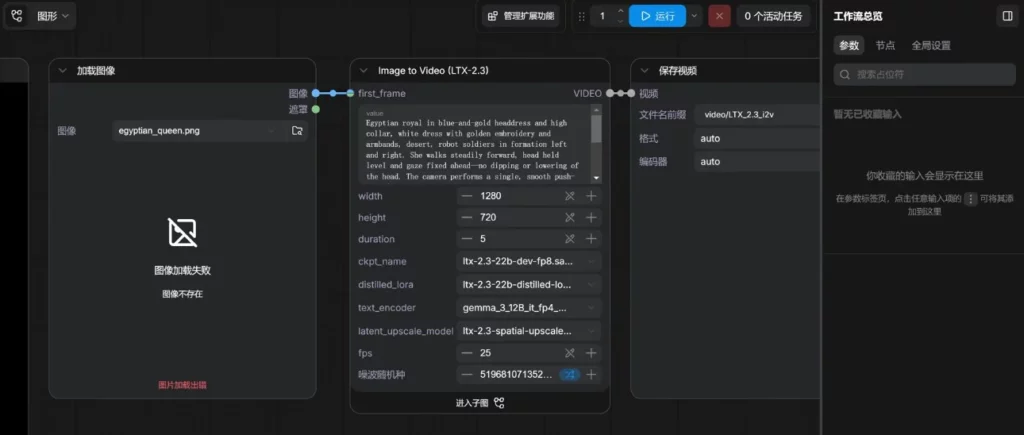
Optimization Tips:
- Use structured prompts.
- Iterate at lower resolutions first to save time.
- Stay updated with the latest community-shared ComfyUI workflows.
- Test different quantization versions to see what suits your specific VRAM limitations.
Conclusion
Sulphur 2 lowers the bar for local AI video generation. Starting at 8GB of VRAM, you have the power to experiment without cloud limitations. If you have the hardware, get started with the fp8 model and an Image-to-Video workflow—you’ll have your first generated video in under half an hour.
FAQ
1. Can I really generate with 8GB VRAM?
Yes, by using the fp8 or GGUF versions. Keep your initial tests to shorter durations (4-8 seconds); it may be slower, but it is fully functional.
2. The model isn’t showing up after loading the workflow.
Verify your file paths are correct, restart ComfyUI, or use the ComfyUI Manager to install missing custom nodes. Always keep ComfyUI updated.
3. Is it safe to publish my generations?
Personal use is fine, but if you publish, ensure your content complies with local laws regarding sensitive or copyrighted material. Use AI responsibly.