Is your PC constantly stuttering, throwing BSODs, dropping network connections, or crashing apps? Before you go down the nuclear path of a full system wipe, hang on! You don’t need such extreme measures.
Windows is packed with powerful, built-in diagnostic and repair tools. By running a few commands in an Elevated Command Prompt, you can resolve 90% of common technical headaches. It’s faster, easier, and much cleaner.
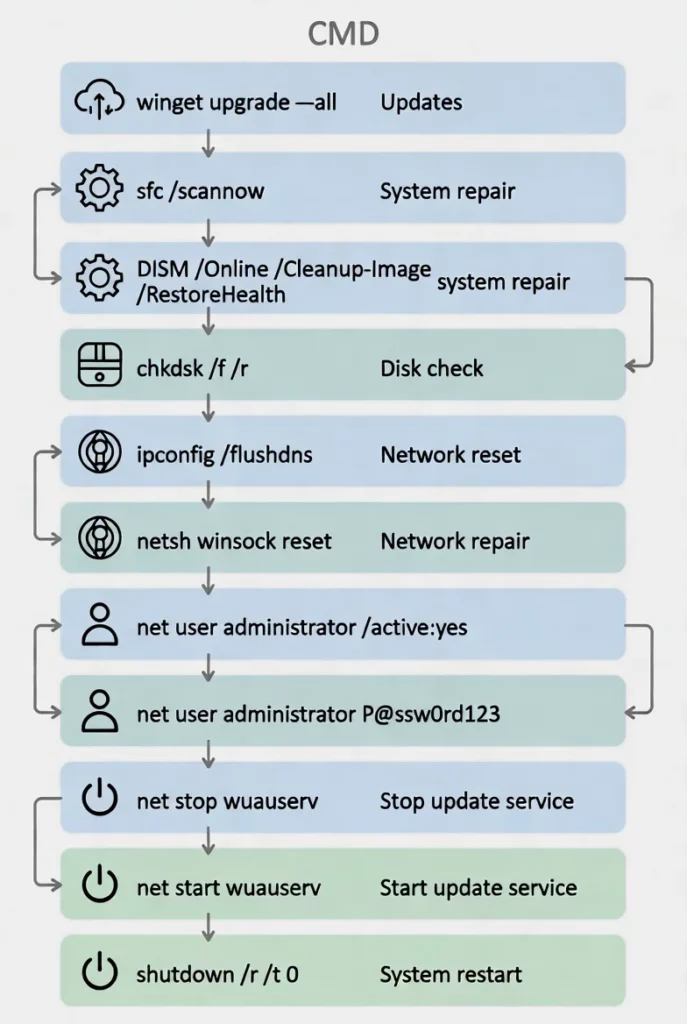
I’ve compiled the most effective 9 CMD commands + 1 bonus tool into a step-by-step guide. Follow these in order to get your rig back in shape.
3 Things to Know Before You Start
- All commands require an Elevated Command Prompt (Right-click CMD → Run as Administrator).
- Back up your important files first, just in case.
- Go one step at a time. It’s often best to reboot your PC between major repairs to let the changes take effect.
1. Batch Update All Software (Highly Recommended)
Many “Windows issues” are actually just legacy software acting up.
cmd
winget upgrade --allWhat it does: Automatically scans and updates all supported programs (browsers, drivers, utilities). Pro Tip: Run winget upgrade first to see the list before executing the --all flag.
Make this a monthly habit to keep your system lean and stable.
2. SFC Scan: Fix Corrupted System Files
cmd
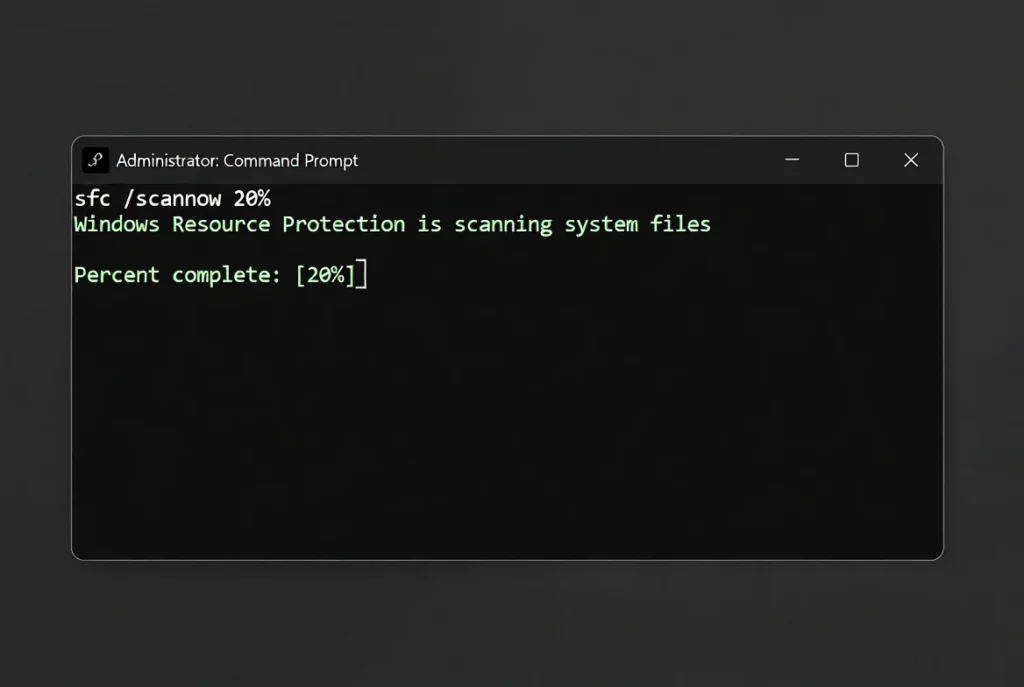
sfc /scannowThis is the Windows System File Checker. It scans protected system files and replaces corrupted versions with cached copies.
- If it says “did not find any integrity violations” → You’re good.
- If it repaired files → Reboot and run it again to verify.
- If it says “could not perform the requested operation” → Proceed to Step 3.
3. DISM: Refresh the System Image
If SFC fails, use DISM to repair the local component store itself.
cmd
DISM /Online /Cleanup-Image /RestoreHealthNote: Requires an active internet connection. It can take 15-30 minutes, so be patient. The golden workflow is: Run DISM first, then follow up with SFC for maximum impact.
4. CHKDSK: Check and Repair Drive Errors
cmd
chkdsk C: /r(Replace C: with your specific drive letter if necessary.)
What it does:
- Fixes file system errors.
- Scans for bad sectors and attempts to recover data.
Since the system drive is in use, it will prompt you to schedule the check for the next reboot. Type Y and restart your machine.
5. Network Troubleshooting Triad
cmd
ipconfig /flushdns
ipconfig /release
ipconfig /renewWhat it does:
- /flushdns: Clears the local DNS cache.
- /release + /renew: Forces your PC to drop and request a new IP address from your router.
This resolves the vast majority of “connected but no internet” issues.
6. Reset Network Stack (For Stubborn Issues)
If you’re still having network trouble, use the heavy-duty reset:
cmd
netsh winsock reset
netsh int ip reset
netsh int tcp resetYou must reboot after these commands. This resets your network configuration to factory defaults, nuking stubborn network conflicts.
7. Check Drive/SSD Health
Run this via PowerShell (or directly in CMD):
cmd
powershell "Get-PhysicalDisk | Format-Table FriendlyName, MediaType, HealthStatus, OperationalStatus"Check the HealthStatus column:
- Healthy → All clear.
- Anything else → Backup your data immediately and prepare for a drive replacement.
8. Force Kill Frozen Processes
cmd
tasklistList all running processes, find the PID (the number in the second column) of the frozen app.
cmd
taskkill /PID 1234 /F(Replace 1234 with the actual PID. /F forces termination.)
9. Power and Battery Diagnostics (Laptop Essential)
cmd
powercfg /energyIt will monitor your system for 60 seconds and generate an HTML report. Copy the path provided in the terminal into your browser to see:
- Devices that wake your PC randomly.
- Inefficient power policies.
- Root causes of battery drain.
Bonus: Memory Diagnostic (The Ultimate BSOD Killer)
- Type
mdsched.exein the Start search bar. - Choose “Restart now and check for problems.”
- Windows will test your RAM during the next boot.
Bad memory can cause erratic crashes that no software fix can solve—if errors pop up here, you need to replace your RAM sticks.
Summary: These 9 commands plus the memory diagnostic cover 90% of daily Windows glitches. By running these periodically, you can avoid the hassle of a full system reinstallation.
❓ FAQ
1. What if I get an “Access Denied” error?
You must run CMD as an Administrator.
2. Are these commands safe for Windows 11?
Yes, they are fully compatible with both Windows 10 and 11.
3. Still having issues after running these?
If hardware diagnostics report issues, replace the faulty hardware. Otherwise, try a Windows Reset (Keep Files) to refresh the OS while saving your data.