
Do you think just plugging your Quest into a powerful PC is enough for a perfect PCVR experience? If you are still dealing with stuttering, blurry textures, or frustrating latency, you are wasting your hardware’s potential by treating your Quest like an entry-level headset.
Today, I’m sharing several core optimizations. Follow these steps, and you will transform your Quest 3 or 3S into a top-tier PCVR powerhouse with razor-sharp visuals, silky-smooth motion, and near-zero latency.
Why do default settings feel so lackluster?
VR is highly sensitive to latency, frame drops, and blurry textures. Default settings prioritize stability over visual fidelity, making even high-end PCs look like they’re struggling through a fog. The difference after tuning is night and day—one is a crisp, immersive escape; the other is a stuttering, motion-sick nightmare. Let’s get to work.
1. Benchmark Before You Tweak
Don’t change settings blindly. You need a baseline to measure your improvements.
Recommended Tools:
- SteamVR Frame Timing: Accessible directly from your Steam library (no extra download needed).
- Oculus Debug Tool: Usually located at C:\Program Files\Oculus\Support\oculus-diagnostics\OculusDebugTool.exe after installing the Meta Horizon Link PC App.
- Virtual Desktop Performance Overlay: An essential, feature-packed tool for wireless users.
Pro Tip: Run a session of your favorite game, note the framerate and latency, then compare these metrics after you apply your tweaks.
2. Keep Your Software Stack Fresh
- Windows Updates
- GPU Drivers (GeForce Experience for NVIDIA; Adrenaline for AMD)
- Quest Firmware
- Meta Horizon Link PC App (formerly Oculus PC App) → Download here
Always restart your PC after updates. Many stuttering issues stem from pending background updates.
3. Your Network is the Backbone of Wireless PCVR
The Golden Rule: Connect your PC directly to your router via Ethernet.
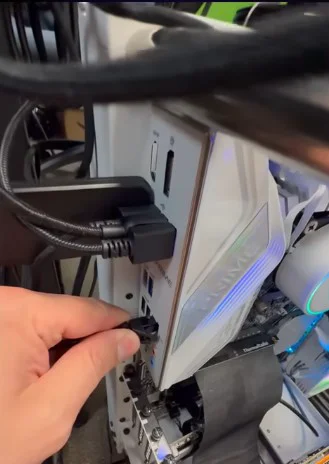
Wi-Fi hops on both the PC and the headset add unnecessary latency. Wired PC connections show immediate, tangible benefits. Router Recommendation: Use at least 5GHz, ideally Wi-Fi 6 or 6E, dedicated solely to your VR traffic.
Platform Choice:
- Air Link: Native Meta support.
- Virtual Desktop: More flexible and includes superior AV1 support (a must for RTX 40/50 series users).
4. Bitrate and Codecs: The Soul of Image Quality
Using Oculus Debug Tool:
- Disable Dynamic Bitrate.
- Set a fixed value: Start at 200Mbps, then push to 350-400 or even 500+ if your network holds up.
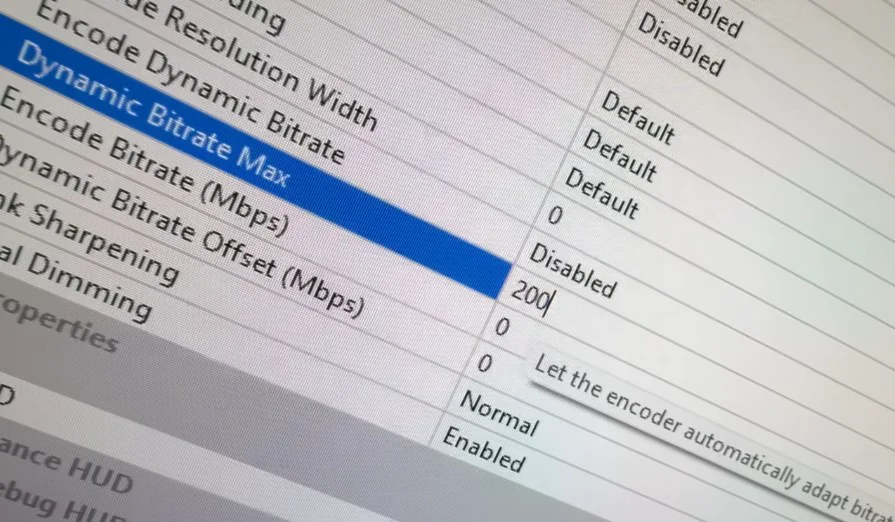
Virtual Desktop Encoding:
- RTX 40/50 Series → AV1
- Older GPUs → H.264
- HEVC is a great middle-ground option.
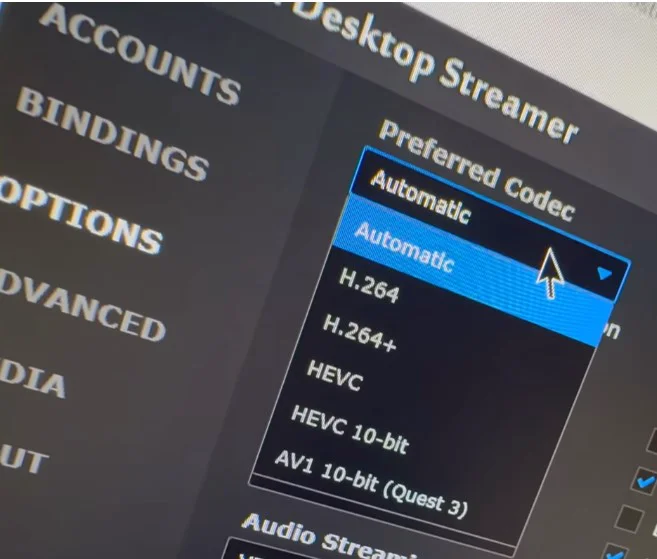
Think of bitrate like a water pipe; find that “Goldilocks” zone where you get clarity without flooding your network buffer.
5. Balancing Resolution and Refresh Rate
Oculus PC App Starting Points:
- Resolution Scale: 0.7~0.8
- Refresh Rate: 72Hz
For mid-range rigs, aim for 90Hz at 1.2~1.3x scale. High-end rigs can go higher. Important: Do not double-up on resolution scaling between SteamVR and the Oculus App; it destroys performance. Test with Half-Life: Alyx to find your sweet spot. A silky-smooth 90Hz is always better than a stuttering 120Hz.
6. Use Upscaling for Free Frames
- NVIDIA: Enable DLSS in supported games.
- AMD: Enable FSR.
- Unsupported games: Use OpenVR FSR.
Download: Official OpenVR FSR GitHub. It renders at a lower internal resolution and uses AI/spatial algorithms to sharpen the image, providing a massive framerate boost while keeping things looking crisp.
7. Optimize Your PC for High Performance
- NVIDIA Control Panel: Power management mode set to Prefer maximum performance.
- Windows Power Plan: Set to High Performance.
- Close background bloat (Discord overlays, Chrome tabs, etc.).
- Ensure proper thermal management—overheating leads to thermal throttling.
8. Advanced Tweaks with SideQuest (For Hardcore Enthusiasts)
Download: SideQuest Official Site
Advanced operations include:
- Increasing CPU/GPU performance levels.
- Increasing global texture size.
- Forcing 120Hz.
- Fixed Foveated Rendering (FFR): Lowers resolution at the edges of your vision to ease GPU pressure.
Test in small increments; you can always revert if you hit a wall.
Bonus Tips
- Avoid Mirroring: Don’t leave the desktop mirror running unless you are recording/streaming; your GPU is rendering the scene twice.
- Room Lighting: Avoid extreme dark or bright conditions as they interfere with inside-out tracking.
- Cables: If using Link, invest in a high-quality fiber-optic cable with power delivery and a cable management system.
Conclusion: You’re Now Ahead of 90% of Users
Most people just plug and play, ignoring these settings. By applying these methods, you’ve elevated your Quest 3/3S into a truly top-tier PCVR headset. Take action: Start with the benchmarks, update your drivers, and go wired today!
FAQ
1. Is there a big difference in PCVR tuning for Quest 3 vs 3S? The core settings are identical. Quest 3’s lenses and resolution offer a clearer starting point, but both benefit significantly from these tweaks.
2. Can I get a good wireless experience without Wi-Fi 6? It’s possible, but the experience will be compromised. Prioritize a wired PC connection and a 5GHz band near the router.
3. Is SideQuest safe? Will I brick my headset? It is very safe. As long as you make incremental changes, you won’t brick your device, and you can always perform a factory reset if necessary.