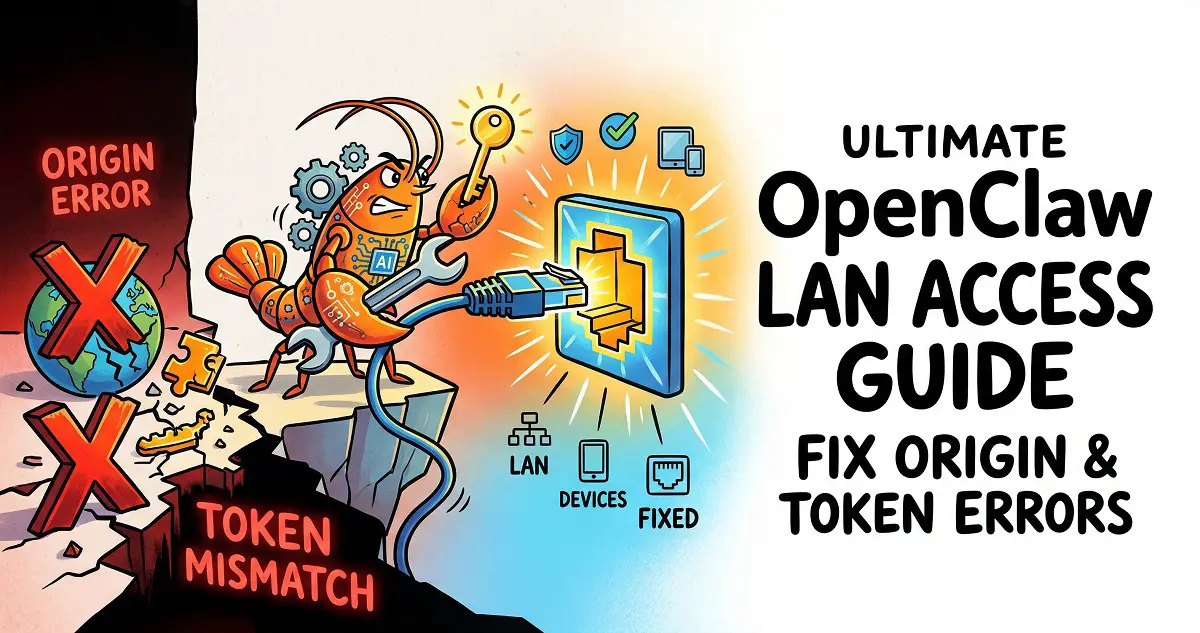
For enthusiasts who enjoy deploying local AI models and automation assistants on their own servers, OpenClaw LAN access is an essential skill for managing your infrastructure effectively.
However, during deployment, you’ll likely run into a frustrating hurdle: If you aren’t using the official recommended Tailscale setup and try to access the OpenClaw control panel from another computer on your LAN, you’ll be hit with constant errors. OpenClaw has strict security measures, defaulting to localhost-only access. Today, I’ll walk you through how to dismantle these restrictions step-by-step—from configuration files to browser security policies—teaching you how to gracefully and securely take command of your OpenClaw gateway from anywhere on your network.
Phase 1: Configuration Errors and Network Binding
Initially, many users (myself included) intuitively try to modify the /home/hhdz/.openclaw/openclaw.json file, setting gateway.mode to 0.0.0.0 or manually adding "host": "0.0.0.0". Unfortunately, this crashes the gateway upon restart:
Invalid config: gateway.bind host aliases (for example 0.0.0.0/localhost) are legacy; use bind modes instead.
💡 The Fix: Modern OpenClaw versions have deprecated old IP address binding methods. The correct approach is to use the built-in binding modes. Open your openclaw.json, locate the gateway node, keep "mode": "local", and add "bind": "lan".
"gateway": {
    "port": 18789,
    "mode": "local",
    "bind": "lan",
// ...Note: Don’t forget the comma , at the end of each line!
Phase 2: Fixing “Origin Not Allowed” Errors
After updating the binding, you might reach the login page, only to be stopped by a red error message:
origin not allowed (open the Control UI from the gateway host or allow it in gateway.controlUi.allowedOrigins)
This is OpenClaw’s cross-origin protection. It detects that you are accessing from a local 192.168.x.x address, which isn’t on its default whitelist.
💡 The Fix: Edit your configuration again. Under the gateway node, manually add a controlUi whitelist. For convenience on a home network, you can use the * wildcard to allow all sources:
"controlUi": {
      "allowedOrigins": [
        "*"
      ]
},Phase 3: Browser Security Context Obstacles
Just when you think you’re clear, you might see this upon refreshing:
control ui requires device identity (use HTTPS or localhost secure context)
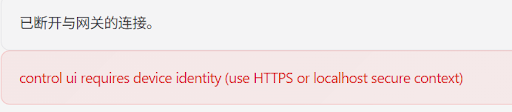
This isn’t OpenClaw’s fault—it’s your browser (Chrome/Edge). OpenClaw’s UI uses advanced device identity APIs that modern browsers only allow over HTTPS or 127.0.0.1. Standard LAN HTTP connections are flagged as “insecure.”
💡 The Fix (No HTTPS required): On your local machine, open Chrome or Edge and enter the following in the address bar:
- Chrome:
chrome://flags/#unsafely-treat-insecure-origin-as-secure - Edge:
edge://flags/#unsafely-treat-insecure-origin-as-secure
Find Insecure origins treated as secure, enter your server’s LAN address (e.g., http://192.168.1.100:18789), toggle the setting to Enabled, and restart your browser. The error will be gone.
Phase 4: Token and Device Pairing
Once browser restrictions are bypassed, you face the final hurdles: the Token and Device Authorization.
1. Missing Token (unauthorized: gateway token missing): You must prove you are the admin. Locate your unique token string in the server startup logs or the auth section of your openclaw.json. Append ?token=YOUR_TOKEN_HERE to the URL in your browser.
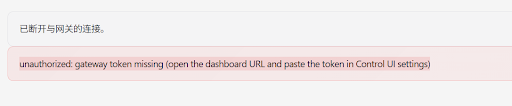
2. Device Not Paired (pairing required): Even with the correct token, you are a “new face.” SSH into your server and check pending requests:
openclaw devices listIdentify the ID of the Pending record and approve it:
openclaw devices approve <DEVICE_ID>(Or run openclaw devices approve --latest to approve the most recent request.)
🎉 Success!
Refresh your browser and you’ll see the status indicator light up green! While OpenClaw’s security is intense, it ensures your private AI data remains protected. Follow these four steps to gain full LAN control without needing complex certificates or extra VPN software.
If you have any questions about deploying local large models or managing your Docker stacks, feel free to drop a comment below. For more expert tutorials, keep exploring the latest tech guides at VGoods Lab.