Ever find yourself browsing online, seeing creators demoing incredible VR games, only to realize they aren’t available on the official Meta Store? Don’t worry—this step-by-step guide is exactly what you need.
Think of SideQuest as your Quest 3’s secret weapon. It acts as both a “second app store” and a performance tuner, allowing you to access massive libraries of exclusive VR experiences, boost your resolution, bump your refresh rate to 120Hz, or even sideload Android apps like Discord. The setup takes less than 10 minutes, and once it’s done, you can manage your library with or without a PC.
1. Enabling Developer Mode (One-time setup)
This is your “golden ticket” for sideloading. You only need to do this once.
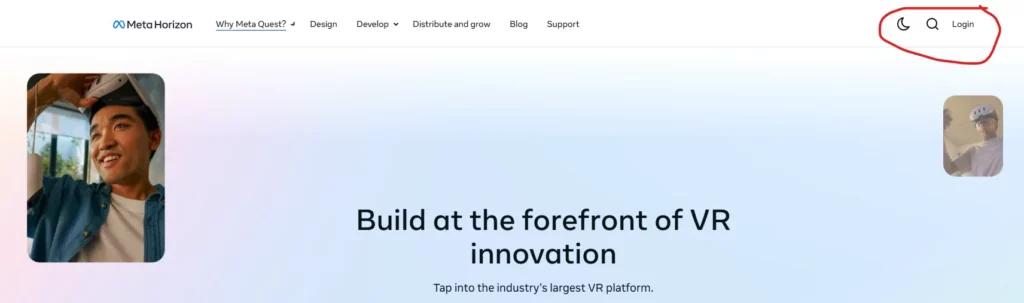
- Open developers.meta.com/horizon in your browser (ensure you’re on the official Meta portal).
- Log in with the same Meta account you use for your Quest 3.
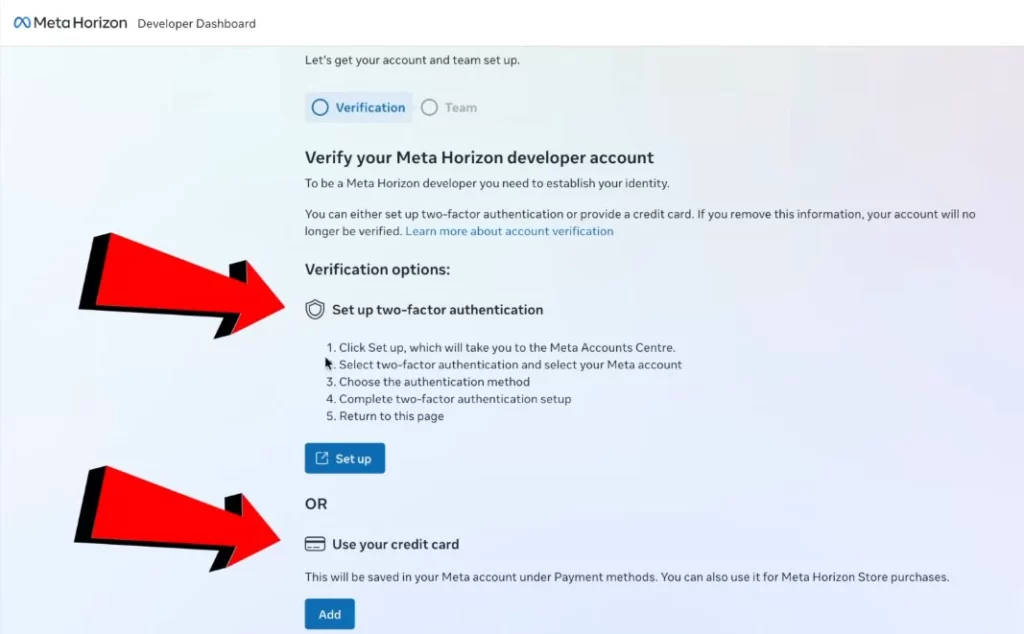
- Complete the verification steps (two-factor authentication is the fastest method).
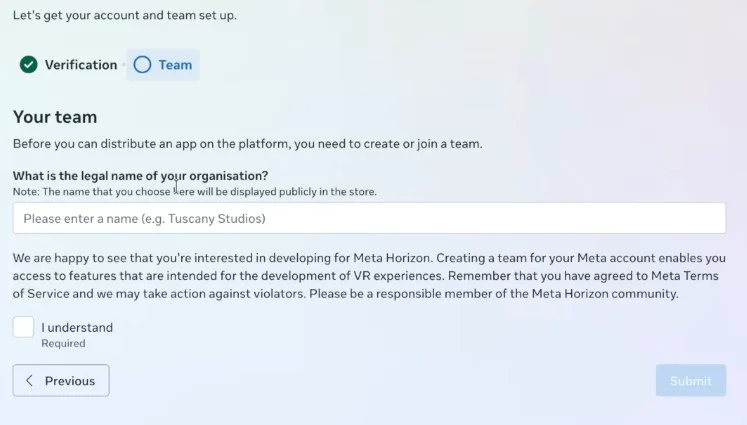
- Create an “Organization.” The name doesn’t matter, just make sure it’s unique, accept the terms, and submit.
- Open the Meta Horizon App on your phone → Menu → Devices → Select your Quest 3.
- Navigate to settings and toggle the new Developer Mode switch to ON.
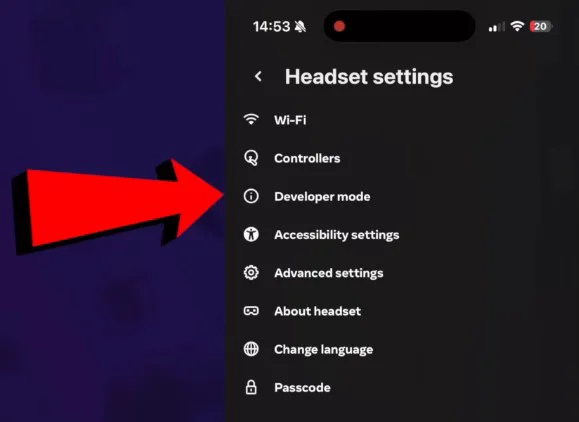
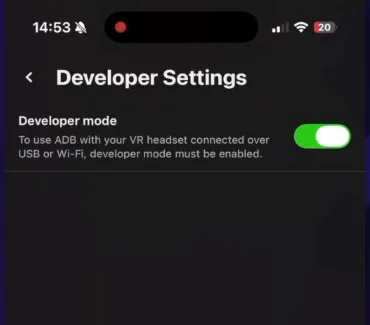
Verification: Put on your Quest 3 and check the settings menu. If you see the “Developer” tab, you’re all set! If not, just perform a quick restart.
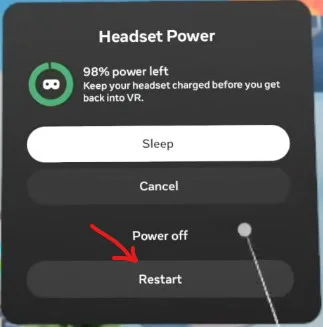
Pro tip: Think of this as getting a “VIP membership” for your headset. Do it once, and you’re set for the life of the device.
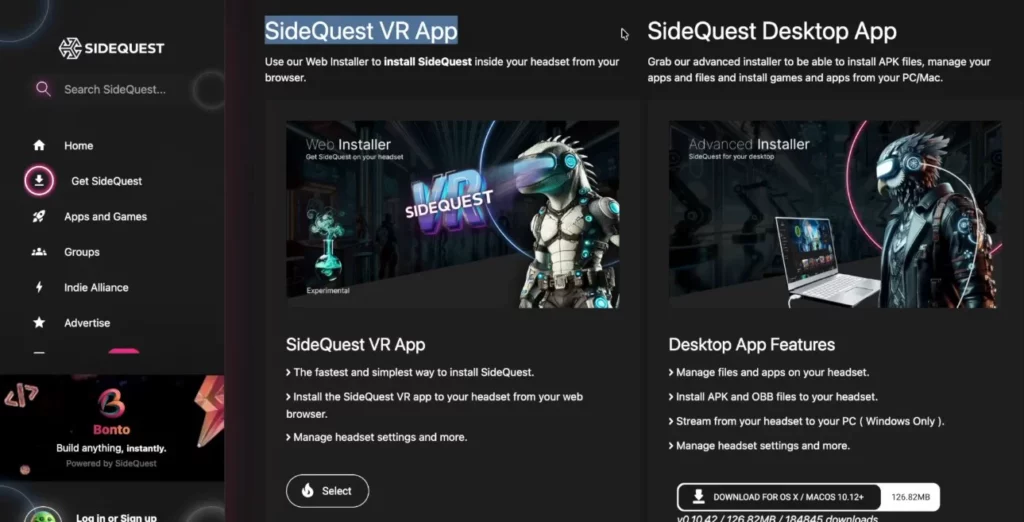
2. Installing SideQuest (Desktop Version Recommended) [Official Website]
There are two ways to install SideQuest; here’s the breakdown:
VR Version (Simplest):
- Download directly from the SideQuest website using the Quest 3’s built-in browser.
- It acts like an additional app store directly inside your headset.
Desktop Version (Highly Recommended):
- Download the installer for your OS (Windows, Mac, or Linux) from the website.
- Log in once the installation is complete.
- Connect your Quest 3 to your computer via a USB-C cable.
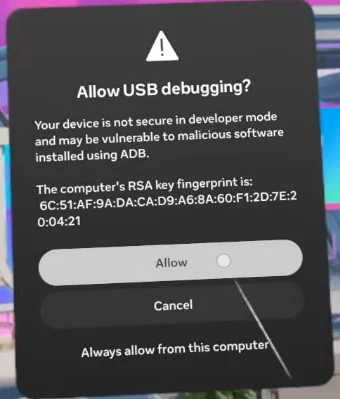
- Click “Allow” when the USB debugging prompt appears inside the headset.
Once connected, the red orb in the top-left of SideQuest will turn green, confirming a successful handshake.
3. Start Sideloading (It’s Easy!)
- Click Apps & Games in the SideQuest sidebar.
- Filter by “SideQuest Only” for exclusive content, or search for classics like Doom, Half-Life, or Minecraft ports.
- Browse the game page for trailers and user reviews.
- Hit the Sideload button to start the installation.
Important! Can’t find your games after install?
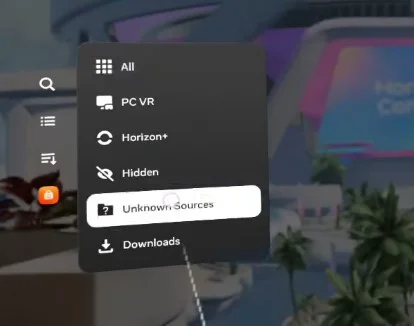
- Open your main menu in the Quest 3.
- Go to the App Library and click the top-right filter dropdown.
- Select Unknown Sources.
- Your sideloaded content lives here!
4. Advanced SideQuest Features (The Real Magic)
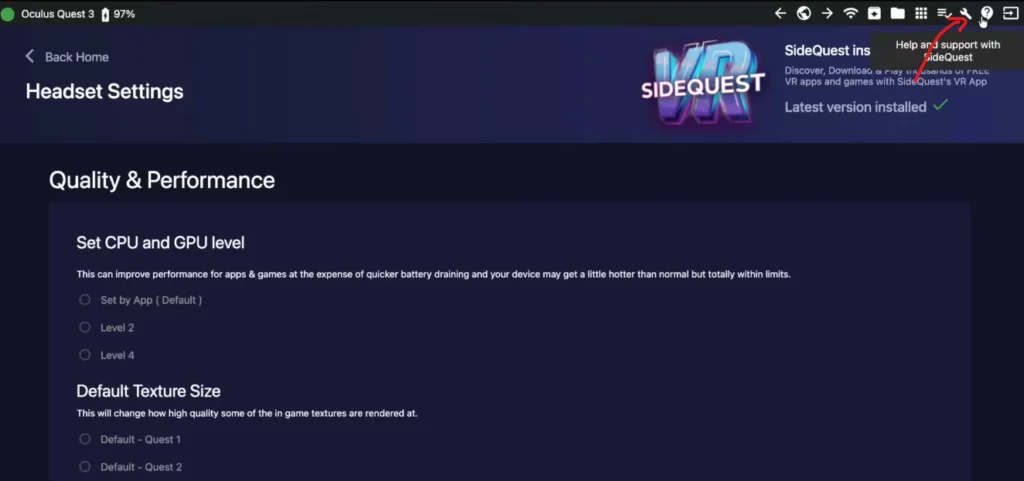
- Visual & Performance Tuning: Click the wrench icon in the top right. Under “Quality & Performance,” set your Default Texture Size to maximum and force 120Hz. You’ll immediately notice sharper visuals and smoother gameplay.
- Sideload Any APK: You can drag and drop any standard Android APK file into SideQuest to install it directly onto your headset (e.g., Discord or browser variants).
- The customization possibilities go much deeper—start exploring and see what your headset is truly capable of!
Best Practices & Troubleshooting
- Use a high-quality USB-C cable to avoid connectivity drops or data transfer issues.
- If you run into hiccups after enabling Developer Mode, a simple restart usually clears it up.
- Stick to the official SideQuest library to keep your setup safe and stable.
- Always keep your SideQuest desktop client updated to ensure compatibility with the latest Meta firmware.
Conclusion: SideQuest transforms your Meta Quest 3 from a locked-down device into an open playground. Spend 10 minutes setting it up, and you’ll unlock a world of infinite VR content and superior performance settings. It’s an essential tool for every Quest 3 owner.
FAQ
Q1: Can I use SideQuest without a PC?
Yes! You can download the VR version directly through the headset’s browser. It’s slightly less feature-rich than the desktop client but perfect for basic sideloading.
Q2: Is sideloading safe? Will I get banned?
The community has used SideQuest for years with virtually no reports of bans. Sticking to the official SideQuest repository is generally very safe. Avoid installing APKs from unknown or suspicious sources.
Q3: My resolution didn’t change. What did I do wrong?
Make sure you’re connected via the desktop app. Adjust the Texture Size and refresh rate settings via the wrench icon, then restart the app for the changes to take effect.