Why Run Windows on a MacBook Anyway?
The MacBook Neo is sleek, powerful, and offers incredible battery life. But inevitably, you hit the wall: that one piece of mission-critical software just doesn’t have a Mac version.
Whether it’s the full-fat desktop versions of AutoCAD or SolidWorks, enterprise-grade tools like SAP ERP, or just your favorite PC-exclusive games, you’re stuck. Who wants to lug around a second Windows laptop? It’s a waste of space and cash.
This is the classic “ecosystem barrier” that haunts many Mac users. The good news? Even though the MacBook Neo runs on the A18 Pro chip (same as the iPhone 16) and is limited to 8GB of RAM, it can actually handle Windows 11 surprisingly well.
The Solution: Virtualization is the Way to Go
Because you’re dealing with Apple Silicon (ARM architecture), you cannot simply wipe the drive and install Windows natively. You have to use a virtual machine (VM).
I tested the three most common tools that support the MacBook Neo’s A18 Pro chip:
- UTM: Completely free and rock-solid for Linux. → Download: https://mac.getutm.app/
- VMware Fusion: Now entirely free for personal and commercial use, and handles Windows 11 well. → Download: https://www.vmware.com/products/desktop-hypervisor/workstation-and-fusion.html (Select the “Free for Personal Use” version)
- Parallels Desktop: The performance king with the best user experience. Highly recommended, though it’s paid software (14-day free trial). → Download: https://www.parallels.com/products/desktop/download/
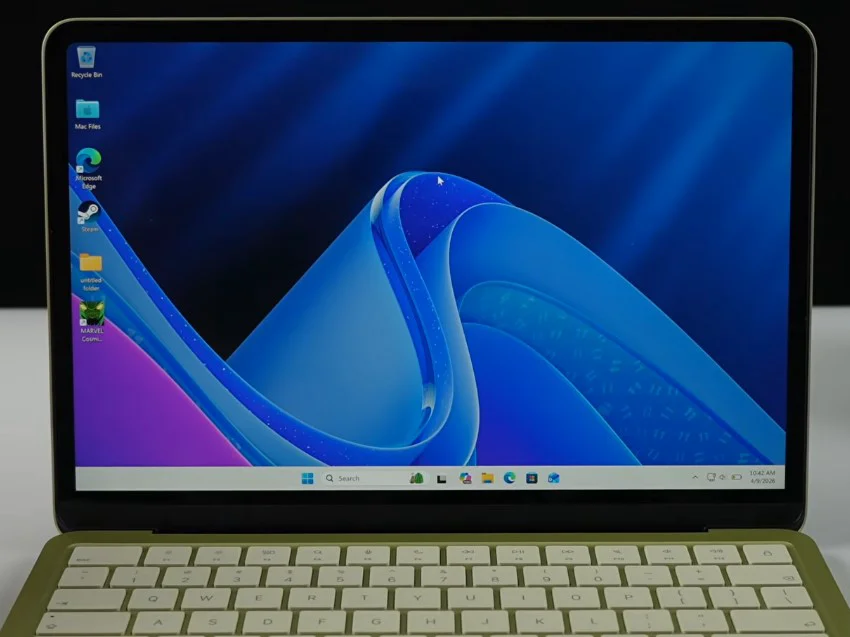
After testing, I settled on Parallels Desktop. It automatically handles the download and deployment of Windows 11 ARM, making the setup nearly effortless and incredibly smooth.
Official Windows 11 ARM ISO (if you prefer a manual install): https://www.microsoft.com/en-us/software-download/windows11arm64
How to Get Set Up (Parallels Walkthrough)
- Download and install Parallels Desktop. Start the 14-day trial.
- The app will automatically download the Windows 11 ARM image for you.
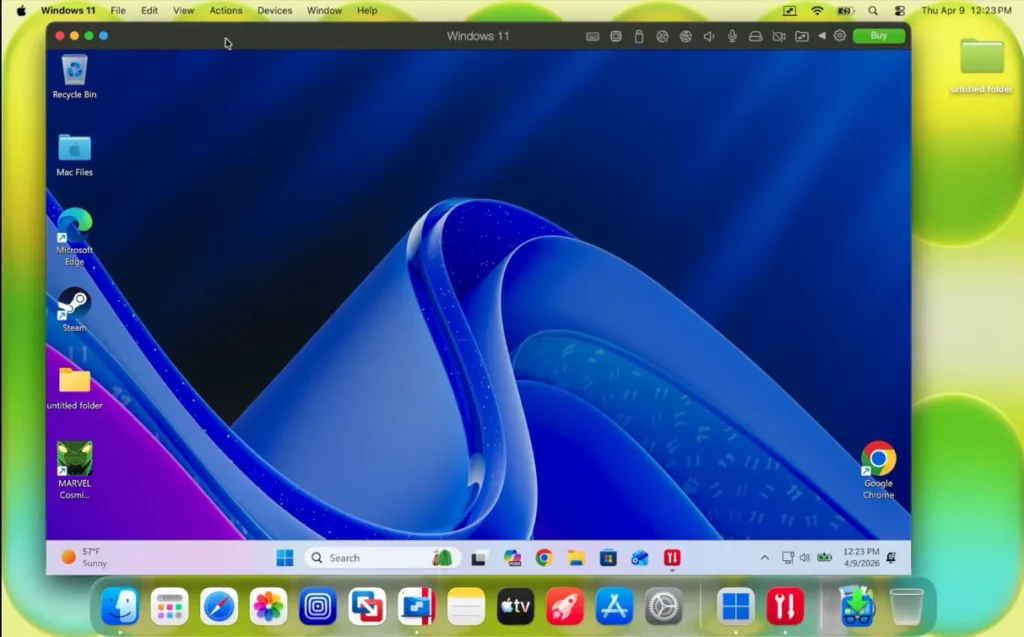
- Once installed, I recommend tweaking the resource allocation for best performance:
- CPU: 4 cores (Out of the total 6 available on the MacBook Neo)
- Memory: 4GB is recommended; I pushed it to 5GB for my tests, but that’s really pushing the hardware limits.
Once you’re up and running, there are two modes:
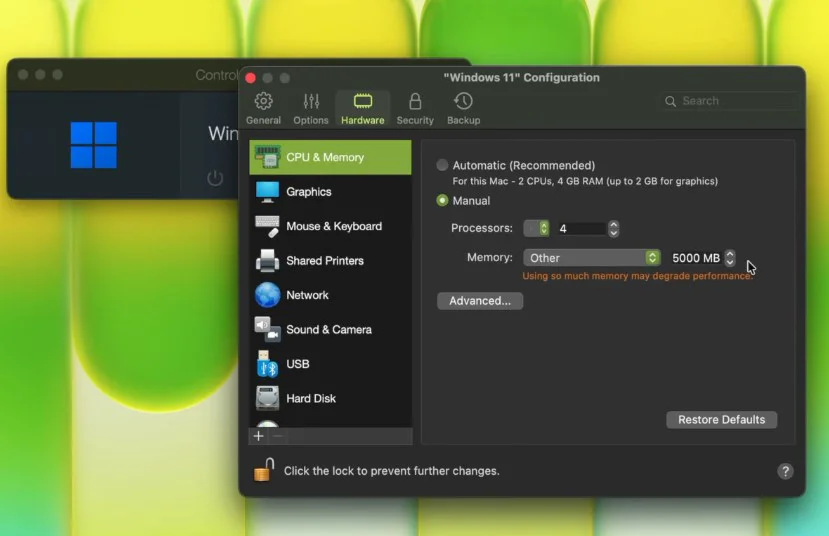
- Full-Screen Mode: Provides a traditional, dedicated Windows laptop experience.
- Coherence Mode (The star of the show): Runs Windows apps directly alongside your macOS apps, complete with taskbar integration. It’s practically seamless.
Checking the Task Manager shows 4 cores and 5GB of RAM in use, with the Parallels graphics driver providing full 3D hardware acceleration.
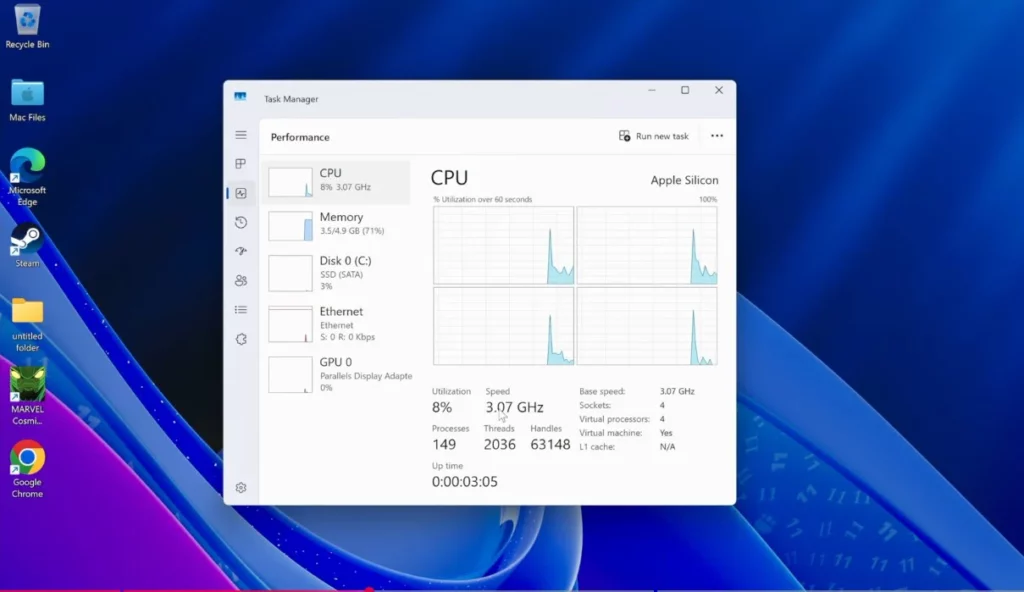
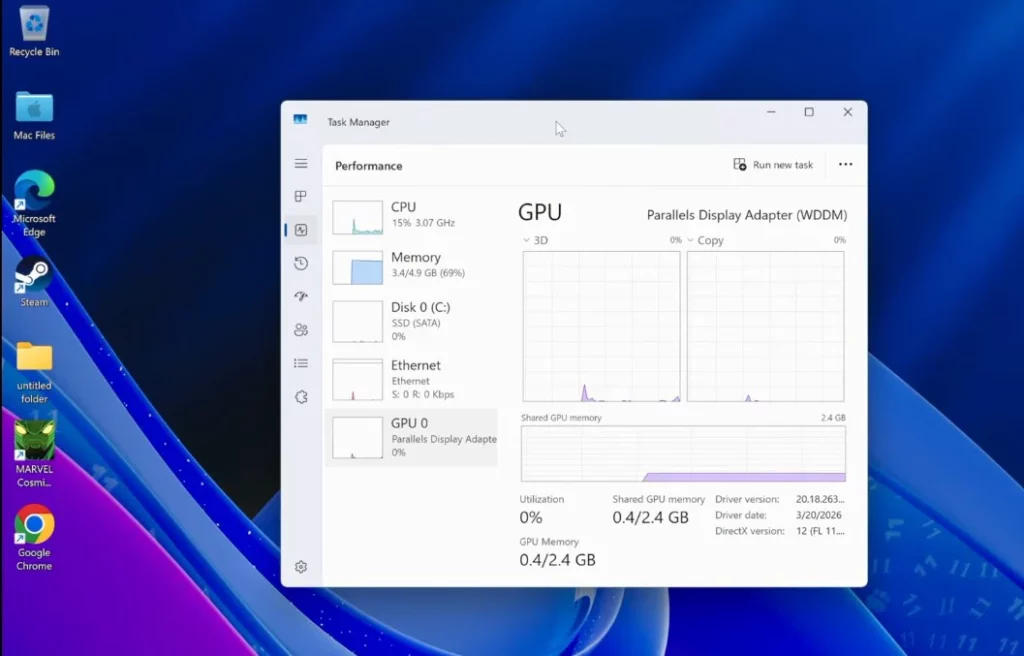
Browsing, using Chrome, and even running AI-assisted tools like Copilot felt incredibly fluid. It’s so seamless that if you didn’t know it was a VM, you’d swear it was a native Windows machine.
Gaming Benchmarks: Light vs. Heavy
I set this up primarily to scratch that gaming itch. Here’s what I found:
Decent Performance for Older/Lighter Titles:
- Marvel Cosmic Invasion: Full-screen, smooth, no lag.
- Dirt 3: High settings yielded 70-100+ FPS (easily over 100 on medium).
- Portal 2: Solid 200+ FPS on medium settings.
- Original Skyrim: Stable on medium settings with only minor frame drops.

The Heavy Hitters:
- GTA 5: Performance was lackluster, even when bumping up to 6 cores and adding RAM.
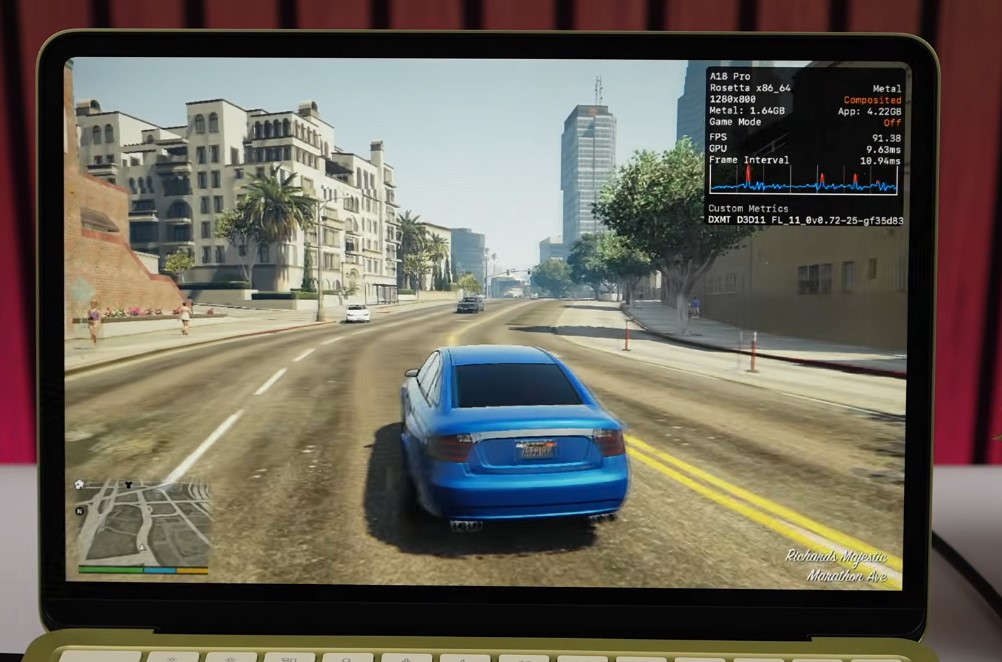
Important Note: With only 8GB of total memory, you are hitting a wall. Heavy 3A titles (like Cyberpunk 2077) simply won’t run well here. Use tools like CrossOver for native Mac-compatible gaming instead—it will perform significantly better.
Professional Software Compatibility
Yes, it works! As long as you aren’t running resource-heavy engineering simulations, programs like AutoCAD and SolidWorks run fine via Parallels. Enterprise applications like SAP also perform perfectly.
Verdict: Is it worth it?
Absolutely, but it depends on your use case.
- The Yes: You occasionally need Windows-exclusive utilities, classic titles, or light games.
- The No: You intend to use it as a dedicated 3A gaming rig or for professional, heavy-duty 3D rendering.
In short: The MacBook Neo + Parallels + Windows 11 ARM combo is better than you think. It merges the elegance of macOS with the compatibility of Windows, perfect for the minimalist who wants one laptop to rule them all.
FAQ
1. Can I natively dual-boot Windows 11 on the MacBook Neo?
No. Because it’s an Apple Silicon (ARM) machine, you cannot install Windows as a native boot system. You must use a virtualization tool like Parallels, UTM, or VMware.
2. Is 8GB of RAM enough to run Windows 11 smoothly?
For daily office tasks, web browsing, and casual gaming? Yes. For intensive software or high-end games? No, you’ll hit memory bottlenecks. 4GB allocated to the VM is the sweet spot.
3. Which virtualization tool is the best?
Parallels Desktop is the best for daily productivity and “Coherence” mode. UTM is free and great for Linux/light tasks. VMware Fusion is free for personal use and a solid alternative. I’d personally stick with Parallels.