Many users still install NVIDIA drivers the old-fashioned way: downloading GeForce Experience and clicking install. But over time, you might notice unexplained stuttering, frame drops, or high input latency without knowing exactly where the problem lies.
In this guide, I’ll walk you through a truly clean installation of your NVIDIA drivers and show you how to tweak the Control Panel for maximum performance. Once you’re done, you’ll see a noticeable boost in smoothness, higher frame rates, and much more responsive controls.
1. Freeze the Old Cache to Stop Driver Conflicts
Before performing a clean install, we need to disable the shader cache so it doesn’t keep generating junk files in the background while you’re trying to clean up.
- Right-click on your desktop and open NVIDIA Control Panel.
- Click on Manage 3D Settings on the left (ensure you are on the Global Settings tab).
- Scroll down until you find Shader Cache Size, then set it to Disabled.
- Click Apply in the bottom right corner.
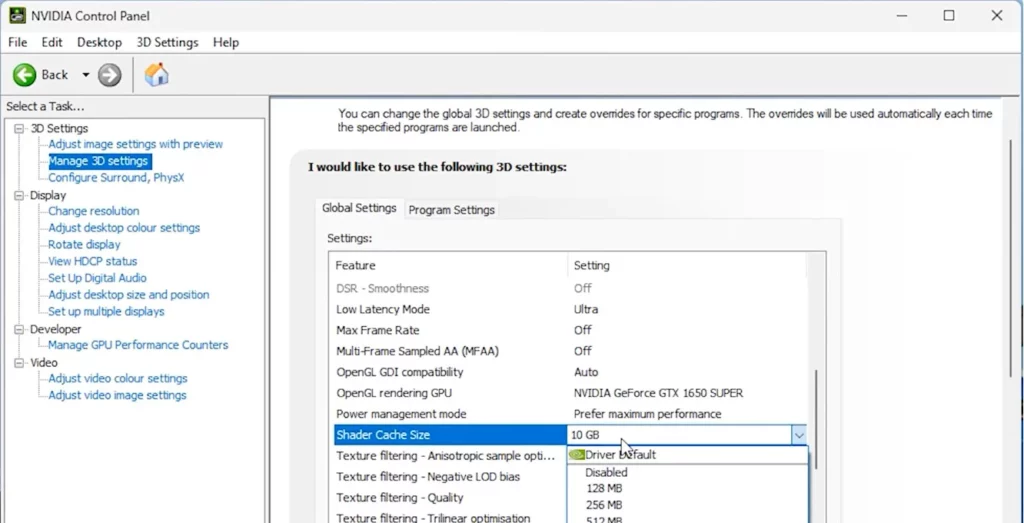
This is like cutting power to the workshop before cleaning it, preventing the system from cluttering while you’re trying to sweep.
2. Thoroughly Remove Old Shader Cache Files
Press Win + R, paste the following command, and hit Enter:
%localappdata%Once the folder opens, perform these steps:
- Navigate to the NVIDIA folder:
- Open DXCache → Select all (Ctrl + A) → Delete.
- Back in the NVIDIA folder, open GLCache → Select all and delete.
- Back in the %localappdata% root directory:
- Locate the D3DCache folder → Right-click and delete the entire folder.
If you get a notification saying a file is in use, just skip it—those are active processes, and it’s fine to leave them behind.
3. Perform a Real Clean Install with NVCleanstall (The Critical Step)
Standard installers pack in unnecessary bloatware. We’ll use a specialized tool to strip it down.
Official NVCleanstall Download: https://www.techpowerup.com/download/techpowerup-nvcleanstall/
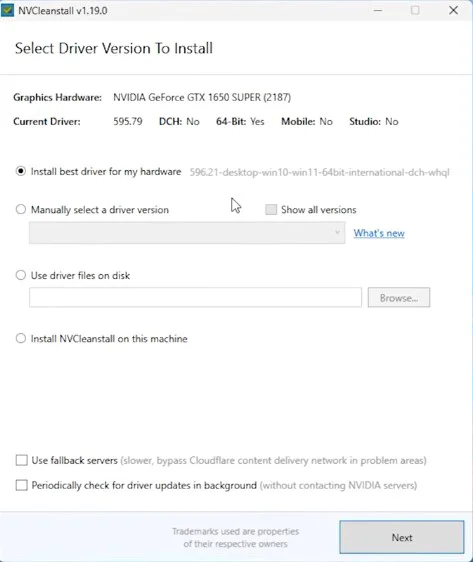
After installing and opening the tool:
- It will detect your GPU; select the latest Recommended driver version and click Next.
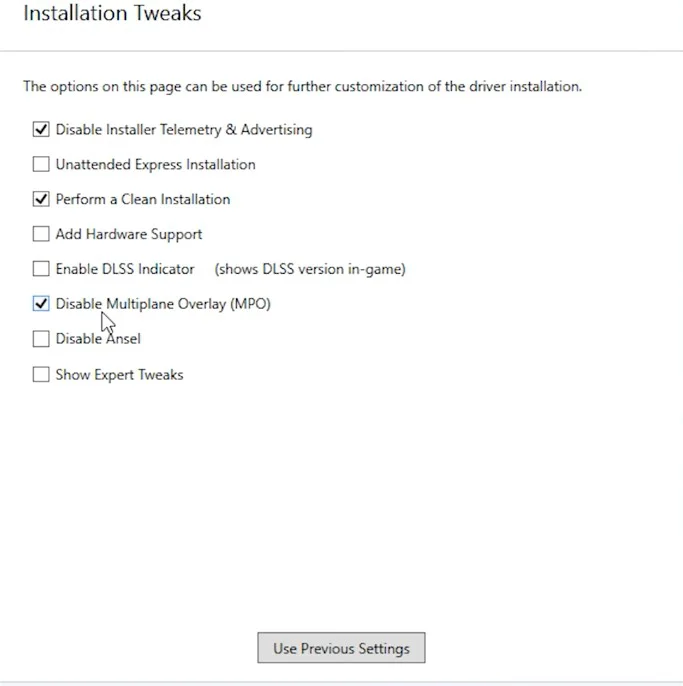
- On the options page, enable the following (highly recommended):
- Disable installer telemetry and advertising
- Perform a clean installation
- Disable Multiplane Overlay (MPO) (Fixes flickering, stuttering, and frame time instability)
- Disable Ansel (Removes the rarely-used screenshot utility)
- Click Show expert tweaks, then enable:
- Disable driver telemetry
- Enable Message Signaled Interrupts (MSI) (Reduces latency between GPU and CPU)
- Click Next to launch the official NVIDIA installer.
- Select Custom (Advanced) → Next.
- Most Important: Keep ONLY the following two, uncheck everything else!
- ✅ Graphics Driver
- ✅ PhysX System Software (Required for many games)
- ❌ Uncheck HD Audio Driver (unless using your monitor for sound)
- Uncheck everything else like GeForce Experience, 3D Vision, and ShadowPlay.
Proceed with the installation and restart your system.
4. Post-Installation: Optimizing NVIDIA Control Panel
After rebooting, go back to NVIDIA Control Panel → Manage 3D Settings (Global Settings) and configure the following:
- Low Latency Mode → Ultra (Prioritizes low input lag).
- Power management mode → Prefer maximum performance.
- Texture filtering – Quality → High performance.
- Shader Cache Size → Unlimited (Re-enable this now for smoother gameplay).
- Vertical Sync → Off (To avoid input delay caused by frame locking).
Click Apply to save.
Summary: Done Once, Benefit Forever
Following this clean installation and optimization workflow, you can expect:
- Steadier frame times and fewer stutters.
- A 5-15% increase in average FPS (game dependent).
- Lower input latency for more responsive gaming.
- A cleaner system with better thermal and power efficiency.
Frequently Asked Questions (FAQ)
Q1: Is NVCleanstall safe? Will it break my drivers?
A: Completely safe. It’s a standard utility for enthusiasts to strip bloatware from official NVIDIA packages. Always download from the official TechPowerUp site.
Q2: Do I need to do this for every driver update?
A: It’s recommended for major version updates. For smaller hotfixes, a simple “Perform a clean installation” within the tool is enough.
Q3: Will games stutter the first time I run them after clearing the cache?
A: Yes. It will recompile the shaders, which may cause a few seconds of stutter. After that (usually 10-30 minutes of gameplay), it will be smoother than ever.