You’ve invested in the Ray-Ban Meta Gen 2 smart glasses, but are you dealing with mediocre battery life, privacy concerns, or just plain tired of shouting “Hey Meta” every five minutes? Don’t sweat it. Today, I’m breaking down the 10 essential settings to optimize your hardware. Dial these in, and your glasses will be smarter, more efficient, and way more secure.
1. Image and Video Optimization (Don’t just set the resolution!)
Open the Meta View App → Media → Video Settings.
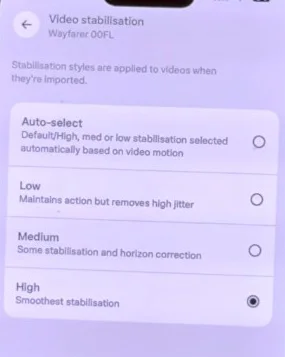
- Crank your video length and resolution to the max (up to 3K).
- Video Stabilization is a must. If you like filming on the go or while active, this makes a world of difference in reducing shake.
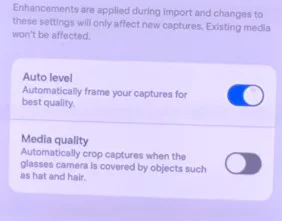
- Head back to Capture Enhancement and toggle on Auto Framing and Crop Obstructions.
The benefit: The glasses automatically frame your shots and crop out annoying visual interference like stray hair or the brim of your hat, giving your content a much cleaner, more professional look.
2. AI Wake-Up Upgrades (Stop saying “Hey Meta” constantly)
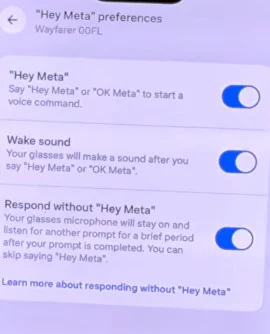
Path: Meta AI tab → Hey Meta Preferences
- Turn on Wake Sound: You’ll get an audible chime confirming the glasses are listening.
- Enable Response without Hey Meta: Once you’ve initiated the first command, subsequent follow-up questions won’t require the wake word.
The Pro Trick (Under Customize Controls):
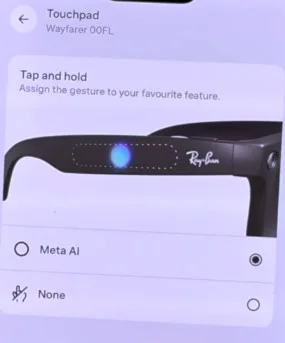
- Tap Touchpad → Enable Meta AI.
- Now, simply long-press the side touchpad, and you can chat with Meta AI instantly—no voice required!
3. Personalize Voice and Language
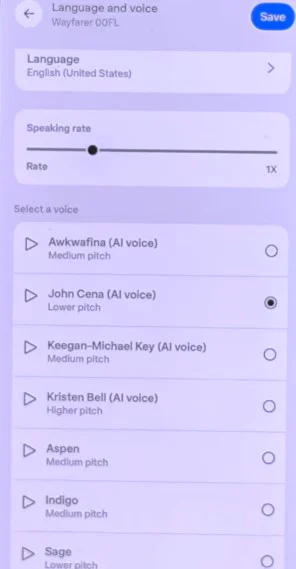
In the Meta AI settings, you can select your preferred language. Changing the voice persona is fun, too—there’s even a John Cena option available.
- Speaking Rate: I personally max this out to save time while getting info.
4. Battery Saver Mode (The longevity hack)
Once Battery Safe Mode is enabled, voice wake-up will automatically deactivate when the battery drops below 75%. Since you’ve already configured the touchpad activation, this is a no-brainer for squeezing out extra hours of juice.
5. Integrate Third-Party Apps
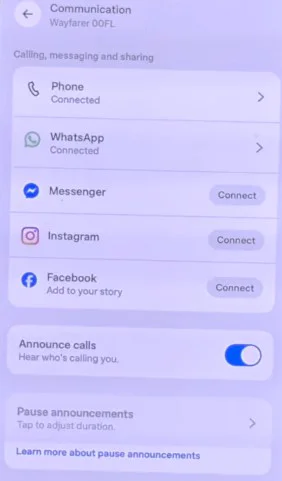
- Communication tab: Link WhatsApp, your phone contacts, and social accounts. Enable Message Announcements to have notifications read directly to your ears.
- Applications tab: Keep an eye here to connect music, fitness, and health apps as they update.
6. Wear Detection (The simplest battery saver)
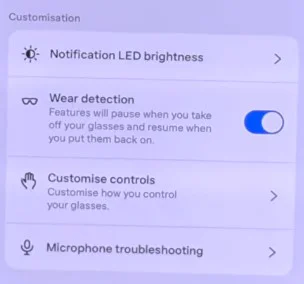
Ensure Wear Detection is active. It forces the glasses into deep sleep the moment you take them off, preventing standby power drain.
7. Lens Upgrades (Third-party recommendations)
Original Meta optical lenses are pricey. I highly recommend checking out VR Wave or similar third-party vendors:
- Cost is often half of the official store.
- More style options with anti-glare and blue light filtering.
- Fully compatible with Skyler and Headliner frames.
(Website: https://www.vr-wave.store)
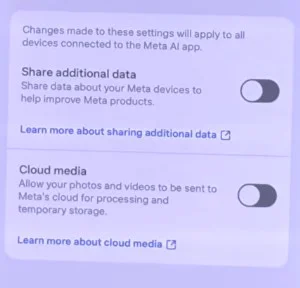
8. Privacy Hardening (Crucial! Default settings share too much)
Go to the Privacy tab:
- Disable Share Additional Data.
- Disable Cloud Media.
This ensures your captures remain local to your phone and glasses rather than syncing to Meta’s servers.
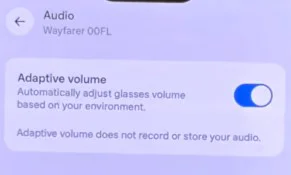
9. Adaptive Volume
Found in Audio settings. It boosts volume in noisy environments, which is great for calls. However, it can occasionally dip music volume unexpectedly—test it out and see if it works for your use case.
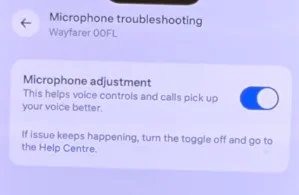
10. Microphone Optimization
Enable Microphone Troubleshooting. It significantly improves clarity for voice commands and phone calls. It’s widely considered a “must-enable” feature.
3 Bonus Features Worth Checking Out
Bonus 1: Find My Devices – Locate your glasses if you misplace them (requires a charge).
Bonus 2: My Eyes – A Meta AI accessibility feature that describes your surroundings in real-time.
Bonus 3: Detailed Response – Forces Meta AI to give more descriptive answers about your environment.

Once you’ve tuned these settings, your Ray-Ban Meta Gen 2 will feel like a completely different device—longer battery life, improved privacy, and a much smoother daily experience.
3 FAQs
Q1: What are the top settings I should change first?
A: Prioritize Wear Detection, your Privacy settings, and enabling Touchpad wake-up for Meta AI.
Q2: Will Battery Saver Mode ruin my voice commands?
A: It requires at least 75% battery for voice wake-up, but using the touchpad shortcut makes this limitation a non-issue while extending your battery life significantly.
Q3: Are third-party lenses actually any good?
A: Absolutely. Brands like VR Wave offer half-price alternatives with better color options and functionality compared to the standard OEM lenses.