A deployment guide that turns Qwen3-TTS into a local API server on your Windows machine — permanent free access, zero latency, total privacy. Hook it into content automation workflows to generate professional podcasts for every article you write. Built for creators automating audio production who want high-quality AI voices without cloud fees or data leaving their machine.
Why Deploy Qwen3-TTS Locally?
In the age of automated content creation, having your own dedicated AI voice engine is a game-changer. Deploying Qwen3-TTS locally means permanent free access, zero latency, and absolute data privacy. More importantly, it turns your machine into a local API server. You can hook it into your content automation workflows to generate high-quality, professional podcasts for every article, significantly leveling up your production quality.
However, due to fragmented network environments and hardware differences, local deployment often comes with a series of cryptic errors. This guide will help you clear every hurdle in one go.
GitHub Repository: https://github.com/QwenLM/Qwen3-TTS
Official Overview: https://qwen.ai/blog?id=qwen3tts-0115
Troubleshooting Guide: The 4 Most Common Pitfalls
After running pip install -r requirements.txt, launching the WebUI often triggers a chain of errors. Here is your battle-tested survival guide:
1. Dependency Conflict: ImportError: huggingface-hub
Issue: Launching fails because transformers requires a specific, older version of huggingface-hub (usually <1.0), but the system installed the latest 1.8.0 version. Solution: Force a downgrade in your virtual environment (venv):
Bash
pip install huggingface_hub==0.36.22. Network Blocks: SSLEOFError and 500 Internal Server Error
Issue: When the app tries to pull GBs of model weights (like model.safetensors) from Hugging Face or ModelScope, downloads stall due to SSL handshake failures or connection timeouts. Ultimate Solution (Manual Download + Directory Symlinking): Bypass the auto-downloader. Download manually, then use Windows symlinks to “trick” the app into thinking the files are inside the project folder.
Step 1: Download via ModelScope
Bash
modelscope download --model Qwen/Qwen3-TTS-12Hz-1.7B-Base
modelscope download --model Qwen/Qwen3-TTS-12Hz-1.7B-VoiceDesign
modelscope download --model Qwen/Qwen3-TTS-12Hz-1.7B-CustomVoiceStep 2: Organize Files Locate the models in C:\Users\YourUsername\.cache\modelscope\hub\models\Qwen\. If folder names contain ___ (a minor Windows bug), rename them to standard format (e.g., Qwen3-TTS-12Hz-1.7B-Base). For disk efficiency, I recommend moving these to a secondary drive (e.g., D:\Qwen3-TTS-Models\).
Step 3: Create Junctions Use CMD to link the models into your project root:
DOS
mkdir Qwen
mklink /J "Qwen\Qwen3-TTS-12Hz-1.7B-Base" "D:\Qwen3-TTS-Models\Qwen3-TTS-12Hz-1.7B-Base"
mklink /J "Qwen\Qwen3-TTS-12Hz-1.7B-VoiceDesign" "D:\Qwen3-TTS-Models\Qwen3-TTS-12Hz-1.7B-VoiceDesign"
mklink /J "Qwen\Qwen3-TTS-12Hz-1.7B-CustomVoice" "D:\Qwen3-TTS-Models\Qwen3-TTS-12Hz-1.7B-CustomVoice"3. Slow Generation: torch.cuda.is_available() == False
Issue: The UI loads, but generating audio takes forever, or the console shows unknown error. This is because pip often installs the CPU-only version of PyTorch. Solution: Uninstall the lightweight version and install the full 2.5GB CUDA-accelerated build.
Bash
# Uninstall CPU version
pip uninstall torch torchvision torchaudio -y

# Install CUDA 12.1 accelerated PyTorch
pip install torch torchvision torchaudio --index-url https://mirror.sjtu.edu.cn/pytorch-wheels/cu1214. LAN Access: Windows Firewall
Issue: The app is running with --host 0.0.0.0, but other devices on your network can’t access IP:8080. Solution: Open Windows Defender Firewall -> Advanced Settings -> Inbound Rules -> New Rule, and allow TCP port 8080.
Simplified Deployment: Create a One-Click Launcher
Stop typing commands manually. Create a .bat file on your desktop and name it Launch-TTS.bat:
DOS
@echo off
:: Force UTF-8 encoding
chcp 65001 >nul
title Qwen3-TTS Voice Station
color 0A
echo =========================================
echo    🚀 Launching Qwen3-TTS Service...
echo    🌐 Access at: http://127.0.0.1:8080
echo    📱 LAN access: http://Your-Local-IP:8080
echo    ⚠️ Warning: Do not click inside this window to avoid pausing the process!
echo =========================================

:: Set your project path
D:
cd D:\qwen-tts-webui

:: Set mirror for missing config files
set HF_ENDPOINT=https://hf-mirror.com

:: Activate venv and run
call venv\Scripts\activate
qwen-tts-webui --port 8080 --host 0.0.0.0

pause💡 Pro Tip: Never click inside the command prompt window! Clicking triggers Windows “Quick Edit Mode,” which freezes execution until you press Enter.
Final Thoughts
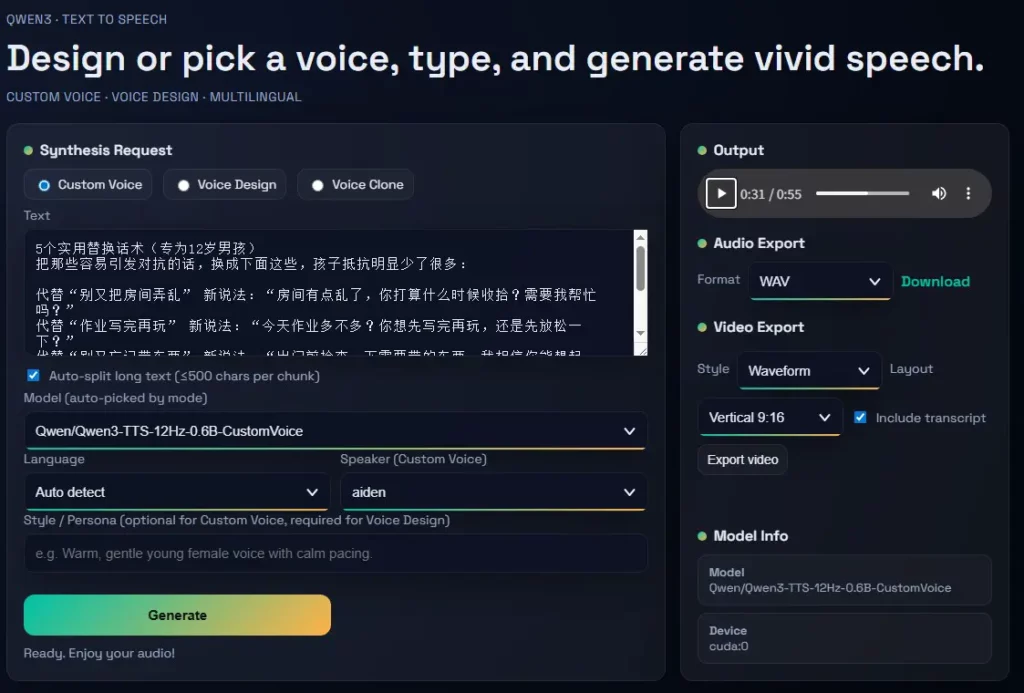
You now have a high-performance, offline-capable Qwen3-TTS engine running on your local hardware. Use the Style / Persona field for precise control (e.g., “A professional male voice, perfectly suited for a tech tutorial”) and save your favorite voices as .pt profiles for future projects.
FAQ
How much VRAM is needed? What if I get CUDA error: unknown error?
Answer: You need at least 6GB of VRAM (8GB+ recommended). If you get a CUDA error: unknown error, your GPU is likely out of memory. Close other AI tools like ComfyUI or Stable Diffusion before running the TTS engine. If you have 4GB VRAM, switch to the 0.6B model.
How do I save my favorite AI voices?
Answer: In the WebUI, once you’ve generated a voice you love, enter a name (e.g., tech_voice.pt) in the Save current designed voice as profile (.pt) field. Loading this file later ensures 100% voice consistency across all your videos and podcasts.
I downloaded the models, why do I still get Could not load metadata errors?
Answer: You are likely missing small metadata files (like .index.json). Keep the HF_ENDPOINT mirror active in your script and run the WebUI. It will automatically detect and download the missing few-KB config files. Once they are fetched, you can safely go fully offline.