
In 2026, AMD’s Precision Boost Overdrive (PBO) remains the ultimate “free performance” tool for your rig. When paired with Curve Optimizer undervolting, it turns your Ryzen CPU into a cooler, faster, and more durable powerhouse.
Whether you’re running Zen 3, Zen 4, or the latest Zen 5 (including all X3D variants), this guide has you covered. Follow these steps to boost multi-core performance by up to 12%, drop your average temperatures by 8°C, and shave 20W off your power draw. You’ll pull your voltage down from over 1.3V to a more efficient 1.2V, significantly reducing the voltage spikes that can degrade your silicon over time.
The Problem: Why does my Ryzen run hot and throttle?
- Default voltage is often aggressive, frequently hitting 1.35V or higher.
- Heavy loads trigger high temperatures, leading to thermal throttling and performance loss.
- Chronic high voltage accelerates CPU degradation; a single massive voltage spike can even kill a chip.
- Manual overclocking is a headache, and constant BIOS reboots are exhausting.
PBO + Curve Optimizer solves these issues by letting your CPU reach higher clock speeds at lower voltages—truly the best of both worlds.
Preparation (5-Minute Setup) — Official Links
Before jumping into the BIOS, grab these essential (and free) tools:
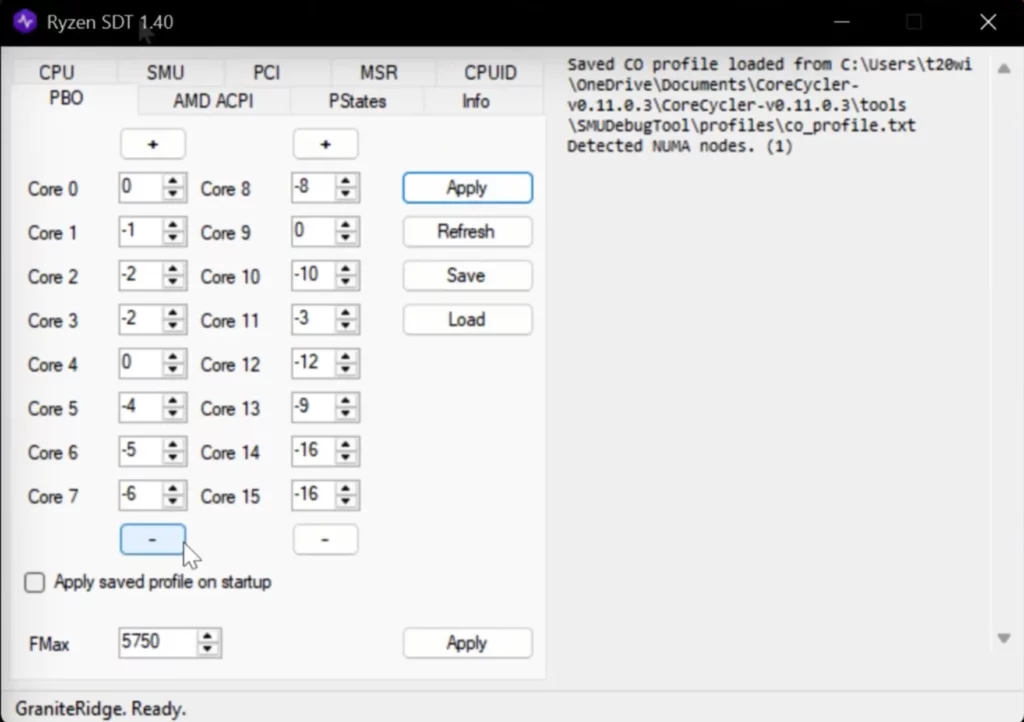
- SMU Debug Tool (The gold standard! Tune Curve Optimizer from within Windows without constant reboots) → Download the latest version (v1.40+) via official GitHub: https://github.com/irusanov/SMUDebugTool/releases/latest
- Cinebench R23 (Heavy-duty stress testing) → Official Download (Maxon / Archive): https://cinebench.net/download/ or https://installer.maxon.net/cinebench/CinebenchR23.zip
- Core Cycler (The ultimate tool for per-core stability testing) → Official GitHub: https://github.com/sp00n/corecycler/releases/latest
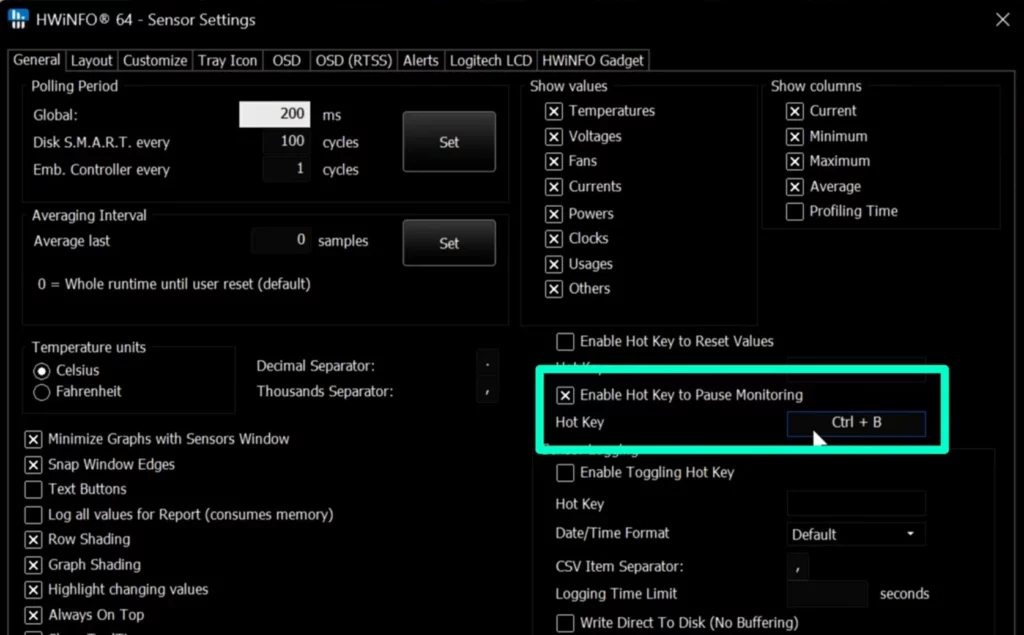
- HWInfo64 (Monitor voltages in real-time—aim to keep them below 1.35V for 99% of usage) → Official download page (Installer/Portable): https://www.hwinfo.com/download/
Important Warning: If you are using an ASUS or ASRock motherboard, ensure your BIOS is fully up to date! Older versions have been known to cause critical voltage issues that could potentially damage Ryzen CPUs, especially X3D models.
Step 1: Basic BIOS PBO Settings
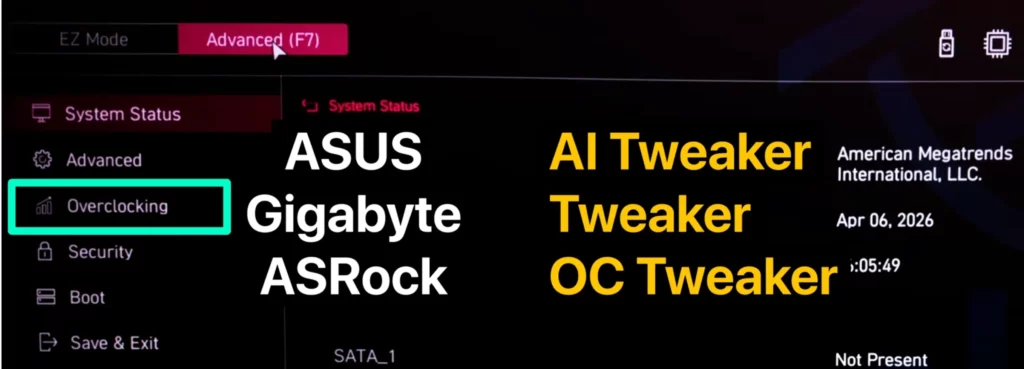
- Enter BIOS and switch to Advanced mode.
- Navigate to Overclocking / Tweaker → Advanced CPU Configuration → AMD Overclocking.
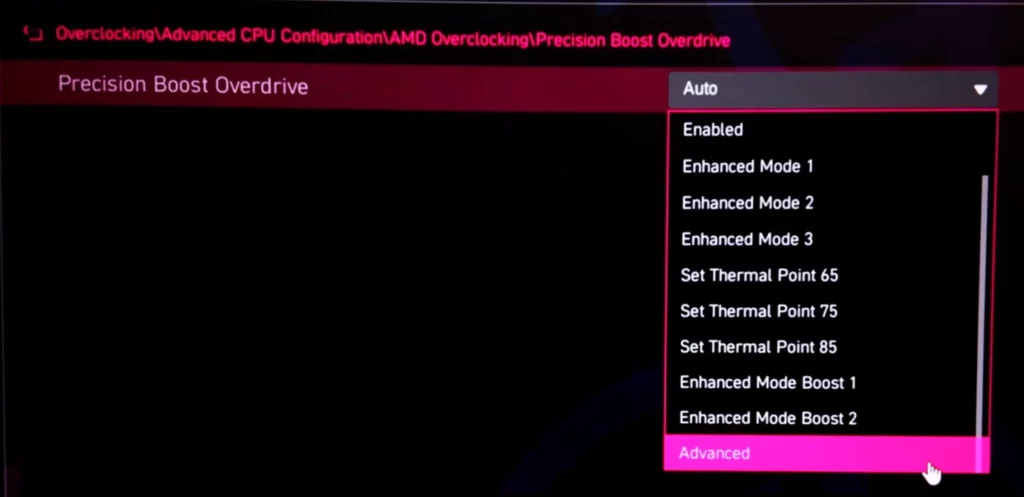
- Set Precision Boost Overdrive to Advanced.
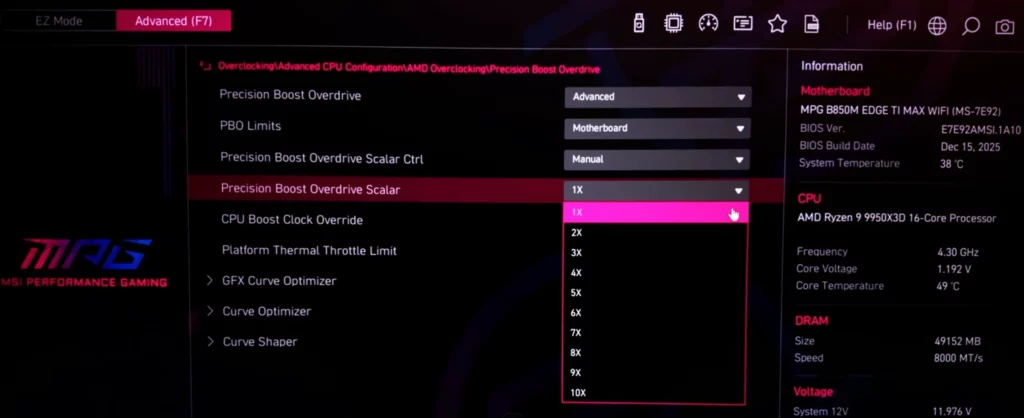
Configure the following settings:
- PBO Limits → Motherboard (Lets the board leverage the full capacity of your VRMs).
- PBO Scalar Control → 10x (Enable if you have high-end cooling for an extra 10% multi-core boost; use 1x~3x for standard cooling).
- CPU Boost Clock Override → Positive 200MHz (Good for standard CPUs; skip this on factory-overclocked chips like the 9850X3D / 9950X3D to avoid excessive voltage).
- Platform Thermal Throttling Limit → Default 95℃ (No changes needed).
Pro-Tip: Zen 3 / Zen 4 X3D processors do not support additional frequency overclocking; the Boost Override setting will have no effect here.
Step 2: Curve Optimizer Undervolting (The Core Process)
This is the secret sauce for making your CPU both faster and cooler.
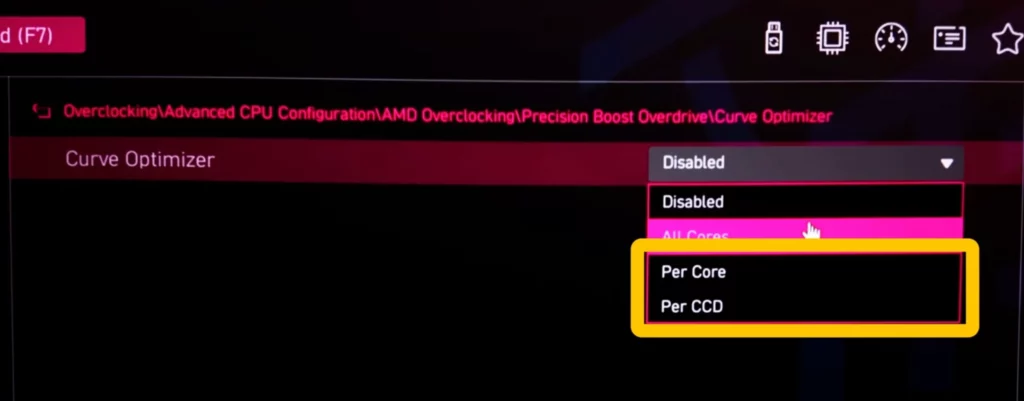
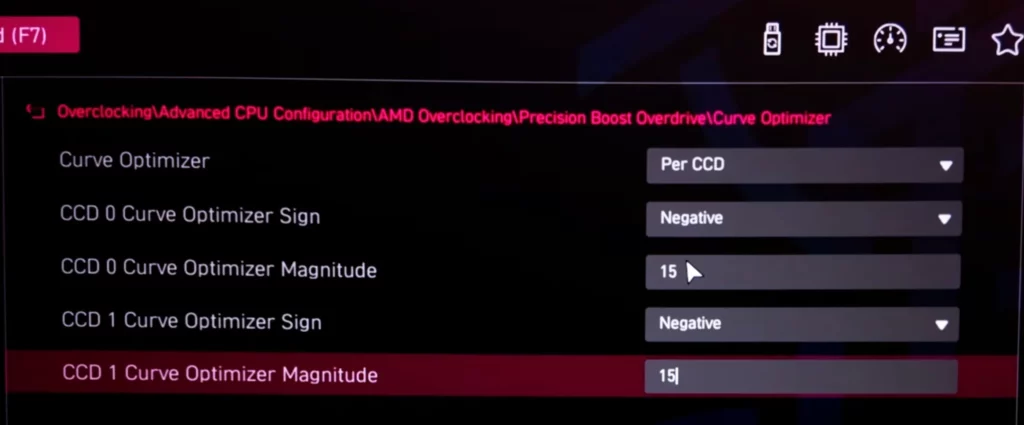
Start with Per CCD Undervolting (Quick and effective, 90% of the gains)
- Set Curve Optimizer to Negative.
- Start with a Magnitude of -15 for all CCDs (don’t push -30 immediately; it’s likely to be unstable).
- Save, exit, and reboot into Windows.
Stability Test Loop:
- Open SMU Debug Tool and confirm your settings are applied.
- Run Cinebench R23 Multi-Core (Enable Advanced Benchmark).
- If stable → Increase the negative magnitude by 2 (e.g., -15 → -17).
- If unstable/crashes → Dial back to your last known stable value.
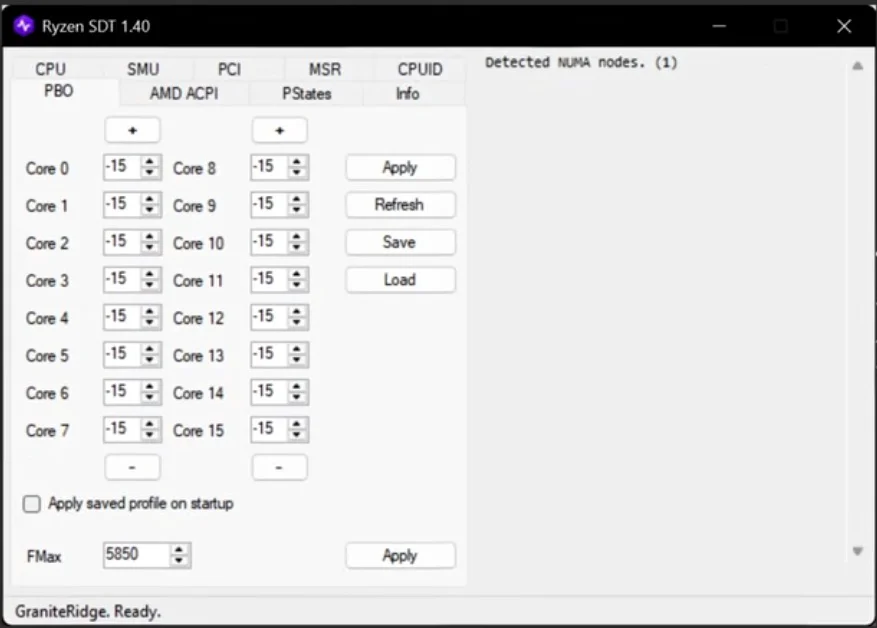
For dual-CCD CPUs, tune each CCD individually to find their respective limits.
For Enthusiasts: Per Core Undervolting (Advanced)
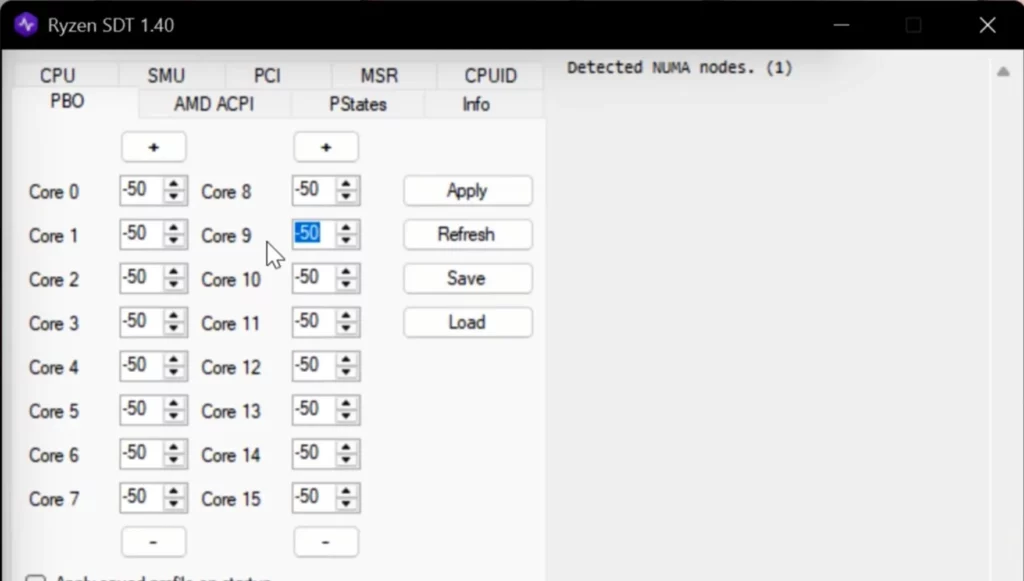
- Use SMU Debug Tool to lock all cores to a fixed frequency (5GHz for Zen 5, 4.5GHz for Zen 4, 4GHz for Zen 3).
- Set all cores to -50 (or -40 / -30 if unstable).
- Disable Processor Idle in Windows power plans to prevent deep sleep interference.
- Use HWInfo64 to identify your best-performing cores (Ranking Test #1); set their magnitude to 0 as a reference voltage.
- Systematically set other cores to 0 and gradually adjust until their voltage matches your reference core.
- Reboot to clear the fixed frequency settings.
- Apply the final values in SMU, decrease by 2, and run Cinebench.
- Use Core Cycler to verify stability for each core for at least 6 minutes.
Note: Reboot after each iteration to prevent SMU setting leftovers.
Step 3: Fix Idle Freezes (Curve Shaper + C-States)
- Search for Curve Shaper in your BIOS. Populate the values based on your final stable Curve Optimizer offset.
- Find Global C-States Control and set it to Disable.

Why disable C-States? During deep sleep, the CPU drops voltage significantly. Waking up from this state can cause stability issues if the power delivery can’t ramp up fast enough. Disabling it slightly increases idle power draw but permanently resolves random idle freezes.
Final Testing & Tweaking
- Run Core Cycler for an all-core stress test; if you hit an error, increment the failing core’s value by +1.
- Once fully stable, save your settings to a BIOS profile.
How much performance do you actually gain?
Real-world testing (using a 9950X3D):
- Single-Core: Improved by ~1.5%~1.9%.
- Multi-Core (Cinebench R23): Per CCD undervolting yields a 9.7% boost; Per Core can hit 12.3%.
- Temperature: Average reduction of 8°C.
- Power: Roughly 20W lower power consumption.
- Voltage: Drops from >1.3V frequently to ~1.2V, significantly extending hardware longevity.
While the 1% low gains in gaming aren’t earth-shattering, the lower temperatures and quieter fans make for a vastly superior user experience.
The bottom line: Undervolting isn’t just about benchmarks—it’s about protecting your investment. Keeping your Ryzen running below 1.4V significantly prevents degradation, ensuring your chip lasts for years to come.

3 Common FAQs
Q1: What’s the difference between Per CCD and Per Core undervolting?
A: Per CCD is quick and simple, capturing about 90% of the potential gains. Per Core is more time-consuming but squeezes out that last 2~3% of performance. Start with Per CCD.
Q2: Can undervolting damage my CPU?
A: Quite the opposite. Correct undervolting lowers voltage and heat, actually protecting your CPU. The key is thorough stability testing—don’t be overly aggressive with your negative offsets.
Q3: Can I do this on X3D processors?
A: Absolutely! Just use more conservative values (keep the Scalar low and skip Boost Override) and focus on keeping that voltage under control.