Are you feeling the sting of modern gaming optimization? Even with a capable card like the RTX 3060 12GB, dropping below 60fps at 1440p in 2026 releases is becoming the norm, and sometimes even DLSS Balanced isn’t enough to save your frame rates. Before you drop hundreds on a 40-series or 50-series card, there is a genius, budget-friendly workaround: using Lossless Scaling to offload frame generation to a cheap, secondary GPU. By dedicating a low-end card to the heavy lifting of frame interpolation while your primary GPU focuses solely on rendering, you can see your frame rates double or even triple, delivering buttery-smooth gameplay for the price of a takeout meal.
Today, we are putting this “mad scientist” configuration to the test to see if it’s truly worth filling that empty PCIe slot in your rig.
The Pain Point: Why Mid-Range Cards Are Struggling
New AAA titles are increasingly unoptimized. Take Borderlands 4, for instance; the 3060 often dips below 50fps at 1440p/Medium settings, which ruins the immersion.
Heavy hitters like Cyberpunk 2077 barely scrape 40-50fps even with Ultra settings and DLSS Quality. Achieving a solid 60fps+ feels like a pipe dream.
NVIDIA’s DLSS 3 Frame Generation is incredibly impressive, but it is locked to the 40-series and up, leaving older or mid-range card owners out in the cold.
Using software-based frame generation on a single GPU often steals precious performance from the primary card, actually making the experience stutter more.
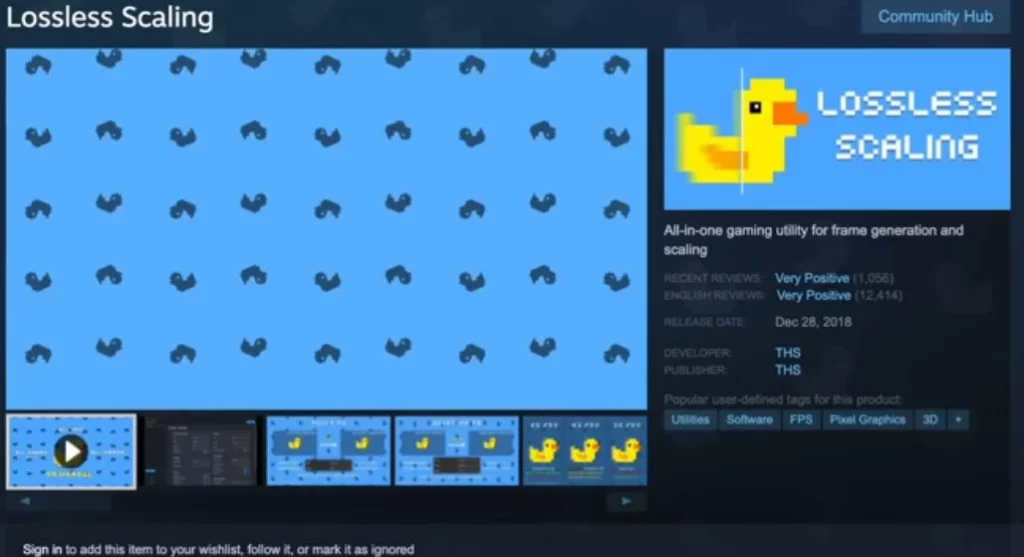
Lossless Scaling (available for just $7 on Steam) is a powerful utility that adds frame generation (LSFG) and resolution scaling to virtually any game. The secret sauce? It allows you to completely offload the frame generation task to a secondary GPU.
Think of it like a professional kitchen:
Your primary GPU (RTX 3060) is the Head Chef, focusing entirely on cooking (rendering the game).
The secondary GPU (like an Arc A380) is the server, handling the logistics of getting the food out (generating the intermediate frames), meaning the chef never has to slow down.
The result: almost zero performance penalty on the main card, with frame rates doubling or tripling, all with imperceptible latency in single-player titles.
My Test Setup & Why I Chose the Intel Arc A380
CPU: Intel i5-11400F
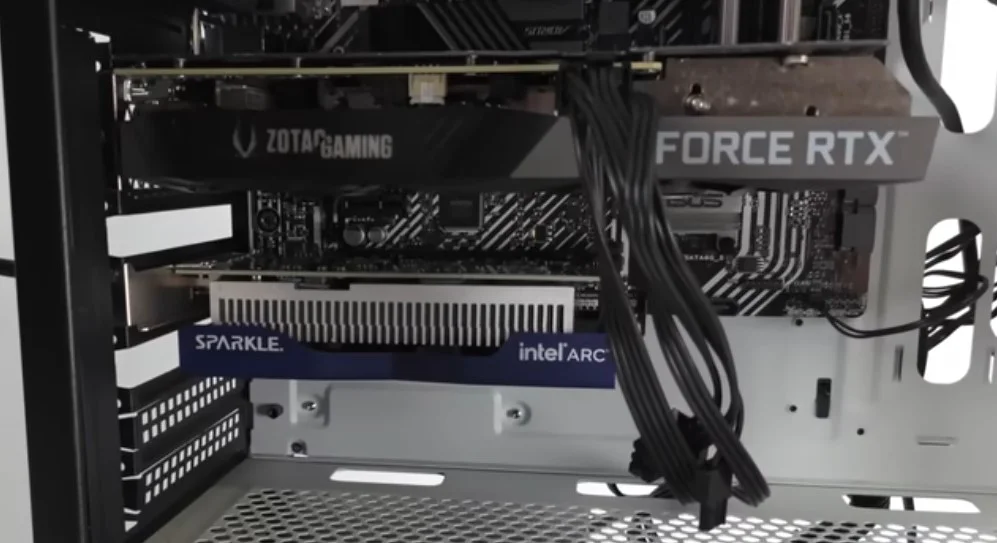
Primary GPU: RTX 3060 12GB
Secondary GPU: Intel Arc A380 6GB (Low-profile version, no external power required—easily found for $30-$50 on the used market)
Display Output: Must be plugged into the A380!
Why the A380? It’s low power (30-40W), has enough VRAM for frame interpolation, and the drivers are stable. Other great alternatives include the GTX 1650, RX 6400, or older 1060/580s—as long as they fit in your PCIe slot, cheaper is better.
Step-by-Step Setup Guide
Hardware: Install the second GPU in an available PCIe slot. Important: Your monitor must be plugged directly into the second GPU.
Driver Order: Install the Intel Arc driver first, then the NVIDIA driver. Reboot.
Windows Settings: Go to Display Settings > Graphics Settings. Set your game to “High Performance” (RTX 3060) to ensure the main card handles the rendering.
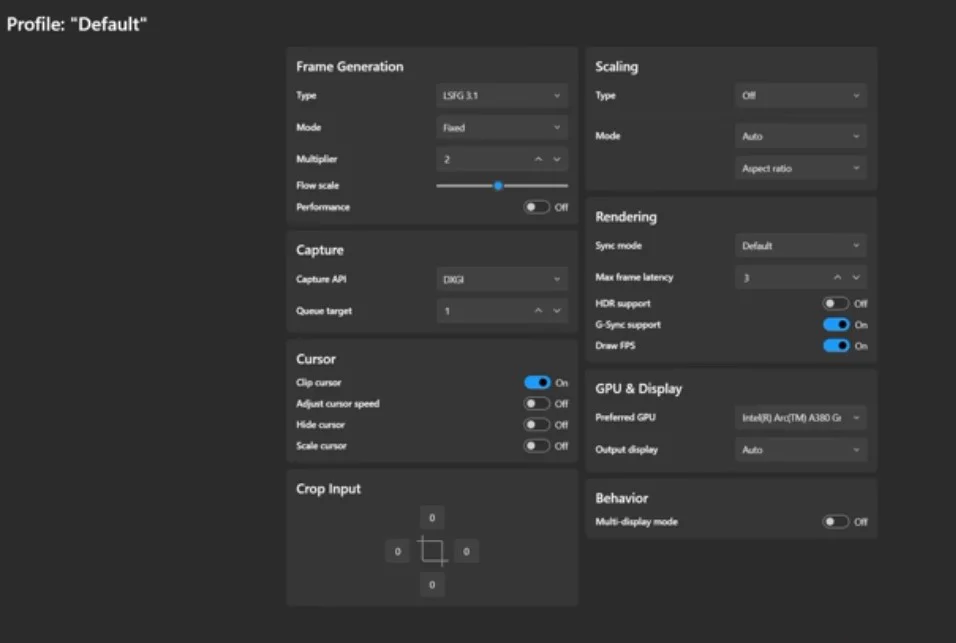
Lossless Scaling Settings:
Preferred GPU: Select Intel Arc A380.
Frame Generation: Select LSFG 3.1.
Mode: Use Fixed 2x for the best stability or Adaptive if you want to cap your frames.
Click Scale once your game is running in borderless windowed mode.
Real-World Benchmarks
Borderlands 4: Jumped from 40-50fps to a stable 120+ FPS.
Cyberpunk 2077: Native 47-50fps boosted to 150+ FPS with LSFG 3x.
Oblivion Remastered: Easily pushed past 100 FPS on high settings.
The Verdict
If you have a spare slot and don’t want to break the bank on a new GPU, this dual-card setup is a brilliant way to breathe new life into your current build. It’s an effective “outsourcing” method that works surprisingly well for single-player experiences.
Do you have a spare PCIe slot waiting to be filled? Let us know your build specs in the comments, and don’t forget to check out more pro hardware tips at VGoods Lab!