Introduction: Why Deploy OpenClaw Offline?
With the explosion of AI Agent technology, OpenClaw has become one of the most powerful open-source autonomous AI assistants, highly regarded by geeks and homelab enthusiasts alike. However, as an agent capable of executing code and accessing local files, exposing it to the public web or relying on cloud-based LLMs carries significant privacy risks.
This guide provides a “purely isolated, completely offline” deployment solution for Windows. By utilizing Docker containerization, pairing it with Ollama for local LLM inferencing, and enabling hardware GPU acceleration, we will build a secure, high-performance private AI brain.

1. Core Environment and Hardware Requirements
Before you begin, ensure you have one online-connected computer to download the necessary files, and a separate offline Windows computer designated for the deployment.
1. Hardware Configuration Reference (Optimized for Llama-3 8B)
- GPU: We recommend an NVIDIA RTX 3060 12GB or an equivalent dedicated graphics card. 12GB of VRAM is the “sweet spot” for local AI, allowing you to load 8B/9B quantized models entirely into VRAM for buttery-smooth performance without swapping to system memory.
- RAM: 32GB or more.
- Storage: SSD (needed for storing dozens of gigabytes of model weights).
2. Software Environment (Pre-install on the offline machine)
- OS: Windows 11 or Windows 10 (21H2 or later).
- Container Engine: Download the official Docker Desktop for Windows.
2. The Core Setup: Configuring WSL2 and NVIDIA GPU Passthrough
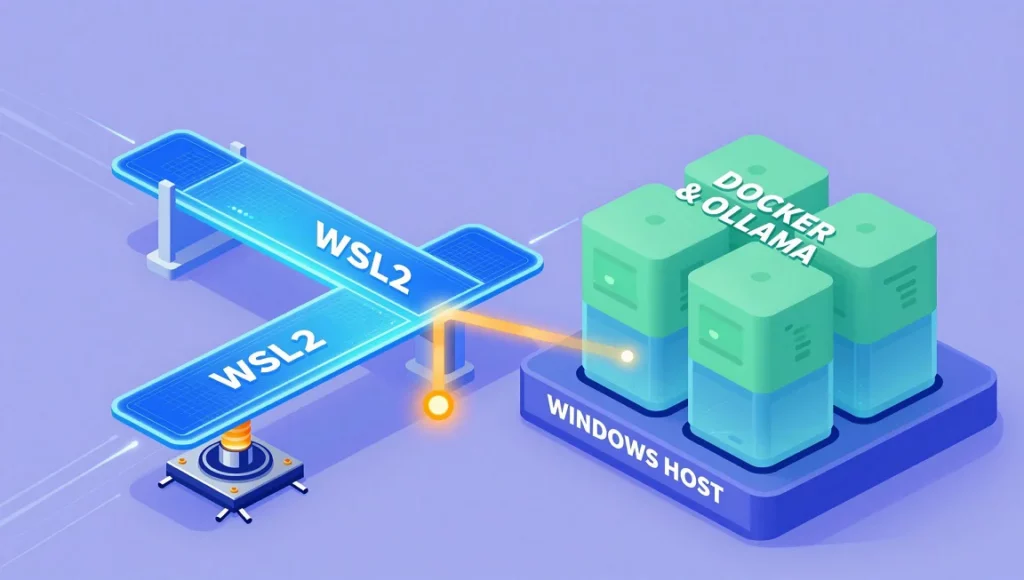
To ensure Ollama within Docker can successfully leverage your dedicated GPU, you must correctly configure Windows Subsystem for Linux 2 (WSL2). This is the key to achieving full-speed local AI.
Step 1: Install the Latest Windows GPU Drivers
On your Windows host, navigate to the NVIDIA official driver download page, and install the latest Game Ready or Studio driver.
⚠️ Pro Tip: Do NOT try to install Linux-based NVIDIA drivers inside WSL2 or your Docker container! Simply installing the latest drivers on the Windows host allows WSL2 to handle GPU passthrough automatically.
Step 2: Install and Enable WSL2
Run PowerShell as Administrator and execute the following command:
PowerShell
wsl --install
Restart your computer after installation. Once rebooted, open PowerShell again and run wsl --update to ensure your kernel is up-to-date.

Step 3: Enable GPU Support in Docker Desktop
- Open Docker Desktop, then click the gear icon (Settings) in the top right corner.
- Go to General and check
Use the WSL 2 based engine. - Go to Resources -> WSL integration and enable support for your default WSL distribution.
- Click
Apply & restart.
Your Docker environment is now ready to harness the power of your host’s GPU.
3. Online Machine Prep: Exporting Images and Model Assets
On your connected computer, open your terminal and gather your files.
1. Pull the Official OpenClaw Image
Avoid third-party forks; grab the clean, official image from GitHub:
PowerShell
docker pull ghcr.io/openclaw/openclaw:latest
docker save -o openclaw_latest.tar ghcr.io/openclaw/openclaw:latest
2. Export Ollama Engine Image
Ollama is currently the best runner for local LLMs. Pull and save it as well:
PowerShell
docker pull ollama/ollama:latest
docker save -o ollama_latest.tar ollama/ollama:latest
3. Prepare Model Weights
While online, visit the Ollama Model Library, pick your preferred model (e.g., run ollama run llama3:8b in your terminal to download). Once downloaded, copy the entire local .ollama/models directory.
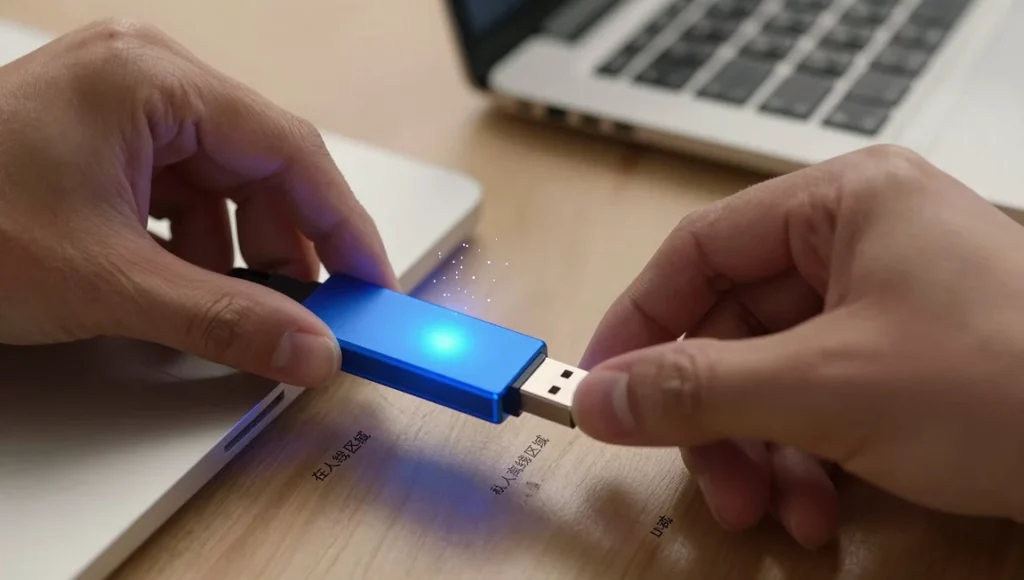
Finally, copy these two .tar image files and the model folder onto a USB drive or external hard drive.
4. Offline Setup: Launching Your Private AI Assistant
Connect your USB drive to the offline Windows machine and open PowerShell.
Step 1: Import Docker Images
Navigate to your USB directory and import the files:
PowerShell
docker load -i openclaw_latest.tar
docker load -i ollama_latest.tar
Step 2: Configure Project Structure
Create a directory structure in a location of your choice (e.g., D:\OpenClaw):
- 📂
D:\OpenClaw- 📂
ollama_data(Copy the.ollamamodel files from your USB here) - 📂
workspace(An isolated sandbox for OpenClaw code execution) - 📄
docker-compose.yml
- 📂
Step 3: Create the Docker Compose Config
Create a docker-compose.yml file and paste the following config, optimized for offline environments and GPU acceleration:
YAML
version: '3.8'

services:
  ollama:
    image: ollama/ollama:latest
    container_name: local_ai_brain
    restart: unless-stopped
    ports:
      - "11434:11434"
    volumes:
      - ./ollama_data:/root/.ollama
    # Core: Enable NVIDIA GPU passthrough for WSL2
    deploy:
      resources:
        reservations:
          devices:
            - driver: nvidia
              count: 1
              capabilities: [gpu]

  openclaw:
    image: ghcr.io/openclaw/openclaw:latest
    container_name: openclaw_agent
    restart: unless-stopped
    depends_on:
      - ollama
    ports:
      - "3000:3000"
    volumes:
      - ./workspace:/app/workspace  # Restricts file operations to this sandbox
    environment:
      - LLM_API_BASE=http://ollama:11434/v1
      - LLM_API_KEY=offline_local_key
      - DEFAULT_MODEL=llama3:8b  # Ensure this matches your downloaded model name
      - WORKSPACE_DIR=/app/workspace
Step 4: Launch Service
Navigate to D:\OpenClaw in PowerShell and run the command:
PowerShell
docker-compose up -d
Wait a few seconds, then open your browser and visit http://localhost:3000. Congratulations! You now have a fully private, secure, and high-performance OpenClaw AI assistant up and running!