Many of us have reached a point where, after installing the bare minimum NVIDIA drivers, we refuse to touch the increasingly bloated NVIDIA App. The trade-off? You lose the ability to fine-tune DLSS settings, toggle Resizable BAR, or adjust the Shader Cache size to eliminate stuttering.
Previously, we were forced to rely on the legacy NVIDIA Profile Inspector. Its UI looked like something from the early 2000s, which was intimidating enough to keep most casual users away.
Well, those days are over. NVIDIA Profile Inspector 3.0 has received a massive overhaul. The UI finally matches the aesthetic of the modern NVIDIA App—sleek and clean—while keeping every bit of its hardcore functionality intact.
Today, we’re diving into why this free utility is an absolute must-have for any enthusiast rig.
The Pain Point: Clean Drivers vs. Bloatware
Here’s the reality for many power users:
- You only want the driver, not the NVIDIA App (which eats resources, pushes ads, and often feels unnecessary).
- The old Profile Inspector interface was cluttered with cryptic technical jargon that scared off newcomers.
- NVIDIA hasn’t pushed Resizable BAR profiles for every game, leaving potential performance gains on the table for supported hardware.
NVIDIA Profile Inspector 3.0 solves these headaches in one go.
The Solution: A Lightweight, Free, Modern Tuning Utility
The biggest perk of Profile Inspector is simple: Just install your drivers and you’re set. Leave the deep-dive configuration to this tool.
The latest stable release (3.0.1.8) has completely refreshed the interface, making it look as polished as the official app without the unnecessary fluff.
Key UI Improvements:
- Game search functionality (Search for “Crimson Desert” and find it instantly).
- Native Dark Mode support (finally!).
- Modern/Compact density toggles.
- Acrylic blur effects for a clean, premium Windows look.
To be honest, even if you’ve never touched this software before, you won’t feel intimidated anymore.
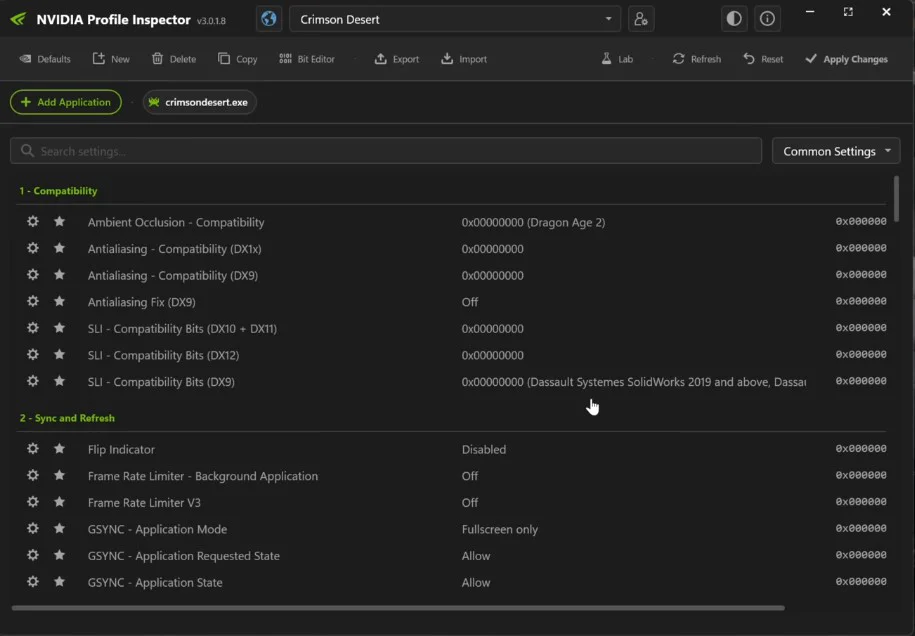
Deep Dive: From Basic Tweaks to Hardcore Customization
1. Global vs. Per-Game Profiles
- Switch between your Global Driver Profile and specific settings for individual games with a single click.
- Easily create, copy, delete, or import/export profiles for maximum flexibility.
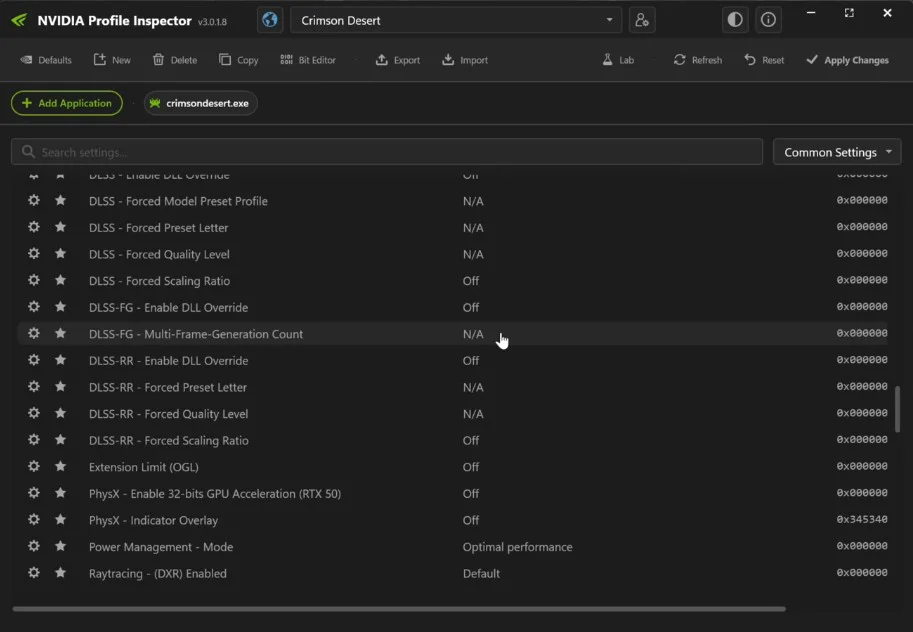
2. The Killer Feature: Forcing Resizable BAR
This is what most of you are here for.
Resizable BAR (ReBAR) allows for more efficient data transfer between the GPU and CPU, often resulting in a 10%–20% FPS boost in modern titles.
Sometimes NVIDIA is slow to roll out profiles, or they simply skip certain games. That’s where NVIDIA Profile Inspector shines:
- You can manually Force Enable Resizable BAR.
- Borrow configurations from other games (like Returnal or Red Dead Redemption) if needed.
- Real-world example: I forced ReBAR on the Dead Space Remake before an official profile existed, and my FPS jumped from the 60s to the 80s.
Whenever a new game drops, try forcing ReBAR first—you might be surprised by the performance gains.
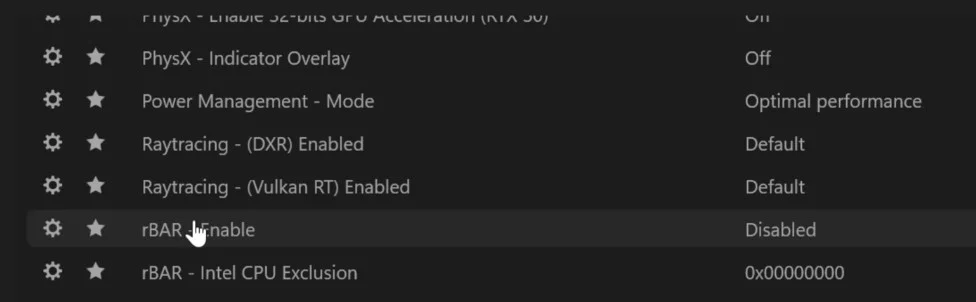
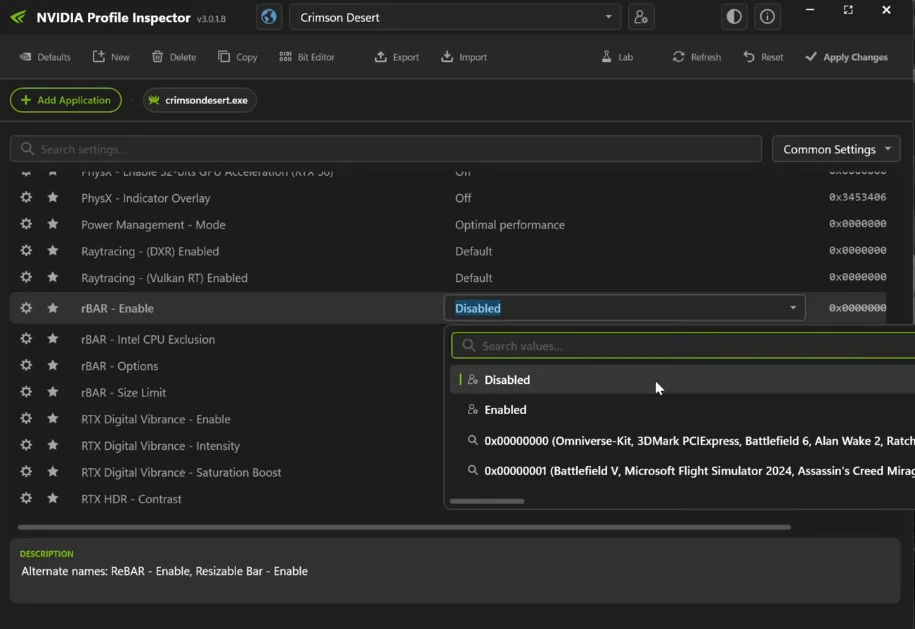
3. Pro-Level Fine Tuning
This is where the real power users get to work:
- DLSS: Force specific DLSS versions, model presets, Multi-Frame Generation, and LL overrides.
- RTX HDR: Inject HDR support into games that don’t natively support it.
- Shader Cache: Manually bump the cache size (e.g., from 16GB to higher) to fix hitching in demanding games.
- Everything Else: Deep settings for anti-aliasing, texture filtering, G-Sync, and Vulkan are all accessible.
In short: Anything the NVIDIA App can do, this does better; and it can do things the official app can’t even touch.
Conclusion: Essential for the Minimalist Enthusiast
NVIDIA Profile Inspector 3.0 turns a “drivers-only” setup into the ultimate configuration experience.
The interface is no longer a barrier, yet the power remains unmatched. Whether you want a clean, bloat-free system or you love tweaking every last parameter for extra performance, this free tool is worth your time.
Download Recommendation: Grab the latest version from the official GitHub repository (current stable: 3.0.1.8) to ensure you have all the latest fixes.
3 Common FAQs
Q1: What is the main difference between Profile Inspector 3.0 and the new NVIDIA App?
A: The NVIDIA App is becoming an all-in-one suite but is resource-heavy. Profile Inspector is a lightweight, surgical tool that gives you more granular control over settings like ReBAR and Shader Cache.
Q2: Is forcing Resizable BAR safe for my games?
A: It is generally very safe. It simply uses existing profiles to enable the feature. If you run into issues, you can always hit the “Reset” button to revert to stock settings.
Q3: Is this tool too advanced for a beginner?
A: Not at all! Version 3.0 is much more accessible with its search function and dark mode. Just take it slow, start with the global settings, and explore the tweaks one by one.