
Why does Windows hoard so much junk?
Simply put, Windows wants to keep things “snappy,” but it backfires:- Prefetch Folder: Think of this as an app-launch cache. Every time you open a program, Windows logs what it needs to load faster next time. The problem? When you uninstall an app, these cache files stay there forever, becoming useless dead weight.
- Temp Folders (There are two): These house installation files, system updates, and crash logs. Theoretically, they should be deleted after use, but in reality, they tend to overstay their welcome.
The Cleanup: A 3-Step Guide (Using the Win+R Shortcut)
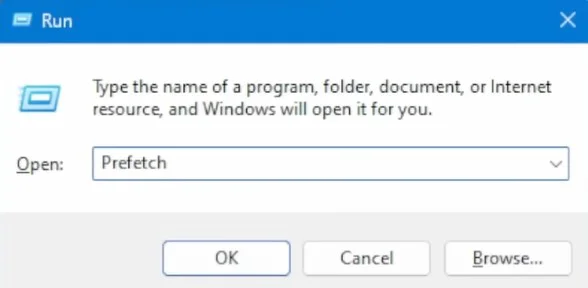
Step 1: Clear the Prefetch Folder
- Press Win + R to open the Run dialog.
- Type
prefetchand hit Enter. - Grant administrative permissions if prompted.
- Right-click in the folder → Properties to note the current size (for comparison later).
- Ctrl + A to select all → Shift + Delete (to bypass the Recycle Bin).
- If you see an error for a file in use, just hit “Skip.” This is just Windows protecting active processes.
Step 2: Clear your User Temp Folder (The Biggest Offender)
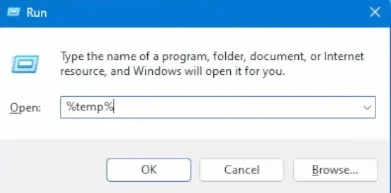
- Press Win + R again.
- Type
%temp%and hit Enter. - Ctrl + A to select all → Delete.
- Skip any files that refuse to be deleted.
Step 3: Clear the System Temp Folder
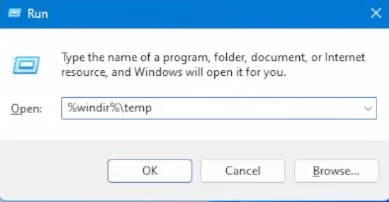
- Win + R and type
%windir%\tempthen Enter. - Provide administrator access when prompted.
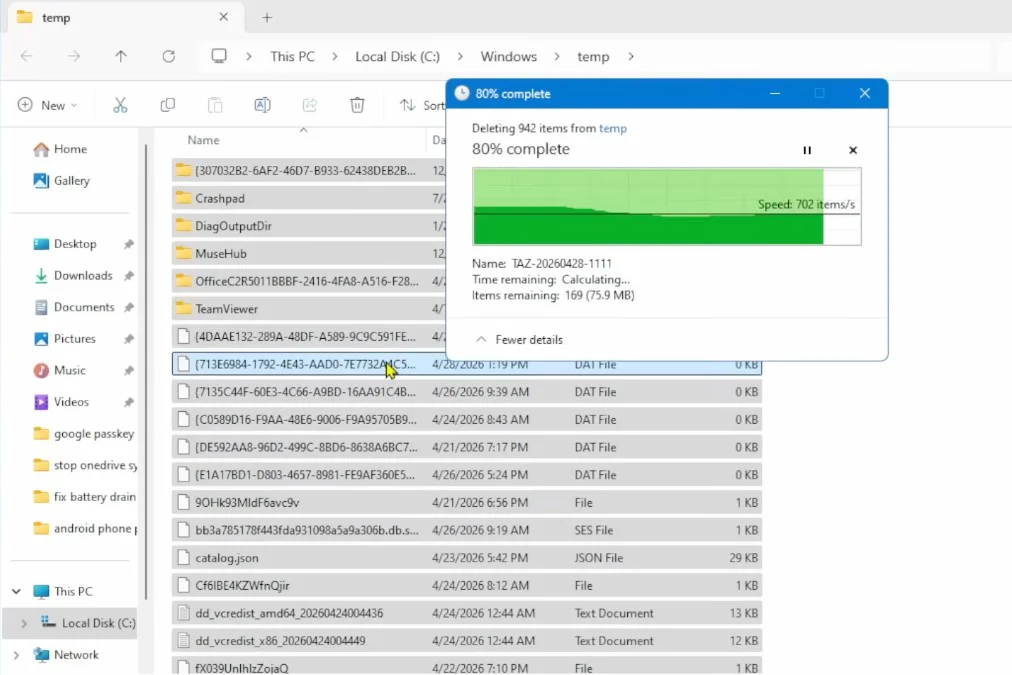
- Ctrl + A → Shift + Delete.
- Skip the locked files.
Bonus: Refresh DNS Cache (For Extra Speed)
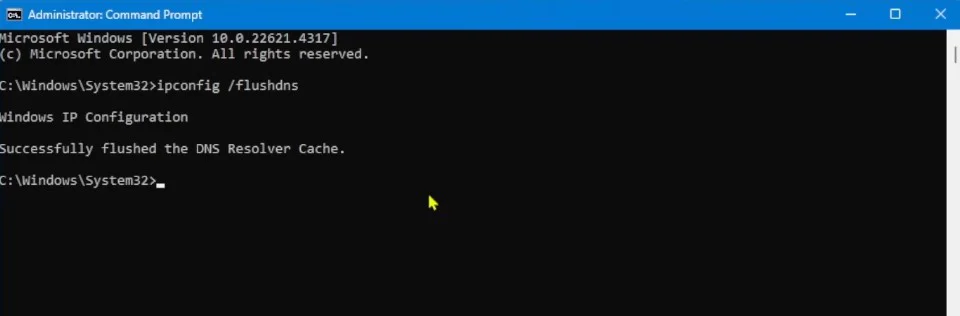
- Search for “Command Prompt,” right-click, and Run as Administrator.
- Type
ipconfig /flushdnsand hit Enter.
Enable Storage Sense for Automated Maintenance (Highly Recommended)
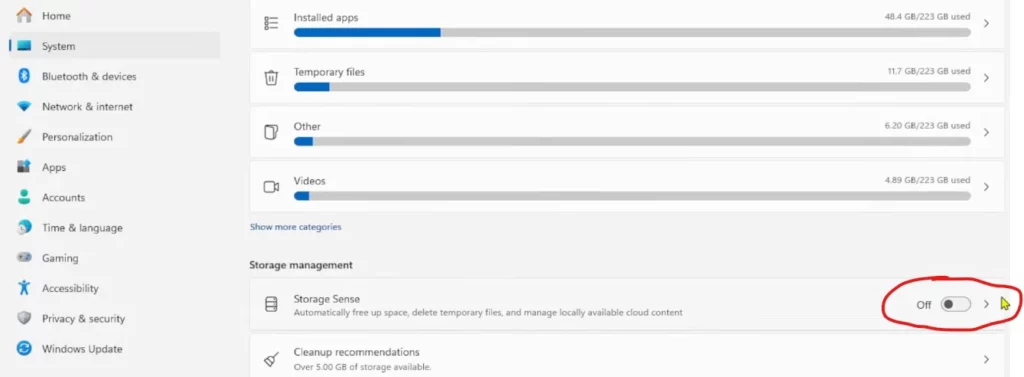
Manual cleaning is great, but who wants to do it all the time? Use Windows’ built-in Storage Sense. What is Storage Sense? It’s a native Microsoft tool that automatically deletes temporary files, Recycle Bin junk, and old Windows update files. It’s safe, efficient, and much more reliable than third-party software. How to enable and configure it:- Press Win + I to open Settings → System → Storage.
- Toggle Storage Sense to “On.”
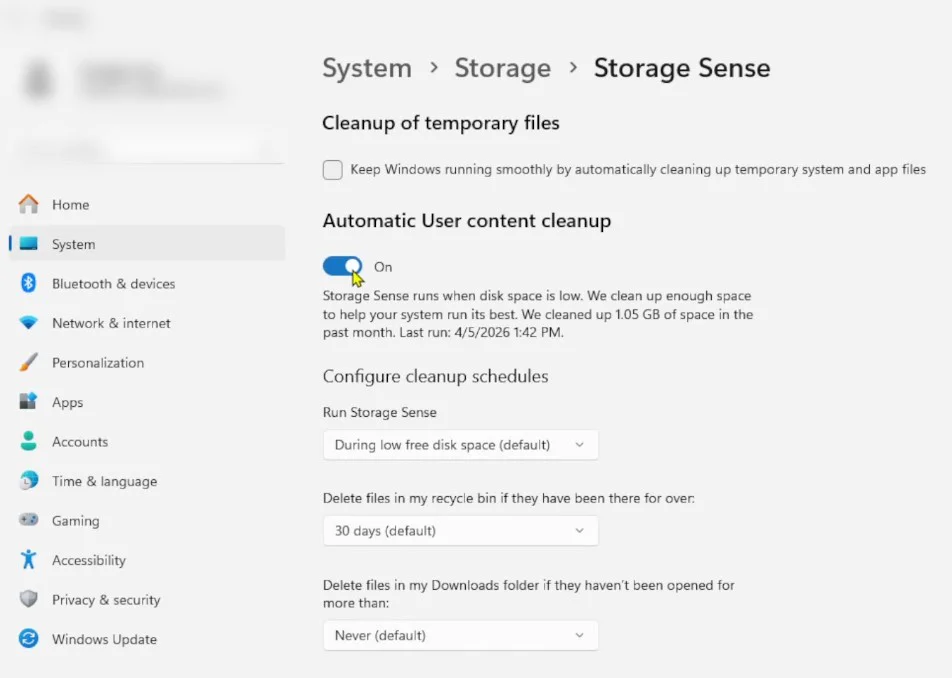
- Recommended Config:
- Run Frequency: Daily or Weekly.
- Temporary files: Enable all.
- Recycle Bin: Keep files for 14–30 days.
- Downloads folder: Optional (set to delete files older than 30 days).
- OneDrive: Enable “Keep only locally recently used files” to save space.
The Results?
Check the size of your Prefetch folder again. You’ll see Windows has successfully “slimmed down.” The residue from uninstalled programs is gone, and the system will automatically rebuild only the files it actually needs.Take action now! 2 minutes of work for a smoother, faster PC is well worth it.