
Is your C drive suddenly down to a few gigabytes? Is your PC feeling sluggish, or are you constantly getting ‘low disk space’ warnings even though you haven’t installed anything new? It feels like an invisible monster is snacking on your storage.
Don’t panic. Today, I’m sharing a free tool I’ve been using for nearly a decade: TreeSize Free. It acts like an X-ray for your hard drive, sorting every folder by size so you can instantly pinpoint what’s hogging your space. Pair it with Revo Uninstaller, and you can safely and thoroughly clear out the clutter.
Why is your disk always mysteriously full?
Windows’ built-in uninstaller is like a lazy roomba—it picks up the surface-level trash but leaves behind dust in the corners, crumbs, and even old furniture legs. The result:
- Uninstalled games leaving behind dozens of gigabytes of junk folders.
- Bloated temporary files from OneDrive, Adobe, and OBS.
- Scattered Steam installations with games split between the C and D drives.
- Hidden caches, old driver backups, and forgotten system folders.
Especially on older HDDs, a full disk causes massive performance degradation, making the whole system feel like it’s gasping for air.
The Ultimate Power Combo: TreeSize Free + Revo Uninstaller
TreeSize Free provides visual diagnostics—showing you exactly where the space went. Revo Uninstaller acts as the surgical tool—deleting files and cleaning up stubborn registry keys that standard uninstallers miss.
Both are free (the free version of TreeSize is plenty), and together, they are unbeatable.
Step-by-Step Guide
1. Download and Install TreeSize Free
- Official Download (Recommended): Download TreeSize Free (Installer) (Click the “Download TreeSize Free” button on the page).
- Direct 32-bit installer: TreeSizeFreeSetup_x86.exe
- For a portable version (great for a USB drive): Download TreeSize Free Portable
After installing, right-click the icon and Run as Administrator (without admin rights, many system folders remain hidden or inaccessible).
2. Scan Your Drive
Once launched, select the drive you want to scan on the left (start with the C drive).
Scan speed depends on your hardware:
- SSD: Done in seconds (on my Gen4 SSD, it’s practically instant).
- HDD: Might take a few minutes—be patient.
You will see a tree-map sorted by size:
- Color indicators: Standard colors represent normal folders; darker/transparent icons often denote hidden system files not visible in File Explorer by default.
3. Case Study: How I reclaimed 91GB
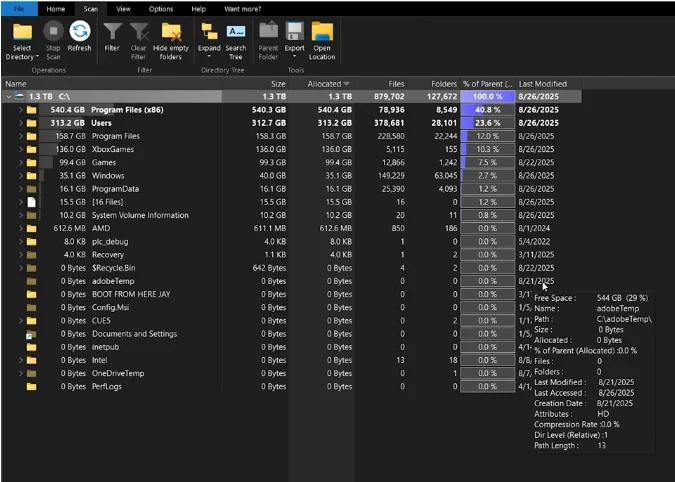
Scanning my C drive, I found:
- Program Files (x86): 540GB (the usual culprit).
- Users: 313GB (my videos, downloads, and OneDrive).
- Xbox Games: 136GB.
- World of Warcraft: 91.7GB (yikes!).
I haven’t played WoW in years, and Windows Search couldn’t find the folder. TreeSize found it in seconds.
Cleanup Procedure:
- Download and open Revo Uninstaller Free: Download Revo Uninstaller Free.
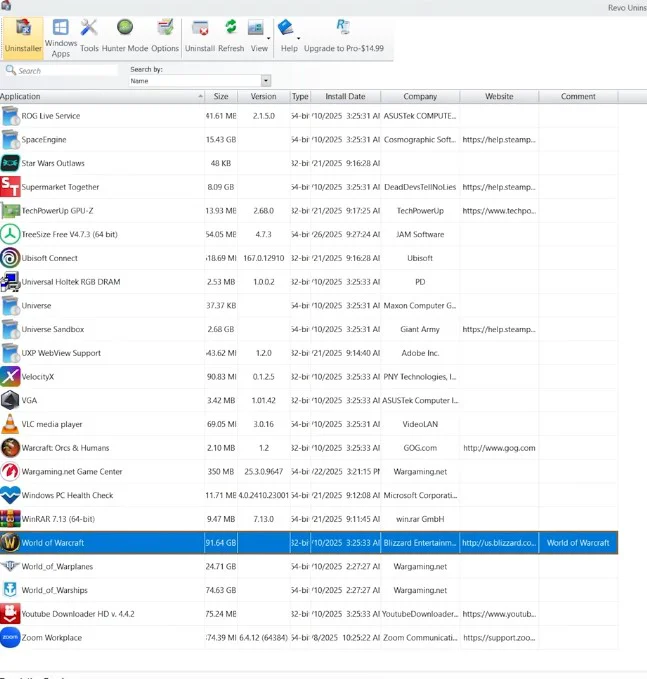
- Locate World of Warcraft → Uninstall.
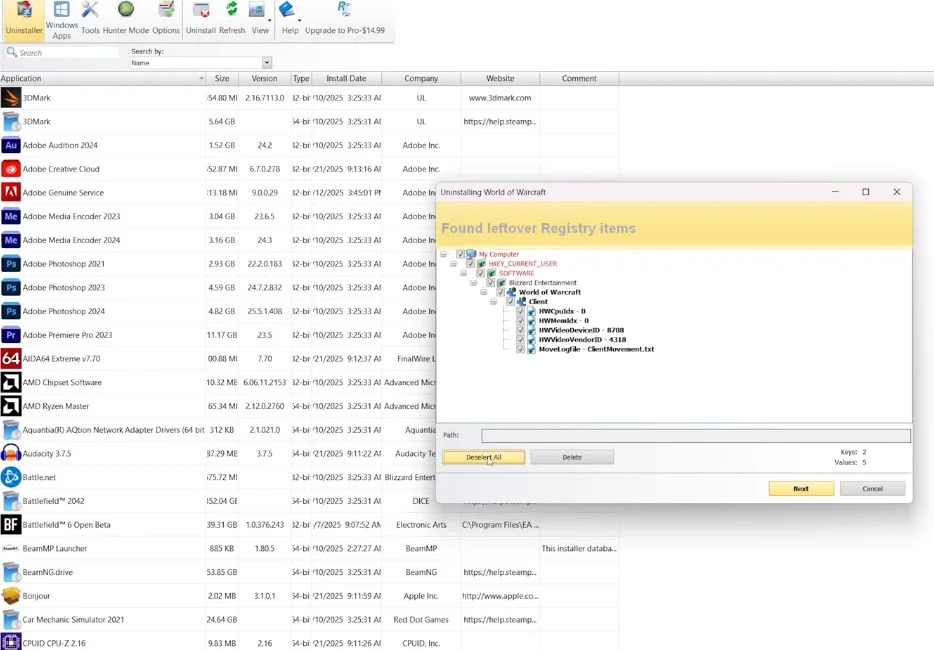
- Let the official uninstaller run, then perform an Advanced Scan in Revo to catch leftover registry keys and junk folders.
- Select all → Delete.
- Go back to TreeSize, click Refresh, and watch those 91GB disappear instantly.
I just freed up over 88GB on my C drive.
4. Handling Other Storage Hogs
- OneDrive Folders: If you have old raw files syncing, delete them directly in TreeSize if you no longer need them.
- Steam Games: If you see games on your C drive, use the “Move Install Folder” feature within Steam to migrate them to your D drive.
- Temp Files/Recycle Bin: Generally safe to clear, but be careful with system-specific directories.
- Adobe/OneDrive Temp: Usually safe to prune these caches.
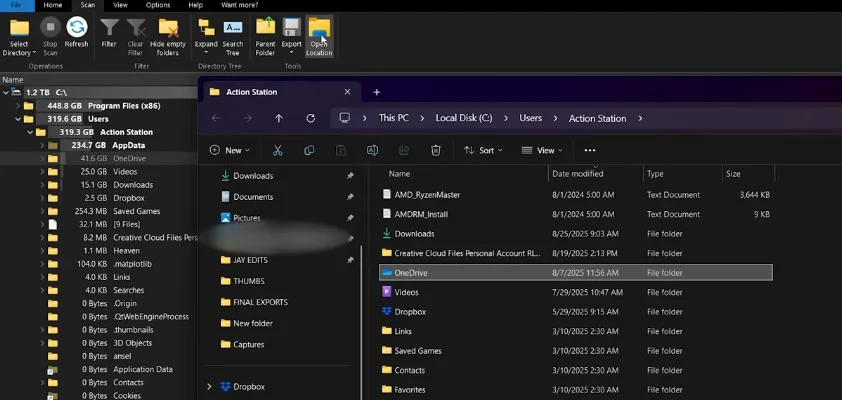
CRITICAL WARNING: TreeSize has high privileges; it can delete anything, including System32. Don’t go on a right-click deleting spree. Use it to diagnose, then use Revo or official uninstallers to handle programs. Use “Open Location” to verify contents in File Explorer before making moves.
5. Don’t Forget the Secondary Drives
Scanning my D drive, I found:
- Steam Library: 541GB
- Xbox Games: 159GB (Found Forza Horizon 5 on D, but Motorsports on C—oops).
This is the perfect time to consolidate your game libraries.
Conclusion: Build a Regular Maintenance Habit
TreeSize Free gives your disk a full CT scan—it’s simple, visual, and free. Pair it with Revo Uninstaller, and you’ll never wonder where your storage went again.
Aim to scan every 1–2 months, especially if:
- You install/uninstall games often.
- Your C drive has less than 100GB free.
- Your system performance is dipping.
A few minutes of work can recover hundreds of gigabytes, helping your SSD fly again!
FAQ
Q1: Is TreeSize Free truly free? Any adware?
A: Yes, the Free version is completely free and contains no ads. There is a Professional edition, but for basic disk hygiene, the Free version is more than enough.
Q2: Is it safe to delete files directly in TreeSize?
A: High risk! I recommend using it primarily for visualization. Use Revo to uninstall programs properly. Manual deletion of system files can brick your OS.
Q3: Does TreeSize run slowly on HDDs?
A: Yes, it takes longer on spinning drives. Run it overnight or prioritize your system drive if you’re in a hurry.