A practical guide to running local AI on AMD GPUs via Docker and ROCm — the budget path to big VRAM without NVIDIA prices. It covers hardware selection (VRAM is king), the full Docker setup, and squeezing every drop of performance from your Radeon card. Written for students and homelab hobbyists building cost-effective image-generation or chatbot rigs.
With NVIDIA GPU prices remaining sky-high, AMD has become a secret weapon for local AI enthusiasts—especially students and HomeLab hobbyists—thanks to their strategy of “large VRAM at a lower price point.”
If you’re like me and want to build the most cost-effective AI image generation or chatbot rig, this tutorial will guide you through every hurdle. We’ll use an elegant Docker-based setup to squeeze every bit of performance out of your Radeon card.
Part 1: Hardware Selection—VRAM is King
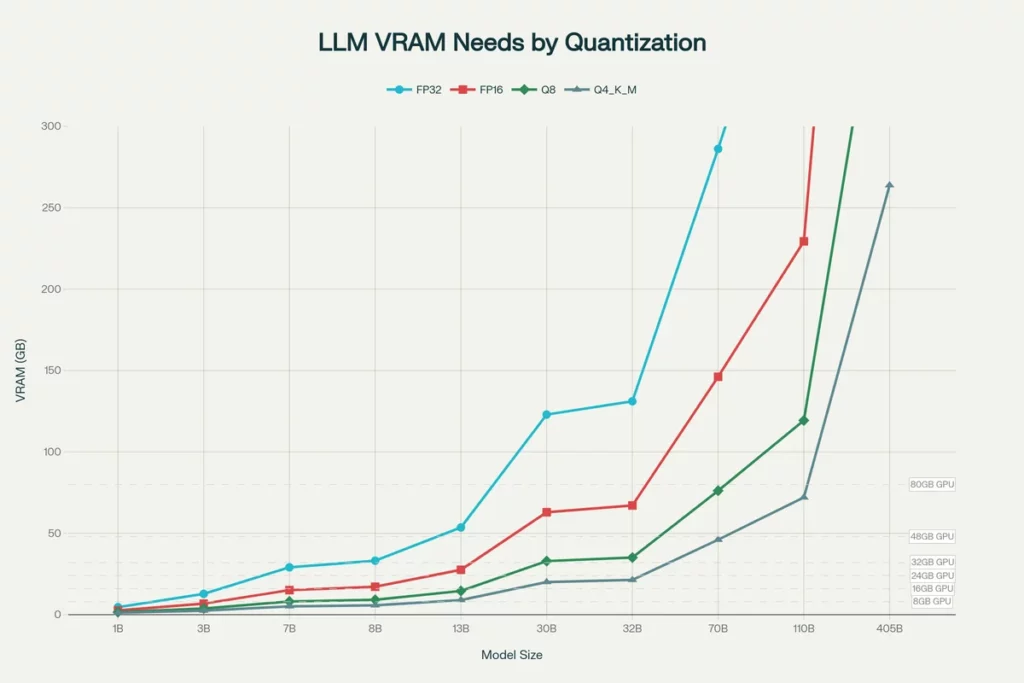
When running Large Language Models (LLMs) locally, your VRAM determines the size of the model you can run, while raw compute power only dictates generation speed. AMD’s RX 6000/7000 series shines here.
| Model | VRAM | Positioning | Use Case |
| RX 7900 XTX | 24GB | Flagship | Full fine-tuning, 70B model inference, complex ComfyUI workflows. |
| RX 7900 XT | 20GB | High-end | The unique 20GB VRAM allows running 34B/40B models that 16GB cards can’t handle. |
| RX 7800 XT / 6800 XT | 16GB | Value/Performance | Entry-level recommendation. Smoothly runs SDXL image gen and 13B class LLMs. |
Pro Tip: Try to avoid 8GB cards (like the RX 7600); in the world of local AI, 8GB will hit its limit almost instantly.
Part 2: Host System Setup
We’ll use Ubuntu 22.04 LTS as our baseline. Whether you are using a high-performance PC or a server (like a Dell R730), these steps must be completed on the host machine.
1. Essential BIOS Settings
Before installing your card, enter your BIOS and enable these options, otherwise, your model loading speeds will be severely throttled:
- Above 4G Decoding: Enabled
- Re-Size BAR: Enabled (or Auto)
- PCIe Speed: Gen 3 or Gen 4 (Avoid Auto to prevent link drops)
2. Installing AMD Drivers (ROCm)
Don’t just use apt install. Download the official script from the AMD website.
# 1. Update system
sudo apt update && sudo apt upgrade -y

# 2. Run the installation script (using ROCm 6.1 as an example)
# --no-dkms: Recommended for physical machines to avoid kernel compilation issues
sudo amdgpu-install --usecase=rocm,graphics --no-dkms

# 3. Critical permissions (otherwise Docker cannot access the GPU)
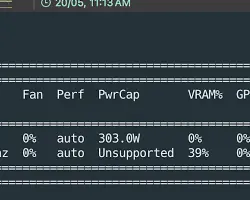
sudo usermod -aG render,video $USERReboot after installation, then run rocm-smi in your terminal to verify. If you see an output similar to the screenshot below, your drivers are configured correctly:
Part 3: Full-Stack Docker Deployment
To keep our environment clean, we avoid installing Python directly on the host and rely entirely on Docker. We will deploy two core applications:
- Ollama + Open WebUI: A powerful conversational chatbot.
- ComfyUI: The ultimate node-based AI image generation tool.
1. Create the docker-compose.yml
Create a directory named ai-stack and add a docker-compose.yml file:
version: '3.8'

services:
  # --- Chat Service: Ollama ---
  ollama:
    image: ollama/ollama:rocm
    container_name: ollama
    restart: always
    devices:
      - /dev/kfd:/dev/kfd  # Compute scheduler
      - /dev/dri:/dev/dri  # GPU render interface
    environment:
      # [Pro Tip] GPU Architecture Spoofing
      # RX 7000 series: 11.0.0, RX 6000 series: 10.3.0
      - HSA_OVERRIDE_GFX_VERSION=11.0.0
      # VRAM strategy: Release memory immediately to make room for image generation
      - OLLAMA_KEEP_ALIVE=0
    volumes:
      - ./ollama_data:/root/.ollama
    ports:
      - "11434:11434"

  # --- UI: Open WebUI ---
  open-webui:
    image: ghcr.io/open-webui/open-webui:main
    container_name: open-webui
    restart: always
    environment:
      - OLLAMA_BASE_URL=http://ollama:11434
    volumes:
      - ./open-webui_data:/app/backend/data
    ports:
      - "3000:8080"
    depends_on:
      - ollama

  # --- Image Gen: ComfyUI (ROCm version) ---
  comfyui:
    image: yanwk/comfyui-boot:rocm
    container_name: comfyui
    restart: unless-stopped
    devices:
      - /dev/kfd:/dev/kfd
      - /dev/dri:/dev/dri
    environment:
      - HSA_OVERRIDE_GFX_VERSION=11.0.0
      # For 16GB cards, use 'normalvram' for a balanced mode
      - CLI_ARGS=--listen --normalvram
    volumes:
      - ./comfyui_data:/root/comfyui/output
      - ./comfyui_models:/root/comfyui/models
    ports:
- "8188:8188"2. Start the services
docker-compose up -dPart 4: Performance and Experience
1. Chatting with Open WebUI
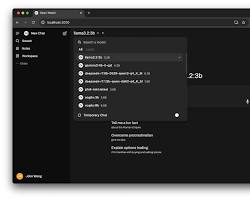
Visit http://your-ip:3000. On your first login, register an admin account and download llama3 or qwen2.5.
Thanks to ROCm optimizations, an RX 7900 XTX can hit 15-20 tokens/s on 70B models, which is incredibly smooth for reading.
2. Image Generation with ComfyUI
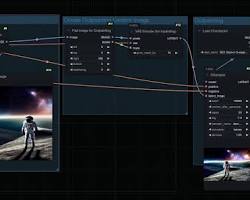
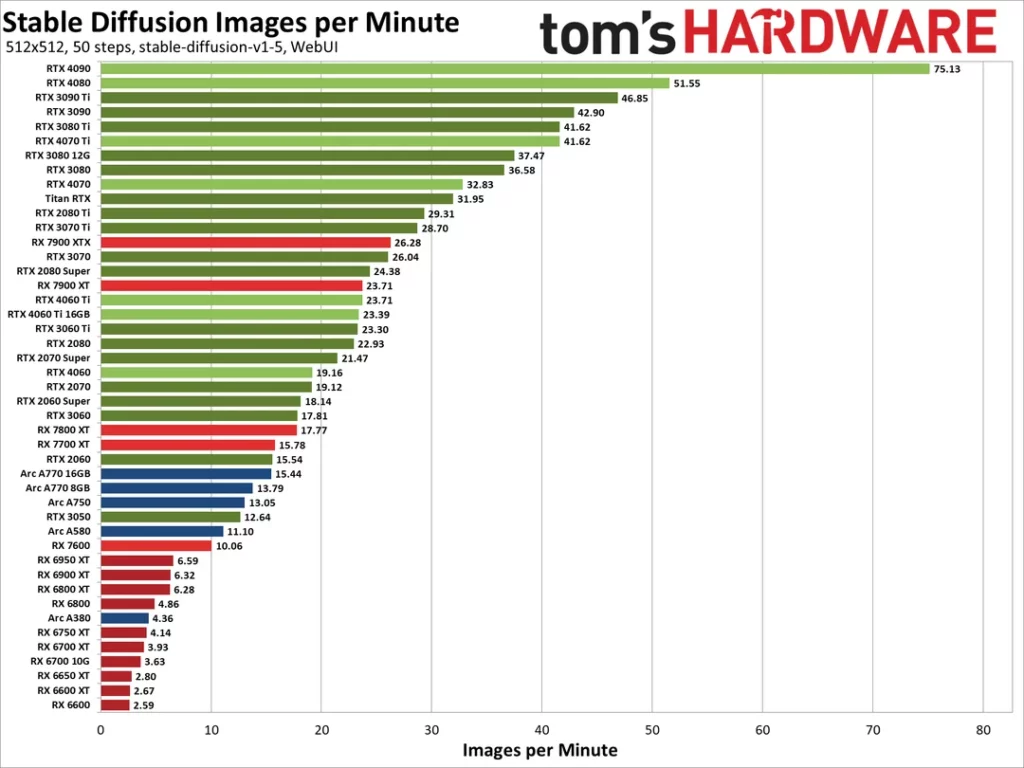
Visit http://your-ip:8188. Although AMD lacks CUDA, ROCm on Linux achieves 80%-90% of the efficiency of equivalent N-cards. Generating a 1024×1024 image with SDXL on an RX 6800 XT takes just a few seconds.
3. VRAM Management Strategy
This is the secret sauce. Since AMD GPUs don’t support hardware-level VRAM splitting, we achieve “time-division multiplexing” via config:
- When you are not chatting, Ollama clears the VRAM (
OLLAMA_KEEP_ALIVE=0). - This allows ComfyUI to claim the full 16GB/24GB of VRAM for maximum image generation power.
- Warning: Do not attempt to run image generation and chatting simultaneously, or you will encounter Out-of-Memory (OOM) errors.
Part 5: Troubleshooting Common Issues
| Error | Reason | Solution |
| Permission denied (/dev/kfd) | Insufficient user permissions | Run sudo usermod -aG render,video $USER and reboot. |
| hipErrorNoBinaryForGpu | Driver doesn’t recognize consumer GPU | Check if the HSA_OVERRIDE_GFX_VERSION variable is correct. |
| Visual artifacts / System crash | SDMA memory transport bug | Add the environment variable HSA_ENABLE_SDMA=0. |
| Python error: CUDA not found | Incorrect PyTorch version | Copy the ROCm-specific pip command from the official PyTorch site. |
Conclusion
While AMD’s ecosystem isn’t as mature as NVIDIA’s, the combination of Linux + Docker + ROCm gives you a flagship AI experience for half the price.
For the self-hosting enthusiast, the journey of “tinkering” is half the fun. I hope this guide helps bring your AMD card to life!
FAQ
Is Stable Diffusion slow on AMD GPUs?
A: Not at all. On Linux (Ubuntu) with ROCm 6.0+, RX 6000/7000 series cards perform at 80%~95% of comparable NVIDIA hardware. Compared to the DirectML approach on Windows, ROCm efficiency is several times better.
Do I need Linux? Can I run this on Windows?
A: Linux (Ubuntu 22.04) is strongly recommended. While Windows apps like LM Studio work, the stability and ecosystem compatibility (e.g., PyTorch, Flash Attention) of Docker + ROCm on Linux are significantly superior. Linux is the way to go for long-term stability.
How much VRAM for local LLMs? Is 8GB enough?
A: In 2026, 8GB is the absolute baseline and hits memory limits easily.
- 8GB: Only for highly quantized 7B models or 512×512 images.
- 16GB (Recommended): The “Golden Standard” for local AI (e.g., RX 7800 XT). Handles 13B-34B LLMs and SDXL smoothly.
- 24GB (Advanced): Perfect for 70B models or LoRA fine-tuning.
🛠️ Resource Toolkit
| Tool | Purpose | Install/Download |
| AMD GPU Installer | Official Linux ROCm driver script | 📂 Official Repository |
| Docker Engine | Container runtime | curl -fsSL https://get.docker.com -o get-docker.sh && sudo sh get-docker.sh |
| ROCm Info | GPU monitoring tool | (Included with drivers) rocm-smi |
2. Docker Images & Project Repos
- 🤖 Ollama (ROCm Version):
docker pull ollama/ollama:rocm - 🎨 ComfyUI (ROCm Optimized):
yanwk/comfyui-boot:rocm(Community-maintained AMD special build). - 💬 Open WebUI:
docker pull ghcr.io/open-webui/open-webui:main
3. Development Environment
For bare-metal Python/PyTorch, use the ROCm 6.1 index URL:
pip3 install torch torchvision torchaudio --index-url https://download.pytorch.org/whl/rocm6.14. 📝 Cheat Sheet for Environment Variables
- Architecture Spoofing: RX 7000 (11.0.0), RX 6000 (10.3.0).
- Fix SDMA artifacts:
HSA_ENABLE_SDMA=0. - VRAM release:
OLLAMA_KEEP_ALIVE=0.