Whether you just picked up the flagship Quest 3 or the more budget-friendly Quest 3S, this guide will turn you from a novice into a power user in under 30 minutes. All steps below are tested on v83+ firmware and organized by frequency of use. Let’s dive in.
1. Essential Controller Shortcuts (Use these daily)
– Screenshots: Press the **Trigger + Meta Button** simultaneously on either controller.
– Screen Recording: Long-press the Trigger + long-press the Meta Button for 3 seconds.
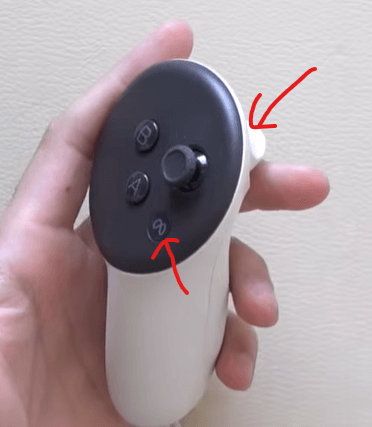
– Wake Meta AI: Double-tap the Meta Button (use voice commands to capture, record, power off, or reset your boundary).
– Controller ↔ Hand Tracking Toggle: Double-tap both controllers together.
– Removing Wrist Straps: Open the battery door and gently pull outward; it makes hand tracking much more natural.
2. Hardware Buttons & Hard Reboots
– Quest 3S: Use the dedicated passthrough button on the right side to toggle your environment instantly.
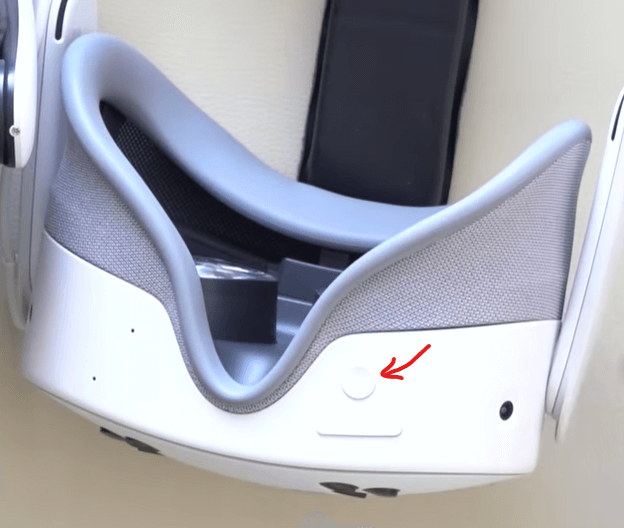
– Quest 3: Enable the double-tap passthrough feature via Settings → Physical & Audio.
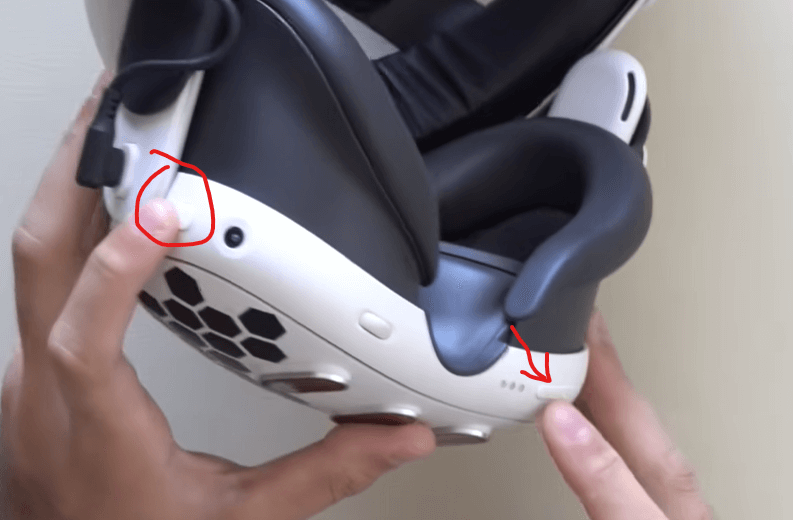
– Force Recovery Mode: Hold the Power + Volume Down buttons simultaneously until you see the green Android robot.
3. Perfect Visuals: Calibrate Your IPD
Download the free **Eye Measure** app on your phone, use the front-facing camera to measure your IPD, and adjust your headset slider to match the value (e.g., 62.6mm) for crystal-clear clarity.
4. The Golden Rule of Lens Care
Never expose your lenses to direct sunlight. Even 3 seconds can permanently burn the screen. Use a lens cover when outdoors.
5. Declutter Your Home Interface
Use the Menu button (left controller) → Hide Menu → remove unwanted widgets like Instagram, Messenger, or the Mirror. Check out the official environments; I highly recommend **Midnight + Aurora**.
6. Best Ways to Watch Media
① Anchor to Walls: In the browser or Meta TV, long-press the three dots → “Anchor to world” to pin windows anywhere in your room.
② Portable Viewers: Shrink your window, grab it, and take your content with you while you walk around.
③ Private Cinema: Tap the arrow icon in the top right of the browser to go full screen. Switch to curved mode and dim the background for a 200-inch theater experience.
7. Eliminate Comfort Vignettes
Go to Quick Settings → World & Environment → Comfort settings. Set “Vignette” to “Off” or “Low” for a more immersive view.
8. Mastering Hand Tracking
– Enable “Double-tap controllers to toggle hand tracking” in the settings.
– Must-try App: **First Hand** (search for it in the Store).
– Core Gestures: Pinch to grab, index finger tap to select, palm open facing you to go back.
9. Advanced Recording & Capture
Open the Camera App → Settings (gear icon) to adjust aspect ratios (16:9, 9:16, 1:1), disable the red recording dot, and increase bitrate for higher quality.
10. Earn Store Credit
Navigate to Store → Profile → Referral Program.
– Headset Referrals: Both you and your friend get $30 in credit.
– App Referrals: You get $5, and your friend gets a 15% discount. Always share your links before your friends buy!
Master these 10 tips, and you’re already ahead of 95% of users. Put on your headset, try these out, and you’ll be glad you read this.
Did you find this guide helpful? Bookmark and share it with your fellow VR enthusiasts!
Resources