Your NVIDIA driver might be silently holding your system back. Even after an update, you’re still seeing stuttering, frame drops, and input lag. Many gamers fall into a cycle of repetitive driver installations that just make the mess worse—old, residual driver files end up clogging your system like digital trash.
In this guide, I’ll show you how to perform a clean, clinical installation of the NVIDIA 596.49 Game Ready Driver. We’ll use DDU and NVCleanstall to strip away the bloat and ensure your installation is lean. Finally, we’ll tweak the critical settings to squeeze out better frame stability and snappier input response.
Why standard updates fall short: The main pain points
- Overwriting drivers repeatedly leaves behind garbage files and corrupted registry entries.
- The full driver package is bloated with components you likely don’t need (like HD Audio or USB-C drivers), wasting system resources.
- Default settings are rarely optimized for performance, often leaving your GPU underutilized.
The result: You think you’ve updated, but your performance hasn’t actually budged.
The Ultimate Cleanup & Install Workflow (Step-by-Step)
1. Use DDU in Safe Mode to obliterate old drivers (The most critical step)
DDU is the industry-standard tool for completely purging graphics drivers.
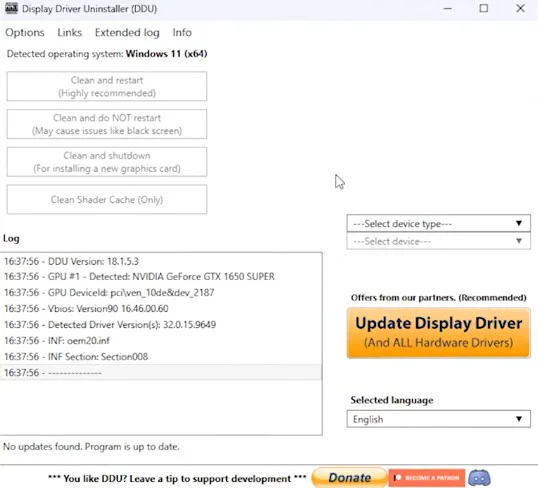
- Download DDU: https://www.wagnardsoft.com/display-driver-uninstaller-ddu (You can also grab the latest v18.1.5.3 from Guru3D or TechPowerUp).
- Boot into Safe Mode: Restart your PC, press Shift + Restart, then navigate to Troubleshoot → Advanced Options → Startup Settings → Restart, and press 4 or 5.
- Run DDU while in Safe Mode.
- Select GPU on the right → NVIDIA → Click Clean and restart.
Your screen may flicker or turn black—this is expected. DDU will wipe all remnants and the system will auto-reboot.
2. Download the official 596.49 Game Ready Driver
- Official Download Center: Head to NVIDIA Driver Downloads
- Select your specific GPU, OS (Win10/Win11 64-bit), and ensure you choose Game Ready Driver.
- Download 596.49: GeForce Game Ready Driver 596.49.
3. Use NVCleanstall to debloat the package
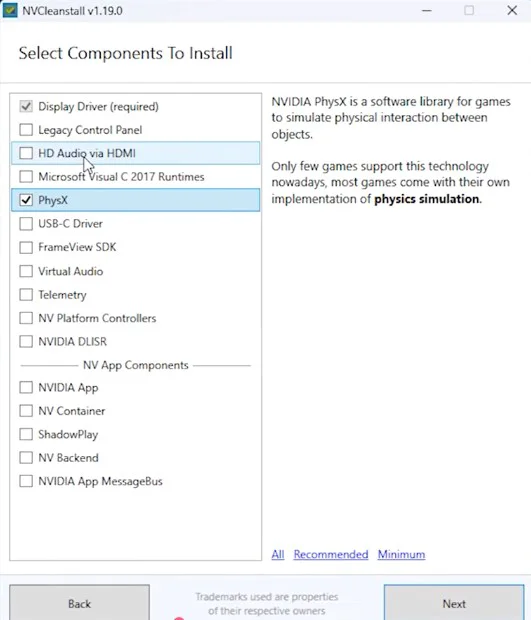
Don’t just run the installer! Use NVCleanstall to cherry-pick exactly what gets installed.

- Download NVCleanstall: https://www.techpowerup.com/download/techpowerup-nvcleanstall/
- Point NVCleanstall to the 596.49 installer you just downloaded.
- Keep core components: Display Driver, Physics, and essential NVIDIA components.
- Strip the excess: Remove HD Audio, USB-C drivers, and telemetry to keep the footprint as light as possible.
- Proceed to install the custom package.
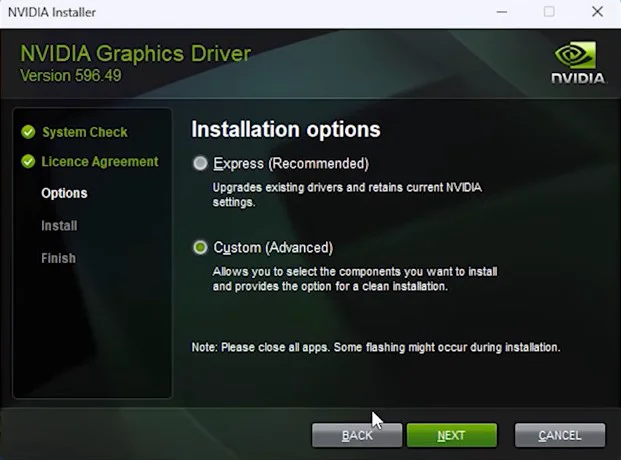
4. Custom Installation + Clean Installation
- When the NVIDIA installer prompts, choose Custom Installation.
- Check the box for Perform a clean installation.
- Follow the prompts (screen flickering is normal).
- Reboot your computer once finished.
Post-Install: NVIDIA App Settings for Maximum Performance
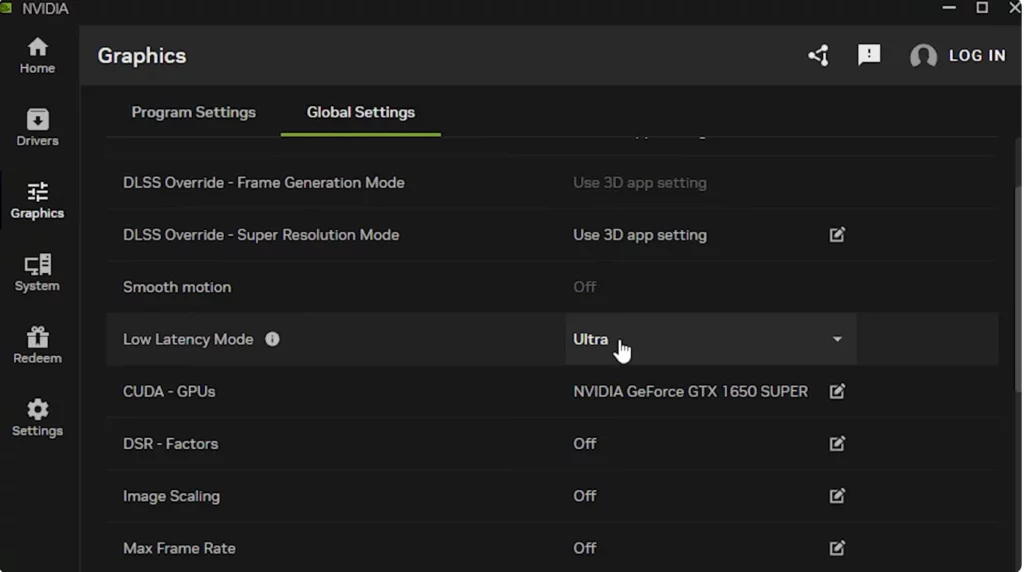
After rebooting, open the NVIDIA App:
Essential Global Settings:
- Low Latency Mode: Set to On for competitive shooters (or use NVIDIA Reflex within your games).
- Power Management Mode: Change to Prefer Maximum Performance to prevent GPU clock speed throttling.
- Texture Filtering – Quality: Set to High Performance to prioritize frame rates.
- Vertical Sync (VSync): Disable globally for competitive titles (use in-game frame caps or Reflex instead).
Note: If you use G-Sync, adjust those specific display settings separately.
Per-Game Optimization:
- Add titles like CS2, Valorant, or Warzone to the NVIDIA App.
- If you’re on a lower-spec machine, prioritize frame consistency over ultra-high graphics—lower shadows and particle effects to keep 1% lows stable.
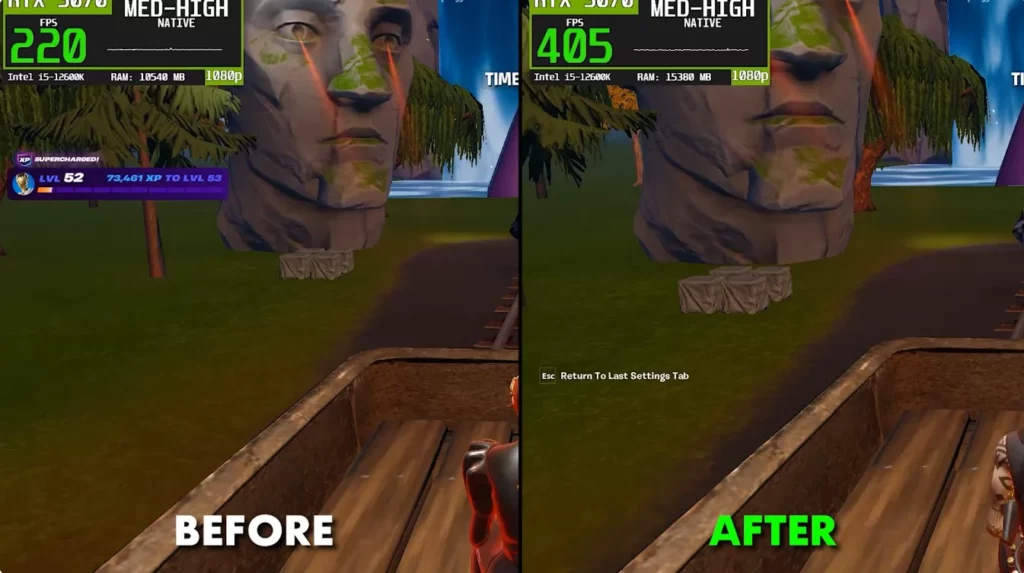
Before and After: What to Expect
Before: Random stuttering, inconsistent frame times, and high input latency. After: Smoother frame delivery, sharper input response, and consistent GPU clocks.
Ready to start? Give this a shot and let me know in the comments if your games are running smoother! For more FPS optimization guides, stay tuned.
Frequently Asked Questions (FAQ)
Q1: Is it mandatory to use DDU in Safe Mode?
Highly recommended. While you can run it normally, Safe Mode ensures that background driver processes don’t interfere with the cleaning process.
Q2: What is NVCleanstall? Can I skip it?
NVCleanstall allows you to prune unnecessary components from the NVIDIA installer. You can use the official installer, but your driver will be much heavier and contain telemetry you likely don’t want.
Q3: Still having issues after the install?
Double-check that you’ve installed the correct GPU branch for your card and that your Windows Power Plan is set to High Performance.