

Are you tired of constantly copy-pasting the same prompts into Gemini to summarize articles, extract product data, translate text, or format reports? That repetitive workflow is officially a thing of the past.
Google Chrome has officially rolled out the ‘Skills’ feature, allowing you to save your frequently used Gemini prompts as reusable ‘Skills’ that you can trigger on any webpage with a single click.
What are Chrome Skills?
In short, Skills turn your Gemini prompts into reusable automated workflows.
Instead of manually typing out instructions every time, you can now save your prompts as a Skill and:
- Quickly trigger them in the Gemini sidebar by typing /
- Run them on single webpages
- Even better, select multiple tabs and run the same Skill across all of them simultaneously
For those of us constantly churning through web content, this is a complete game-changer for productivity.
How to Use Chrome Skills: A Step-by-Step Guide
- Save a Skill (The core process)
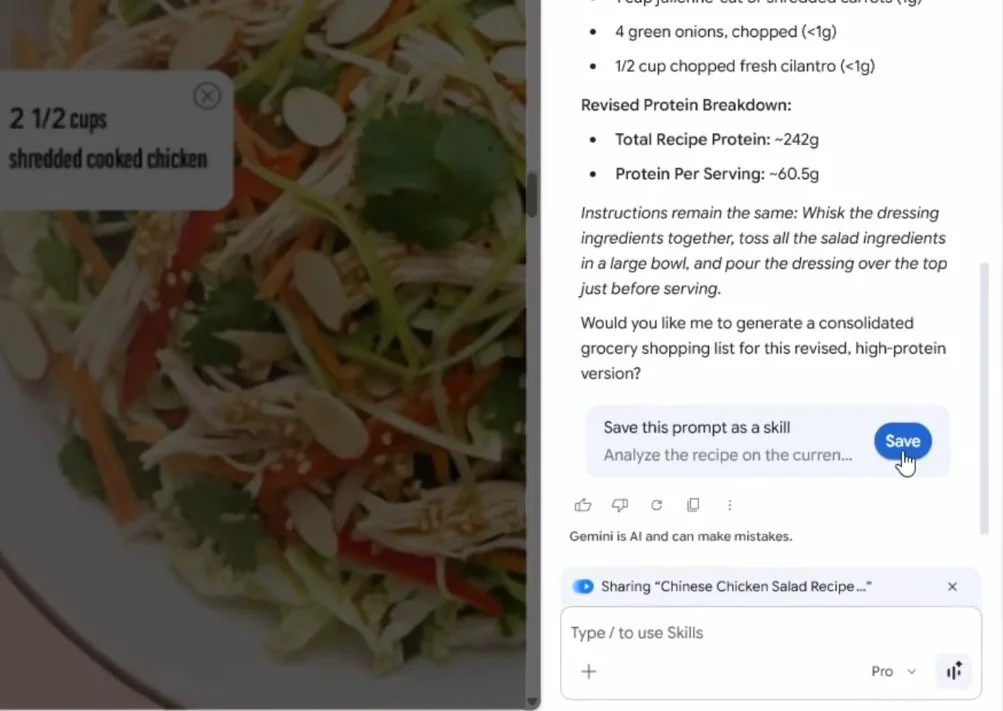
- Chat with Gemini in the Chrome sidebar as you normally would.
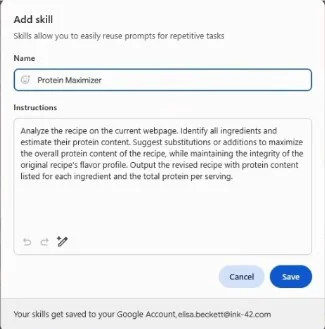
- Once you’ve crafted the perfect prompt, save it as a Skill directly from your chat history.
- Give it a descriptive name (e.g., ‘Summarize key points and extract action items’).
- Quickly Invoke a Skill
- Open any webpage.
- Open the Gemini sidebar.
- Type / (forward slash) to pull up your list of saved Skills.
- Select the desired Skill, and it will automatically execute on the active page.
- Batch Processing Across Tabs
- Highlight multiple tabs you want to process.
- Trigger the Skill, and select the option to run it across all selected tabs simultaneously.
- Gemini will synthesize the data from all those pages, maximizing your efficiency.
- Manage Your Skills Library
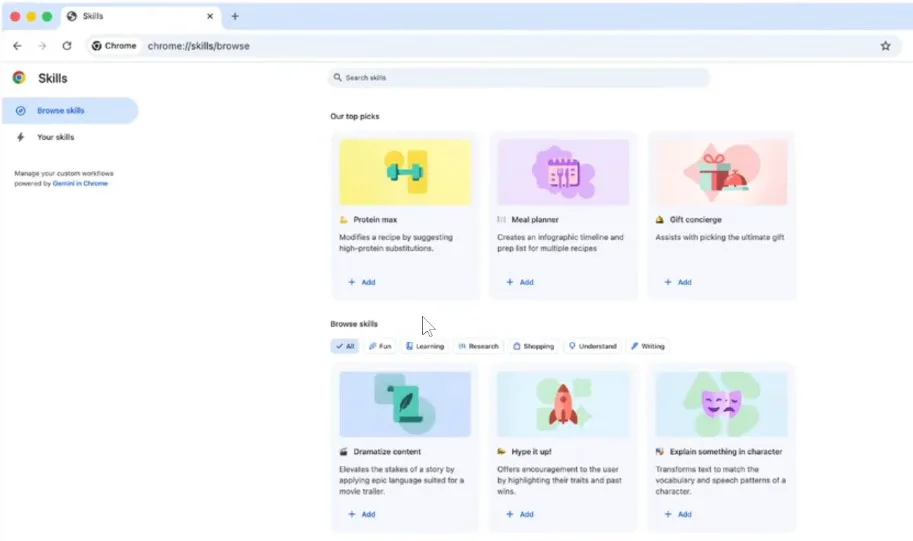
- Chrome now includes a dedicated Skills Library.
- Here, you can manage, edit, or delete your custom Skills.
- Check out ‘Top Picks’ and ‘Browse Skills’ to discover official, pre-made utilities from Google.
How is Security Handled?
Google hasn’t cut corners here. When a Skill involves sensitive actions such as:
- Adding events to your calendar
- Drafting emails
- Handling personal data
Chrome will prompt a confirmation dialog, requiring you to manually authorize the action before the AI proceeds. Your privacy remains a top priority under Chrome’s existing security framework.
Current Availability (Important)
- Rollout Date: Gradual rollout started April 15, 2026.
- Platforms: Desktop (Windows, macOS, Chrome OS).
- Language: Gemini language settings must be set to English.
- Prerequisites: You must be logged into your Gemini account in a supported region.
- Mobile: Not yet available; no timeline provided by Google.
If you don’t see the feature yet, double-check your language settings and ensure you’re signed in.
Who is this for?
- Content Creators: Summarize multiple articles and extract outlines in seconds.
- Researchers/Students: Batch-extract data from websites for rapid analysis.
- Professionals: Automate report summaries and email drafts across multiple open tabs.
- E-commerce/Product Managers: Compare specs and pricing across multiple product pages instantly.
In short: If you use Gemini to analyze web content, the Skills feature will save you hours of repetitive busywork.
FAQ
Q1: Is Chrome Skills available to everyone now?
A: It started rolling out on April 15, 2026, for desktop users. You must have Gemini set to English. It is not currently available on mobile.
Q2: How do I trigger my saved Skills?
A: Type / in the Gemini sidebar, and a list of your custom Skills will appear.
Q3: Can Skills handle multiple tabs?
A: Yes. Selecting multiple tabs allows the same Skill to run across all of them at once, perfect for batch processing.