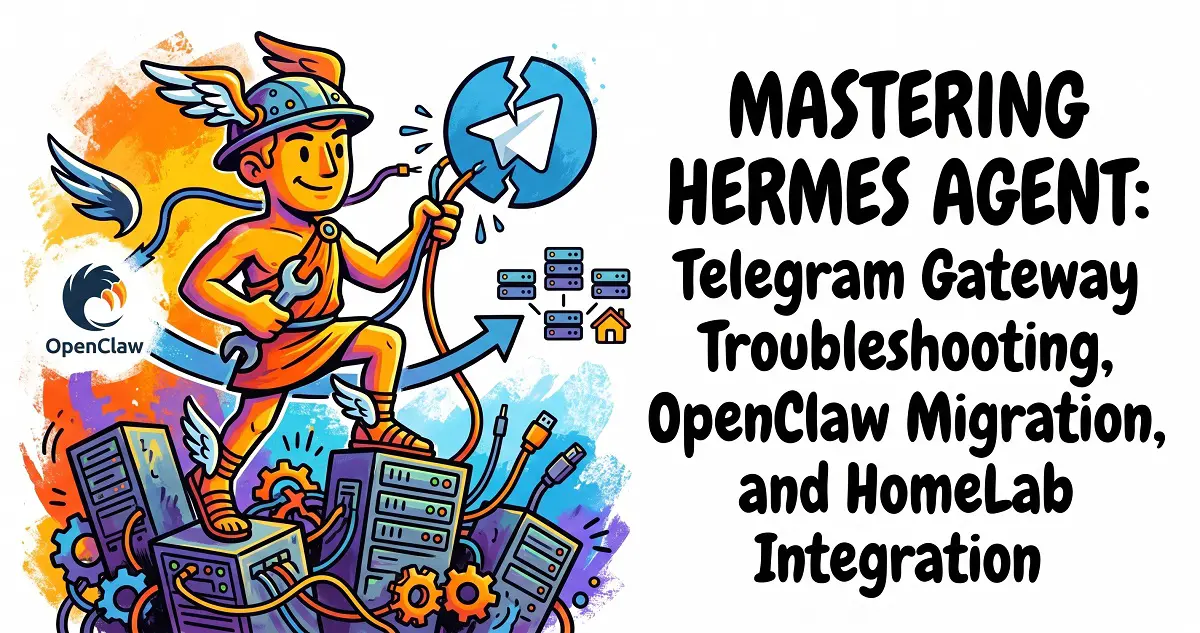
Hermes Agent 【Official Website】 is an autonomous AI agent with “closed-loop learning” capabilities developed by Nous Research 【GitHub Repository】. It goes beyond simple CLI interaction by offering Telegram integration, full local system control (such as terminal execution and file I/O), and robust cron-based automation.
This guide cuts to the chase, providing a detailed breakdown of core configuration, Telegram gateway troubleshooting, OpenClaw data migration, and deep integration with your HomeLab ecosystem (n8n, NAS, ComfyUI).
1. LLM Configuration and Environment Setup
Hermes Agent functionality depends heavily on your LLM setup. Do not attempt to launch the gateway service until your model connectivity is fully verified .
1.1. Model Requirements
Hermes Agent requires a model that supports at least 64,000 tokens of context to maintain the “working memory” necessary for multi-step tool calls .
- Cloud Models: Use the
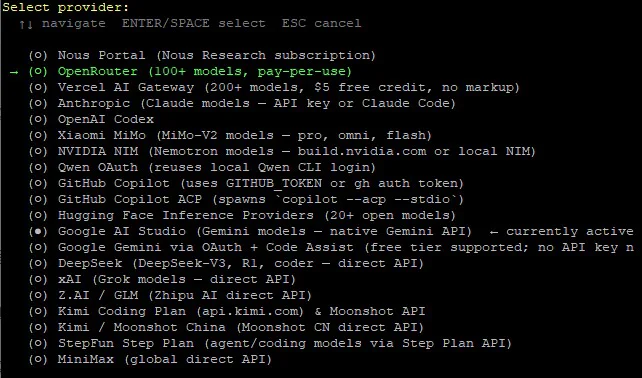
hermes modelcommand to select providers like OpenRouter or NVIDIA NIM. - Local Models (e.g., Ollama): Select
Custom Endpoint, inputhttp://<Your_Ollama_IP>:11434/v1, set the model name (e.g.,llama3:8b), and ensure you’ve initialized the model with sufficient context (e.g.,-c 65536).
1.2. API Key Pitfalls (Using OpenRouter as an example)
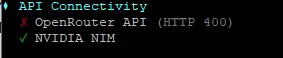
If you encounter an ✗ OpenRouter API (HTTP 400) error when running hermes doctor:
- Free Tier Conflict: If your config defaults to a paid model while using an OpenRouter free account (
is_free_tier: true), requests will be rejected. Solution: Use a:freesuffix model or add credits to your account. - Uncommenting .env: Your API Key is stored in
~/.hermes/.env. You must remove the#and the space precedingOPENROUTER_API_KEY=. The key must follow the equals sign directly, or the system won’t read it.
Golden Rule of Troubleshooting: After modifying any config, always test by running
hermesin the terminal. Only proceed to configure the Telegram gateway once standard chat in the terminal is working flawlessly .
2. Telegram Gateway Setup and Background Daemonization
2.1. Setting the Home Channel
During hermes gateway setup, you’ll be prompted for a Home channel ID. This is where automated tasks and notifications will be sent .
- Best Practice: Simply press Enter to skip. Once configured, message the bot via Telegram and send
/sethome; it will automatically bind your current window as the primary hub.
2.2. Fixing Gateway Crashes and PID Conflicts
If you encounter Job for hermes-gateway.service failed or system logs show PID file race lost:
- Cause: This usually happens when the systemd background service tries to restart while you are running
hermes gateway runin the foreground, causing a file lock collision. - Resolution:
- Stop the background service:
systemctl --user stop hermes-gateway.service - Kill residual processes:
pkill -f "hermes_cli.main gateway run" - Remove the lock file:
rm -f ~/.hermes/gateway.pid
- Stop the background service:
2.3. Background Persistence
Don’t run in the foreground, or your agent will go offline the moment you close your SSH session .
- Start the daemon:
hermes gateway start - Check status:
hermes gateway status. If it displaysActive: active (running)andSystemd linger is enabled, your agent will persist 24/7, even through server reboots.
3. Seamless Migration: OpenClaw to Hermes
Hermes provides native tools to inherit your OpenClaw “digital legacy” (memories, skills, and personas) .
- Shut down OpenClaw: You must kill the old process to prevent “split-brain” syndrome, where both agents fight for the same Telegram token.
- Stop service:
systemctl --user stop openclaw.service - Disable auto-start:
systemctl --user disable openclaw.service
- Stop service:
- Execute migration: Run
hermes claw migrate --source /path/to/backup. - Verify: The migration automatically generates a global fact database (
MEMORY.md), user profile (USER.md), and moves old scripts to~/.hermes/skills/openclaw-imports/.
4. Advanced HomeLab Integration
With terminal and code_execution permissions, Hermes acts as the “Digital COO” of your lab .
4.1. Integrating n8n and ComfyUI
- n8n Workflows: Create a webhook trigger in n8n. Instruct Hermes to write a Python skill that executes an HTTP POST request to that webhook, allowing you to trigger complex pipelines using natural language.
- ComfyUI Imaging: Enable developer mode in ComfyUI to save your
workflow_api.json. You can bridge this through n8n or have Hermes directly modify the JSON prompt nodes via Python to initiate requests, bypassing the inefficiency of browser automation.
Read More: Hermes Agent Deep Config Guide
[Practical Guide] Build a Fully Automated AI Intelligence Center with n8n + OpenClaw + RSSHub
4.2. NAS Integration
Skip the HTTP API for your NAS. Use SMB/NFS to mount your shares to /mnt/synology at the OS level . This allows Hermes to use native tools like ripgrep for lightning-fast file searches, batch processing, and log analysis .
4.3. Defining the ‘Soul’ (SOUL.md)
Tired of overly polite AI? Tweak ~/.hermes/SOUL.md to define its persona . Define it as a “System Architect”: mandate concise, engineering-focused outputs, and have it suggest automation skills for repetitive tasks. Changes are live immediately without needing a service restart .
FAQ
Q1: How do I fix “Job for hermes-gateway.service failed”?
A: This is usually a PID lock file conflict between systemd and a foreground process, or an underlying model connection issue. The fix: Stop the service (systemctl --user stop hermes-gateway.service), kill lingering processes (pkill -f "hermes_cli.main"), and delete the lock file (rm -f ~/.hermes/gateway.pid). Test the agent in your local terminal first before restarting the service.
Q2: Will I lose my data migrating from OpenClaw?
A: No. Hermes includes a migration tool. The critical step is to fully stop and disable your OpenClaw service first. Running both simultaneously will lead to token contention and connectivity issues. Post-migration, your assets are converted into MEMORY.md and native Python skills.
Q3: Can Hermes control my n8n or ComfyUI workflows?
A: Yes. For n8n, simply trigger a webhook via a custom Python skill. For ComfyUI, have Hermes modify the workflow_api.json and send requests directly. Its native code execution allows it to act as an agent that manages your local infrastructure through natural language commands.