

Experiencing stuttering, blurriness, or latency while playing PCVR on your Quest? Since the Quest relies on wireless streaming for PCVR, choosing the right software is the key to a smooth experience. In this guide, we compare the top 4 contenders: Air Link, Steam Link, Virtual Desktop, and ALVR. We’ll break down the setup, pros and cons, and recommendations to help you optimize your WiFi 6 setup and PC Ethernet connection to achieve a near-native PCVR experience.
Prerequisites for PCVR (Don’t Skip)
- PC to Router: Always hardwire your PC via Ethernet to avoid wireless interference.
- USB Connection: Ensure you use a USB 3.0+ port for wired Quest Link performance.
- Codec Support: HEVC/AV1 encoding requires a compatible GPU (RTX 40-series is ideal).
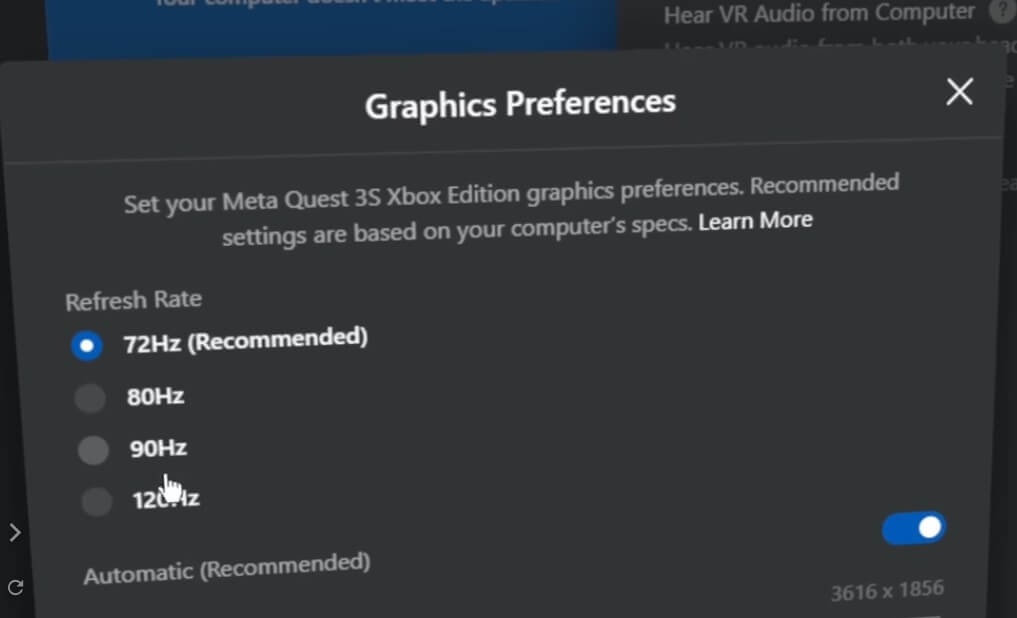
1. Air Link: The Meta Official Free Option.【Official Website】
Cost: Free. Best For: Beginners and users splitting time between SteamVR and Meta store titles.
Setup Steps
- Install the Meta Link app on your PC and log in to your Meta account.
- Enable Air Link in your Quest settings and pair it with your PC.
- Launch SteamVR or Meta games from within the headset.
Pros:
- Integrated into Horizon OS; no sideloading required.
- Supports both wireless and wired (USB Link) connections.
- Access to advanced sharpening and bitrate debugging tools.
Cons:
- Varies in stability; prone to frame drops and disconnects based on network traffic.
- Less frequent updates from Meta.
Best Case: You want a zero-cost, simple out-of-the-box solution.
2. Steam Link: The Reliable Free Contender from Valve.【Meta Apps】
Cost: Free. Best For: Heavy Steam library users (e.g., Half-Life: Alyx).
Setup Steps
- Download the Steam Link app from the Quest Store.
- Run SteamVR on your PC.
- Pair the headset to your PC; no extra drivers needed.
Pros:
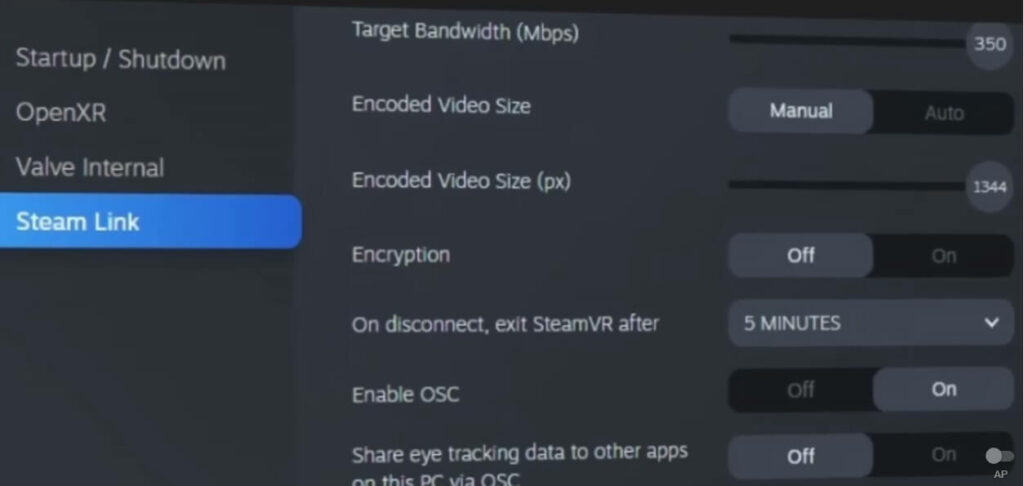
- Plug-and-play simplicity, excellent HEVC encoding, and dynamic/manual bitrate (25-350 Mbps).
- Supports viewing flat-screen games on a massive virtual theater screen.
- Extremely stable with very low latency.
Cons:
- Steam-focused; no support for Oculus-exclusive titles.
- Limited manual adjustments.
Best Case: You’re a dedicated Steam gamer looking for a fast, wireless connection.
3. Virtual Desktop: The Gold Standard for Wireless Performance.【Official Website】
Cost: $24.99 (Quest Store). Best For: Users demanding the absolute best wireless experience.
Setup Steps
- Install the Virtual Desktop Streamer app on your PC and log in with your Meta username.
- Purchase and install the app from the Quest Store.
- The app will automatically discover and connect to your PC.
Pros:
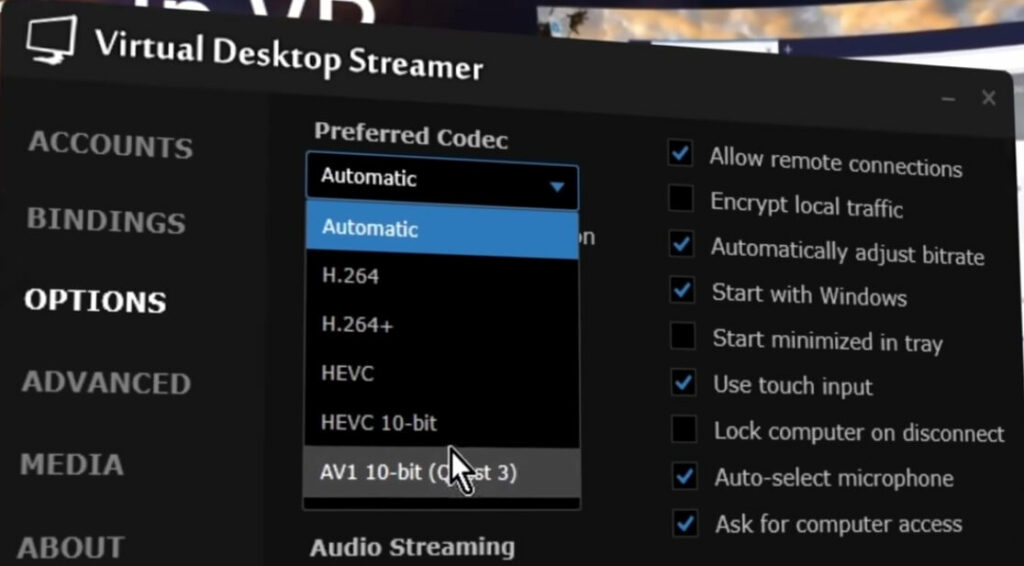
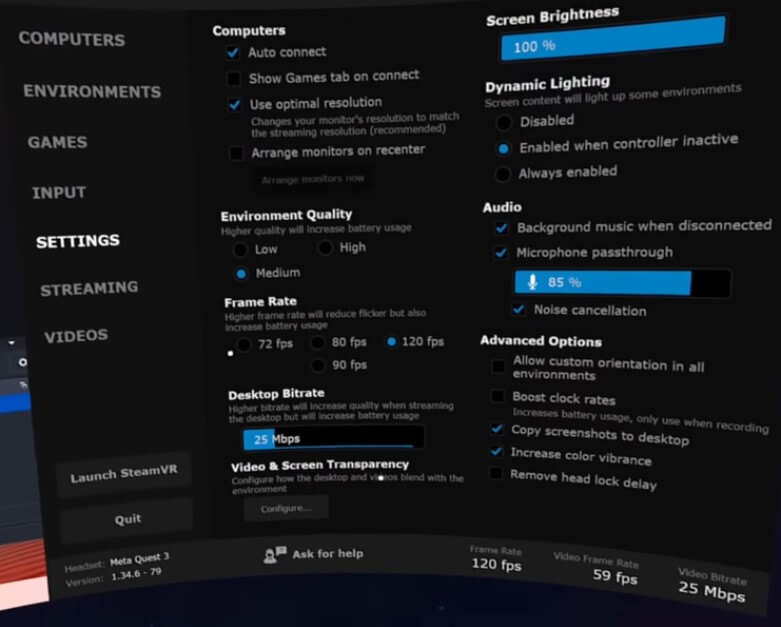
- Comprehensive codec support (H.264/HEVC/AV1), up to 120Hz, and 200+Mbps bitrates.
- Advanced features: sharpening, gamma control, performance overlays, and multiple environment modes.
- Extremely reliable, low latency, and receives frequent, polished updates.
Cons:
- Paid software.
- Strictly for wireless use.
Best Case: High-end wireless PCVR enthusiasts willing to pay for premium stability.
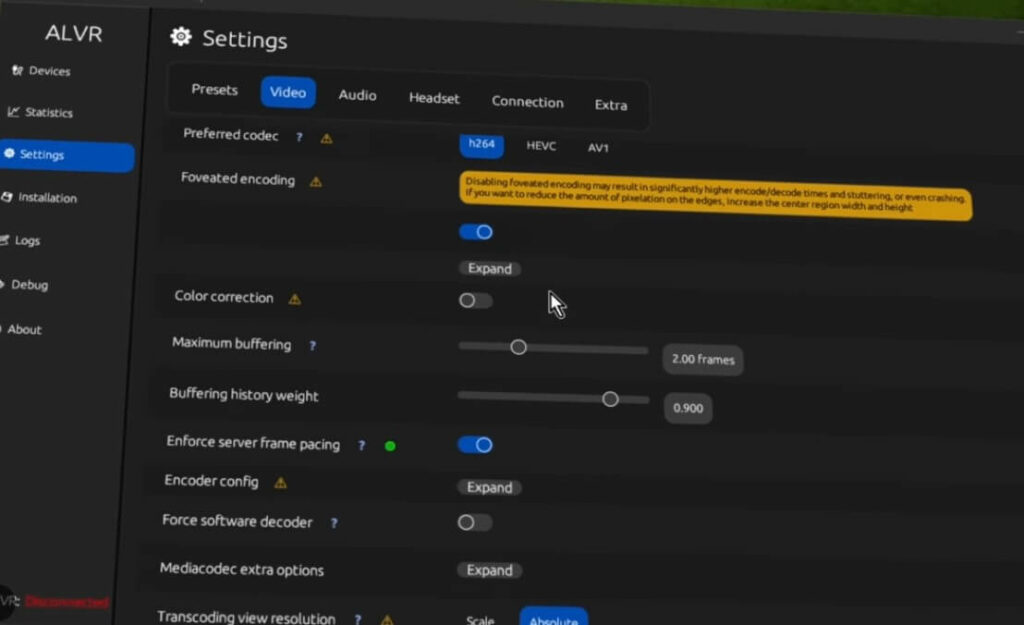
4. ALVR: The Open-Source Paradise for Geeks.【GitHub】
Cost: Free. Best For: Linux users and power users who love deep customization.
Setup Steps
- Install the ALVR server on your PC.
- Sideload the ALVR client onto your Quest using SideQuest.
- Connect via your preferred wireless or USB method.
Pros:
- Unbounded customization: tweak every variable from bitrate and encoding to frame timing and color depth.
- Supports both wireless and wired setups; excellent Linux compatibility.
- Open-source with a community-driven development cycle.
Cons:
- Complex configuration; higher barrier to entry.
- Not a true plug-and-play experience.
Best Case: You love tinkering and need a reliable wired backup option.
Quick Comparison Table: Quest PCVR Options
| Option | Cost | Connection | Stability | Customization | SteamVR | Target User |
|---|---|---|---|---|---|---|
| Air Link | Free | Both | Medium | Medium | Yes | Casual Meta User |
| Steam Link | Free | Wireless | High | Low | Exclusive | Steam Enthusiast |
| Virtual Desktop | $24.99 | Wireless | Very High | High | Yes | Wireless Power User |
| ALVR | Free | Both | Medium | Extreme | Yes | Linux/Open-Source Fan |
Recommendation: Choose Based on Your Needs
- Newbie/Budget: Start with Air Link or Steam Link.
- Steam Library Focused: Stick with Steam Link.
- Best Wireless Performance: Go with Virtual Desktop.
- Free/Wired Customization: Use ALVR.
- Sim Racing/Flight Simmers: Use a wired connection (Air Link USB or ALVR) to minimize latency.
Test each option, tweak your bitrates and sharpening filters. With the right optimization, your Quest PCVR experience will rival high-end tethered headsets like the Index or Rift S.