
Struggling to find the right assets for social media or e-commerce design? Midjourney comes with a price tag, and Stable Diffusion often fumbles with Chinese text support.
Enter Z-Image, the latest open-source model from Alibaba’s Tongyi Lab. Its killer feature? It actually understands Chinese and is remarkably hardware-friendly. Even if you’re rocking a budget laptop with just 6GB of VRAM (like an RTX 3060 Laptop), you can generate high-end, commercial-grade posters.
No fluff here—this guide walks you through setting up Z-Image locally using ComfyUI, complete with a step-by-step walkthrough and a troubleshooting guide to help you avoid common pitfalls.
🛑 Step 1: Which version does your rig need?
Z-Image offers two versions. Check your GPU specs before downloading. Choosing the wrong one will lead to either OOM (Out of Memory) errors or agonizingly slow generation speeds.
| GPU Tier | Typical Models | Recommended Plan | VRAM Usage | Gen Speed |
|---|---|---|---|---|
| Power User | RTX 4070/4080/4090 3060 (12G) |
BF16 Original (Best quality, fastest) |
~12 GB | 2-4s |
| Budget/Laptop | RTX 3060 (6G) RTX 4050/3050 |
GGUF Quantized (Near-native quality, half VRAM) |
< 6 GB | 1-2m |
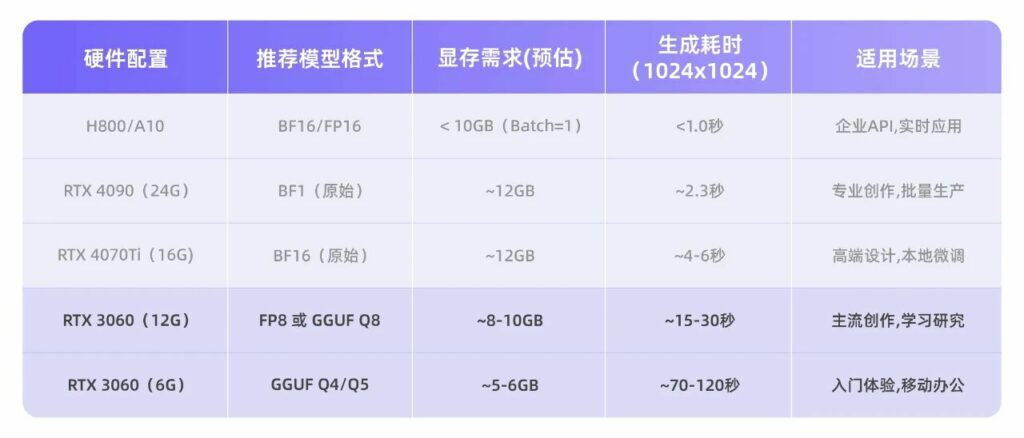
💡 Pro Tip: If you’re on the fence about your VRAM capacity, just go with the GGUF version. The quality trade-off is negligible, but it’s significantly more stable and rarely throws errors.
🛠️ Step 2: ComfyUI Installation & Core Files
ComfyUI is the gold standard for AI image generation workflows right now. If you haven’t installed it yet, search for “ComfyUI Portable” on GitHub, download it, and extract it.
Here’s the catch: 90% of failures happen because files are in the wrong folders. Follow this strictly:
1. Download the Core Model (Choose one based on VRAM)
Download from Hugging Face or ModelScope and place them in ComfyUI/models/diffusion_models/:
- Power User (≥12G):
z_image_turbo_bf16.safetensors.【Hugging Face Link】 - Budget/Laptop (6-8G):
z_image_turbo_Q4_K_M.gguf.【Hugging Face Link】
2. Download the Text Encoder
Place these in ComfyUI/models/text_encoders/:
(Note: This is the secret behind Z-Image’s Chinese capabilities—it’s actually a Qwen LLM)
- Power User (≥12G):
qwen_3_4b.safetensors. - Budget/Laptop (6-8G):
qwen_3_4b_Q4_K_M.gguf- ⚠️ Warning: Low-VRAM users MUST use the
ggufversion here! The originalsafetensorsversion will consume 6GB of VRAM on its own and crash your system.
- ⚠️ Warning: Low-VRAM users MUST use the
3. Download the VAE (Universal)
Place it in ComfyUI/models/vae/:
- Download:
ae.safetensors(Official recommended version)
⚙️ Step 3: ComfyUI Workflow Setup
Scenario A: VRAM ≥ 12GB (BF16 Original Workflow)
- Open ComfyUI, and load the “Z-Image Turbo Text-to-Image” workflow.
- Load Diffusion Model: Select
z_image_turbo_bf16. - DualCLIPLoader: Load
qwen_3_4b. - Hit Generate and you’re good to go!
Scenario B: VRAM 6-8GB (GGUF Quantized Workflow) 🌟 Important
Low-VRAM users need one extra step:
- Open ComfyUI Manager, search for and install ComfyUI-GGUF, then restart ComfyUI.
- Update Nodes:
- Use the
Unet Loader (GGUF)node to loadz_image_turbo_Q4_K_M.gguf. - Use the
CLIP Loader (GGUF)node to loadqwen_3_4b_Q4_K_M.gguf.
- Use the
- Connect your VAE node, and that’s it!
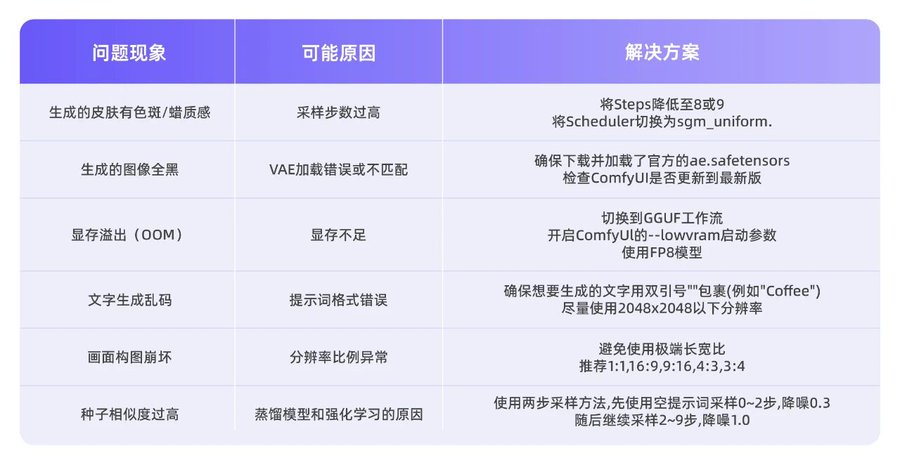
⚡ Critical Settings (Don’t deviate!)
Z-Image is sensitive to configuration. Changing these might result in black images or waxy skin textures. Lock these in:
- Steps: 8 or 9 (Do NOT go over 20; higher steps actually hurt quality here!)
- CFG: 1.0 (Must stay at 1.0)
- Sampler:
euler - Scheduler:
sgm_uniform(Produces the least noise) - Resolution: Recommended
1024x1024or1280x720.- Need 4K? Generate at 1024, then use an Upscaler node. Don’t try to render 4K directly.
🎨 Step 4: Pro-Tier Prompting
Z-Image loves descriptive, verbose prompts. Ask ChatGPT to expand your basic ideas into rich descriptions covering lighting, materials, and camera settings.
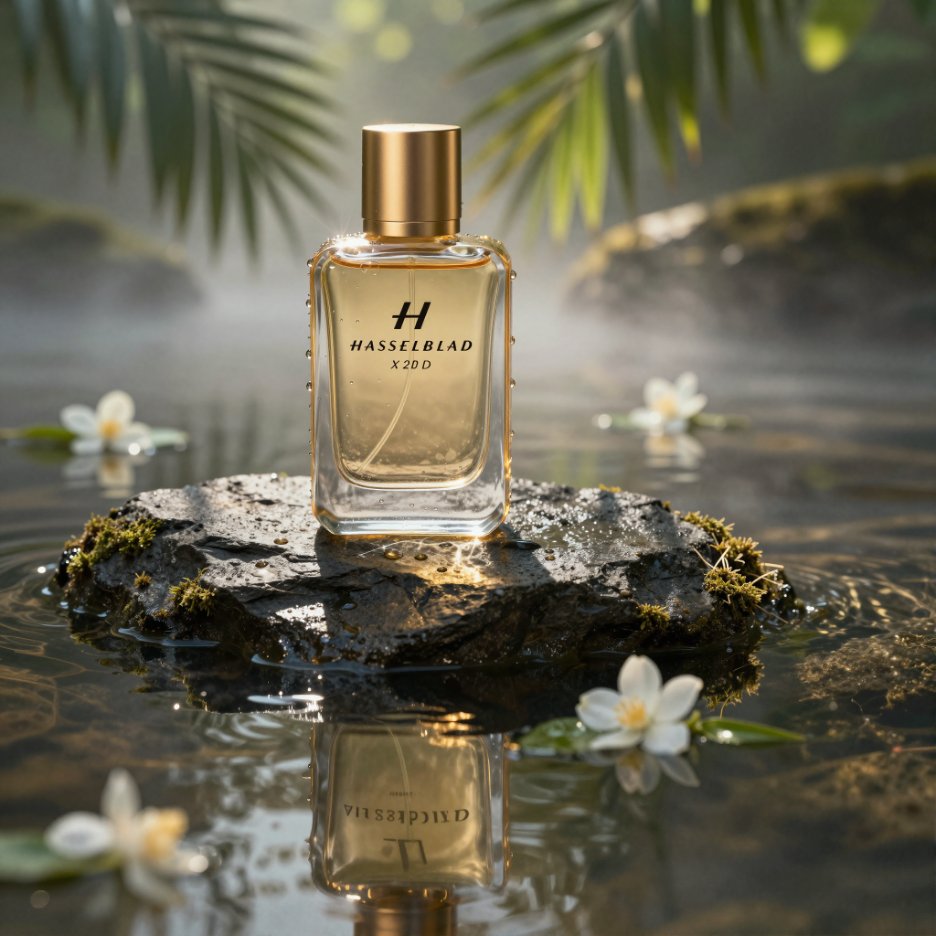
1. E-Commerce Product Photography
Prompt:
A hyper-realistic, cinematic commercial product shot. Subject: an amber-colored glass perfume bottle with a brushed gold cap, elegantly resting on a textured piece of slate emerging from calm water. Setting: a misty tropical rainforest at sunrise. Lighting: strong volumetric lighting (Tyndall effect) filtering through lush palm leaves above, creating complex, dappled shadows…Technical Specs: Hasselblad X2D 100C, 8k resolution, Unreal Engine 5 render style.
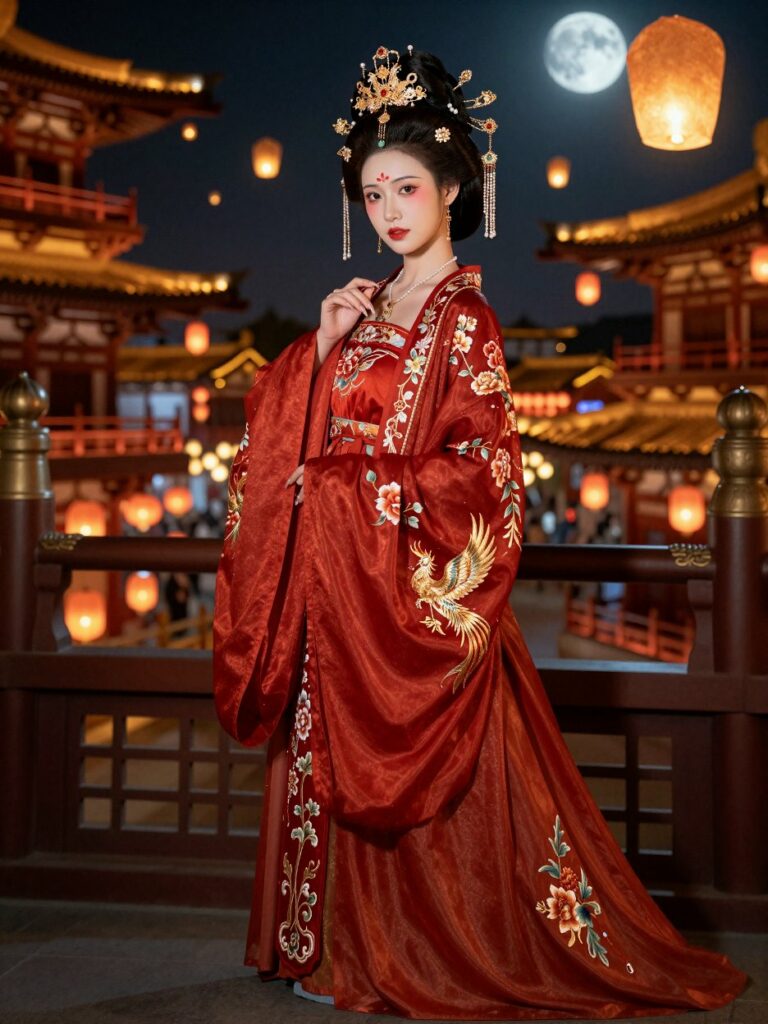
2. Eastern Aesthetic (Hanfu Portrait)
Prompt:
A stunning noblewoman from the Tang Dynasty wearing layers of crimson silk Hanfu embroidered with golden phoenixes. Background: the bustling, prosperous night view of Chang’an city with lanterns floating in the distance. Details: intricate floral forehead decals, swaying golden hairpins.Vibe: Warm golden lanterns interweaving with cold blue moonlight, cinematic lighting, 8K resolution, Legend of the Demon Cat visual style.
🔧 Troubleshooting FAQ
- Images coming out solid black?
- Check that your VAE is loaded correctly, or you’ve set the Steps too high (anything over 10 will often cause this).
- Getting OOM (Out of Memory) errors?
- You’ve likely mixed up your files. If you are on a budget GPU, double-check that you aren’t using the
safetensorsversion of the Text Encoder. Use theGGUFversion!
- You’ve likely mixed up your files. If you are on a budget GPU, double-check that you aren’t using the
- Text is gibberish?
- Z-Image supports Chinese well, but avoid mixing too much English and Chinese in your prompt.
Bottom Line:
Z-Image is currently the most low-end friendly Chinese AI generation model available. Even if you’re using an aging laptop, following the “GGUF Plan” in this guide will get you stunning, high-quality results.
Give it a try and drop a comment below if you run into any issues!
GitHub: https://github.com/Tongyi-MAI/Z-Image
Hugging Face: https://huggingface.co/Tongyi-MAI/Z-Image-Turbo
ModelScope: https://modelscope.cn/models/Tongyi-MAI/Z-Image-Turbo