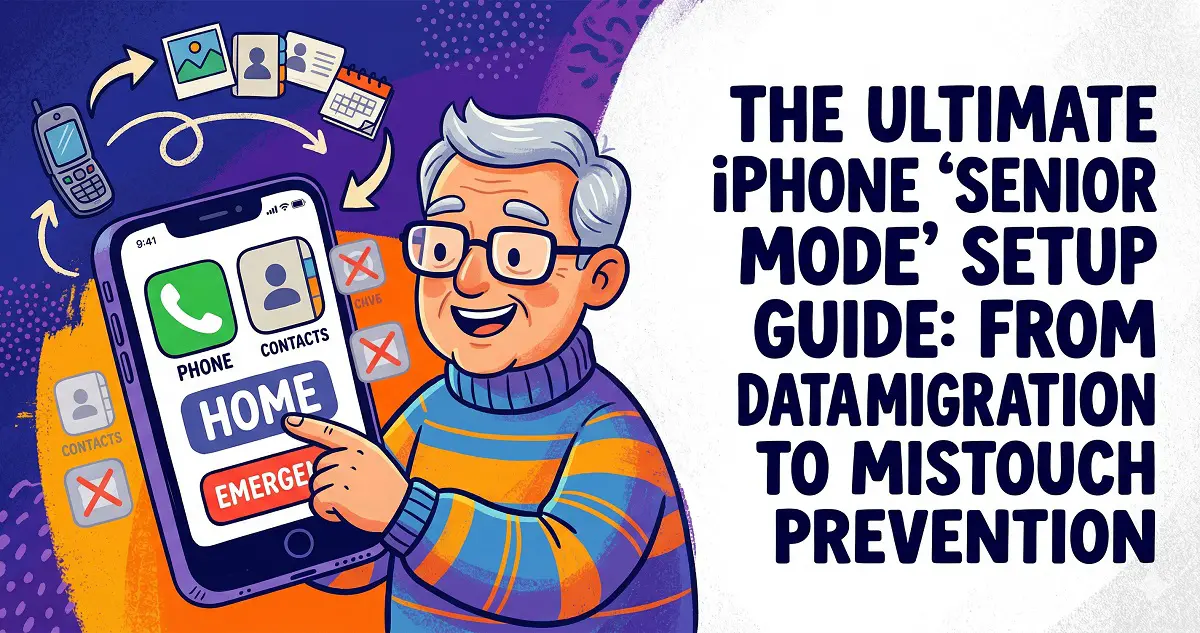
Switching your parents or grandparents to an iPhone is a smart move; iOS is rock-solid and significantly less prone to unwanted bloatware than Android. However, the out-of-the-box settings aren’t exactly senior-friendly. This guide is split into two parts:
Data Migration (how to import Android contacts) and
System Configuration (transforming your iPhone into the ultimate “Senior Phone”).
Part 1: Importing Android Contacts to iPhone
Choose the method that best fits your device’s current state (brand new vs. already in use).
Method 1: Using “Move to iOS” (Recommended for new devices)
If the iPhone is fresh out of the box or has been factory reset, this is the official, most comprehensive solution.
- On Android: Download and launch the “Move to iOS” app.
- On iPhone: During initial setup, navigate to the “Apps & Data” screen and select “Move Data from Android”.
- Pairing: Enter the code displayed on your iPhone into your Android device, select “Contacts,” and wait for the transfer to complete.
Method 2: Sharing a VCF File (Best for already configured phones)
If the phone is already in use and you don’t want to wipe it, this is the most reliable path.
- On Android: Go to Contacts > Settings > Export Contacts > select “Export to internal storage” (this generates a .vcf file).
- Transfer: Locate the .vcf file in your file manager and send it to the iPhone via a messaging app or Bluetooth.
- On iPhone: Tap the received file and select “Add All Contacts”.
Method 3: SIM Card Import (Simplest for fewer contacts)
- On Android: Contacts Settings > Export Contacts > Export to SIM Card.
- Hardware: Insert the SIM card into the iPhone.
- On iPhone: Go to Settings > Contacts > Import SIM Contacts.
Part 2: Essential iPhone “Senior Mode” Settings
Once the data is set, follow these 5 optimizations to fix issues related to visibility, volume, accidental charges, and navigation errors.
1. Visual Optimization: For better readability
- System-wide text:
Settings > Display & Brightness > Text Size (increase) > Enable Bold Text.
- Larger icons:
Settings > Display & Brightness > Display Zoom > select Larger Text.
- Boost contrast:
Settings > Accessibility > Display & Text Size > Toggle Increase Contrast (removes background blur effects for sharper edges).
2. Auditory Alerts: Ensure they never miss a call
- LED Flash for Alerts:
Settings > Accessibility > Audio/Visual > Enable LED Flash for Alerts (Highly recommended to prevent missed calls).
- Lock Ringtone Volume:
Settings > Sounds & Haptics > Disable Change with Buttons (prevents seniors from accidentally silencing their phone via volume buttons).
3. Streamlined Interaction: Prevent accidental “clutter”
- Disable “Shake to Undo”:
Settings > Accessibility > Touch > Disable Shake to Undo (prevents confusing pop-ups caused by hand tremors).
- Restrict App Deletions:
Settings > Screen Time > Content & Privacy Restrictions > iTunes & App Store Purchases > Set Deleting Apps to Don’t Allow.
- Home Screen Cleanup: Keep only Phone, Messages, Photos, and Weather. Move all other system apps into a folder on the second page.
4. Security: Location tracking and emergency access
This is the primary reason to use a modern smartphone for seniors.
- Medical ID: Open the
Health App > Profile Icon > Medical ID. Set your number as the “Emergency Contact” and ensure Show When Locked is enabled.
- Find My:
Settings > Apple ID > Find My > Enable Share My Location.
- Family Sharing: Add their Apple ID to your Family Sharing group to track their location and manage subscription billing.
5. The Ultimate Solution: Assistive Access
Ideal for: Elderly users, those with cognitive impairments, or those who find smartphones overwhelming.
Requirement: iOS 17 or later.
- Path:
Settings > Accessibility > Assistive Access.
- Result: It turns the UI into a simple, grid-based “tiles” interface, showing only permitted apps. No settings menu, no accidental deletions—it’s essentially a “smart” feature phone.
Final Thoughts
The secret to setting up a phone for seniors is
subtraction. Don’t worry about teaching them every feature; turn the device into a clean, intuitive communication tool. Finally, don’t forget to sign them into iCloud and enable
iCloud Backup—it’s your insurance policy against lost photos and contacts.
Resources