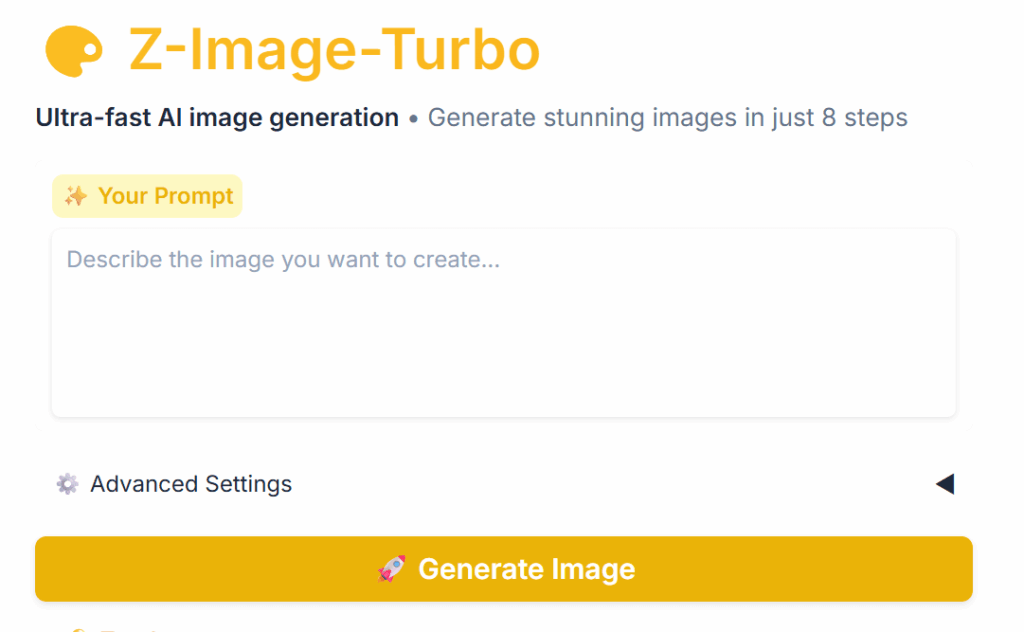

Z-Image Turbo has taken the community by storm. It’s an open-source text-to-image AI model that handles Chinese prompts with ease, supports NSFW content, and lacks restrictive censorship. It’s incredibly fast, and you only need about 8GB of VRAM to get it running smoothly. The official deployment method uses ComfyUI, and it’s fully supported on both Windows and macOS. Follow this step-by-step guide to get up and running in no time.
Note: This guide is intended for users with at least 12GB of VRAM. If you have less than 12GB, please check out my other article for low-VRAM optimizations.
Reference: Z-Image Beginner’s Guide: Pro Posters on 6GB VRAM! (ComfyUI Config Included)
Prerequisites
- Python: Version 3.10 or 3.11. Make sure to download the installer for your specific OS. [Download from official site]
- Git: Download the latest version. [Download from official site]
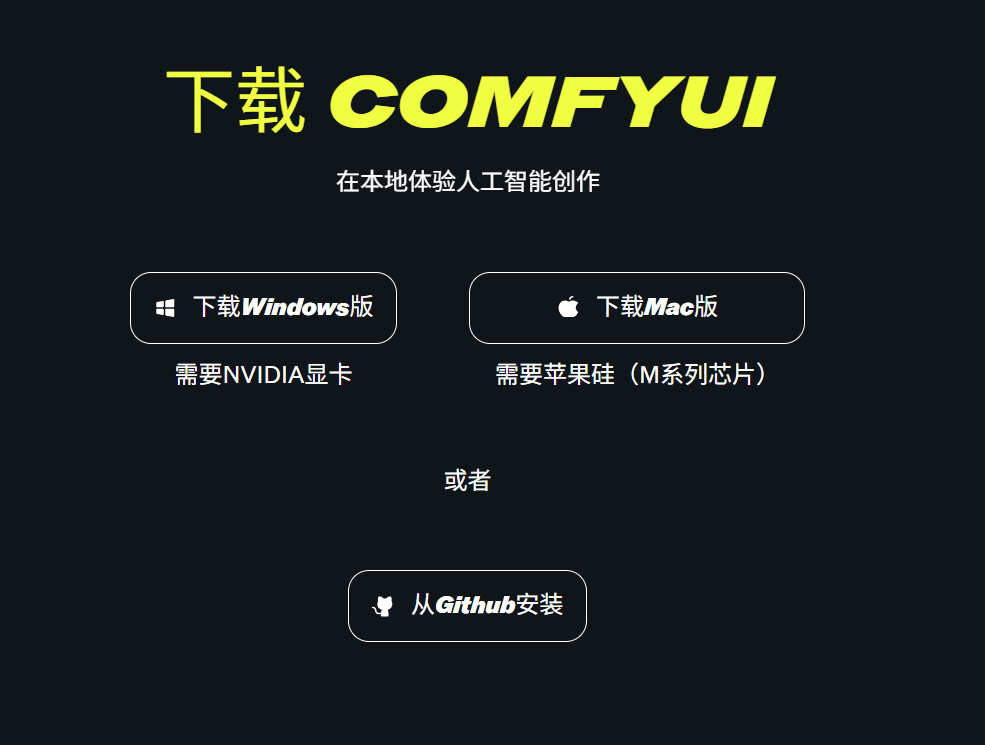
- ComfyUI Client: Windows users should grab the standard (or portable) version. AMD users should select the dedicated AMD version. Mac users with M-series chips should use the Apple Silicon release (note that AMD/Intel Macs will rely on CPU inference, which is significantly slower). [Official Download]
- Network: You will need a reliable internet connection to download the necessary environments and models.
Installation Steps: Two Ways to Deploy
Method 1: The One-Click Bundle (Recommended for Beginners)
- Download the Z-Image Turbo integration package: Click the download link (keep the backup link handy).
- Extract the archive and double-click the startup script to run it.
- Let the script automatically pull the models and set up the environment. Once finished, the ComfyUI interface will launch automatically.
Method 2: Manual Deployment (For Power Users)
- Install Python and Git (download from their official sites and restart your machine).
- Download ComfyUI:
- Windows Standard: Download here.
- AMD Version: Download here.
- Mac Version: Download here (Specifically for M-series chips).
- Extract ComfyUI, then run the appropriate script, like run_nvidia_gpu.bat (for NVIDIA users).
- Import the Workflow:
- Download the JSON file: Click here (or use the backup).
- Open ComfyUI and simply drag-and-drop the JSON file into the workspace.
- The system will automatically download the required models (SDXL Turbo base + Z-Image LoRA). This may take a while, so grab a coffee and be patient.
- Once ready, type your prompt—for example, “a cute girl under a cherry blossom tree”—and start generating!

Limited by hardware? You can try the free online version here: Hugging Face Space. Note that you may face some queues during peak usage times.