A complete guide to connecting local LLMs to MCP services through Page Assist, solving the stdio-vs-browser mismatch. Most open-source MCP servers speak stdio, but browser UIs need Streamable HTTP endpoints — this walks through the Docker and nginx reverse-proxy setup that bridges them. For self-hosters who want their local models talking to filesystem and web tools from a browser tab.
Resources
The Core Problem: Why Can’t We Connect Directly?
Most mainstream Model Context Protocol (MCP) services in the open-source community (e.g., @modelcontextprotocol/server-filesystem) default to running via standard input/output (stdio). While this is plug-and-play for applications like Cursor or desktop clients, for web UIs running in a browser environment (such as Page Assist), there are two critical issues:
- Protocol Mismatch: Browser extensions exclusively support Streamable HTTP-based MCP endpoints.
- CORS Cross-Origin Restrictions: Browsers strictly block non-same-origin API requests initiated by the frontend to a local network.
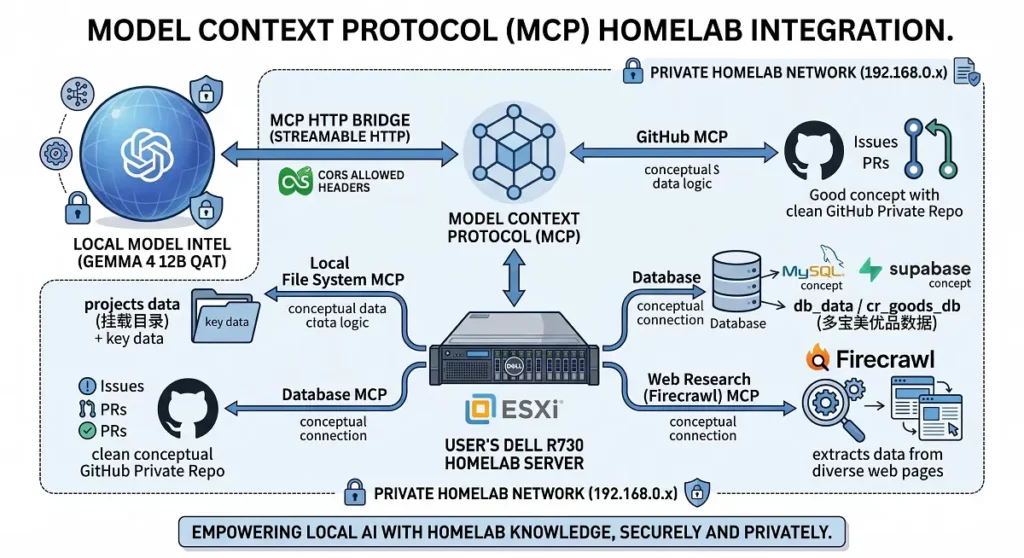
The Solution: Introduce the mcp-proxy tool to wrap the stdio process as an HTTP service, then layer Nginx as a reverse proxy to inject the full set of Cross-Origin Resource Sharing (CORS) headers.
Environment Setup
This tutorial uses a standard Linux server environment (assuming a local network IP of 192.168.x.x) as an example. You’ll need Docker and Docker Compose installed beforehand.
Create the project directory structure:
Bash
mkdir -p /opt/mcp-services/nginx
cd /opt/mcp-services
Step One: Crafting Your Docker Compose File
We’ll spin up three containers simultaneously: a local filesystem MCP, a GitHub MCP, and the Nginx proxy gateway.
Create docker-compose.yml within /opt/mcp-services:
YAML
version: '3.8'

services:
  # 1. GitHub MCP Service
  mcp-github:
    image: node:20-alpine
    container_name: mcp-github
    restart: always
    environment:
      - GITHUB_PERSONAL_ACCESS_TOKEN=your_github_pat_here # Replace with your GitHub Token
    command: sh -c "npx -y @punkpeye/mcp-proxy --port 3001 -- npx -y @modelcontextprotocol/server-github"
    ports:
      - "3001:3001"

  # 2. Local Filesystem MCP Service
  mcp-filesystem:
    image: node:20-alpine
    container_name: mcp-filesystem
    restart: always
    volumes:
      # Mount the host directory that AI needs to access; replace with your actual path
      - /your/local/path:/projects
    command: sh -c "npx -y @punkpeye/mcp-proxy --port 3002 -- npx -y @modelcontextprotocol/server-filesystem /projects"
    ports:
      - "3002:3002"

  # 3. Nginx Proxy Gateway (Handles CORS)
  mcp-nginx:
    image: nginx:alpine
    container_name: mcp-nginx
    restart: always
    ports:
      - "8080:80"
    volumes:
      - ./nginx/default.conf:/etc/nginx/conf.d/default.conf
    depends_on:
      - mcp-github
      - mcp-filesystem
Step Two: Configuring Nginx to Conquer Browser CORS Issues
Nginx’s core role here is to intercept browser OPTIONS preflight requests, force a response with the necessary cross-origin allowance headers, and ensure HTTP streaming remains uninterrupted.
Create default.conf within the /opt/mcp-services/nginx/ directory:
Nginx
server {
    listen 80;

    # Global CORS Header Configuration
    add_header 'Access-Control-Allow-Origin' '*' always;
    add_header 'Access-Control-Allow-Methods' 'GET, POST, OPTIONS' always;
    add_header 'Access-Control-Allow-Headers' 'DNT,User-Agent,X-Requested-With,If-Modified-Since,Cache-Control,Content-Type,Range,Authorization' always;
    add_header 'Access-Control-Expose-Headers' 'Content-Length,Content-Range' always;

    # GitHub MCP Route
    location /github {
        if ($request_method = 'OPTIONS') {
            add_header 'Access-Control-Allow-Origin' '*';
            add_header 'Access-Control-Allow-Methods' 'GET, POST, OPTIONS';
            add_header 'Access-Control-Allow-Headers' 'DNT,User-Agent,X-Requested-With,If-Modified-Since,Cache-Control,Content-Type,Range,Authorization';
            add_header 'Access-Control-Max-Age' 1728000;
            add_header 'Content-Type' 'text/plain; charset=utf-8';
            add_header 'Content-Length' 0;
            return 204;
        }
        proxy_pass http://mcp-github:3001;
        # Critical configuration: Disable buffering to ensure the LLM can receive data in a streaming fashion
        proxy_buffering off;
        proxy_cache off;
        proxy_read_timeout 3600s;
    }

    # Filesystem MCP Route
    location /fs {
        if ($request_method = 'OPTIONS') {
            add_header 'Access-Control-Allow-Origin' '*';
            add_header 'Access-Control-Allow-Methods' 'GET, POST, OPTIONS';
            add_header 'Access-Control-Allow-Headers' 'DNT,User-Agent,X-Requested-With,If-Modified-Since,Cache-Control,Content-Type,Range,Authorization';
            add_header 'Access-Control-Max-Age' 1728000;
            add_header 'Content-Type' 'text/plain; charset=utf-8';
            add_header 'Content-Length' 0;
            return 204;
        }
        proxy_pass http://mcp-filesystem:3002;
        proxy_buffering off;
        proxy_cache off;
        proxy_read_timeout 3600s;
    }
}
Step Three: One-Click Launch & Frontend Integration
Return to the project root directory and start the services:
Bash
docker-compose up -d
Once all containers are confirmed to be in the Up state, open the Page Assist settings page, navigate to the MCP Servers configuration, and add the following information:
- GitHub Toolset:
http://<YOUR_SERVER_IP>:8080/github - Local Filesystem Toolset:
http://<YOUR_SERVER_IP>:8080/fs
After saving, open a new chat dialog. You can then directly issue commands to your Large Language Model (LLM), such as: ‘Read the contents of the /projects directory and summarize them.’ At this point, your LLM will successfully invoke the backend MCP interface and interact directly with your local environment!
Frequently Asked Questions (FAQ)
After configuring Nginx, Page Assist still reports CORS cross-origin errors. What should I do?
A: This usually stems from two issues: first, aggressive browser caching – try a hard refresh (Ctrl + F5 or Cmd + Shift + R) or test in incognito mode; second, incorrect IP or port configuration. Please ensure the URL entered in Page Assist points to Nginx’s exposed port (which is 8080 in this guide), not the MCP container’s internal port (e.g., 3001).
I successfully connected to GitHub MCP, but my LLM can’t read private code repositories. Why?
A: This is likely due to insufficient Token permissions. Navigate to your GitHub Developer Settings and regenerate your Personal Access Token, making sure to select repo (full control of private repositories) and read:org permissions. After updating the environment variable in docker-compose.yml, execute docker-compose restart mcp-github to apply the changes.
How can I scale this architecture in the future, adding new MCP services (e.g., a database probe)?
A: Scaling is incredibly straightforward! It’s a two-step process: First, add the configuration for your new MCP container to docker-compose.yml, assigning a fresh mapped port (e.g., 3003). Second, duplicate an existing location route block in Nginx’s default.conf and point the proxy address to your new port (e.g., proxy_pass http://mcp-database:3003;). Finally, simply execute docker-compose up -d to reload your services.