

Kicking off 2026 with this topic feels incredibly timely. With RAM and SSD prices still fluctuating and GPU production scaling back, nobody really wants to drop serious cash on a hardware overhaul right now. But is your old PC actually “dead,” or is it just weighed down by a bunch of hidden bloat? The truth is, you can likely squeeze another two or three years of life out of your machine just by rolling up your sleeves and doing some maintenance.
Why is your PC slowing down? (Common Pain Points)
Let’s see how many of these sound familiar:
- Boot times feel like an eternity, leaving you waiting forever for the desktop to load.
- App sluggishness: Chrome hogs several GBs of RAM the moment you open it.
- Frame drops and stuttering: Games are getting harder to run, even though your hardware hasn’t changed.
- Fan noise and overheating: The fans are screaming, yet performance is plummeting.
- SSD storage is maxed out, and the system is constantly throwing “Disk Full” warnings.
- The hard truth: Hardware is just too expensive right now to justify a total upgrade.
90% of these issues aren’t due to failing hardware; it’s usually just “system bloat,” poorly configured settings, or thermal throttling.
The Solution: Peak Performance for Free
The good news is that these are all fixable without spending a dime. The core strategy boils down to these four pillars:
- De-bloat: Reduce system overhead and memory usage.
- Maximize Hardware Potential: Unlock the performance you’ve already paid for.
- Smart Scheduling: Stop Windows from mismanaging resources.
- Routine Maintenance: Don’t neglect thermals and storage health.
Let’s dive into the 8 specific, actionable steps.
How to execute: 8 zero-cost optimization tips
1. Disable Unnecessary Startup Apps (The First Step to Quick Gains)
Think of your computer waking up in the morning being bombarded by 50 alarm clocks—of course it’s struggling.
Steps:
- Windows 11: Press Win key → Search for “Startup apps” → Open it.
- Kill everything you don’t need (Steam, Epic, Adobe, RGB controllers, bloatware monitors). Keep your antivirus, and that’s about it.
- Windows 10: Search for “Task Manager” → Go to the “Startup” tab and disable items there.
Result: Your boot time gets cut in half, and you reclaim several GBs of RAM instantly.
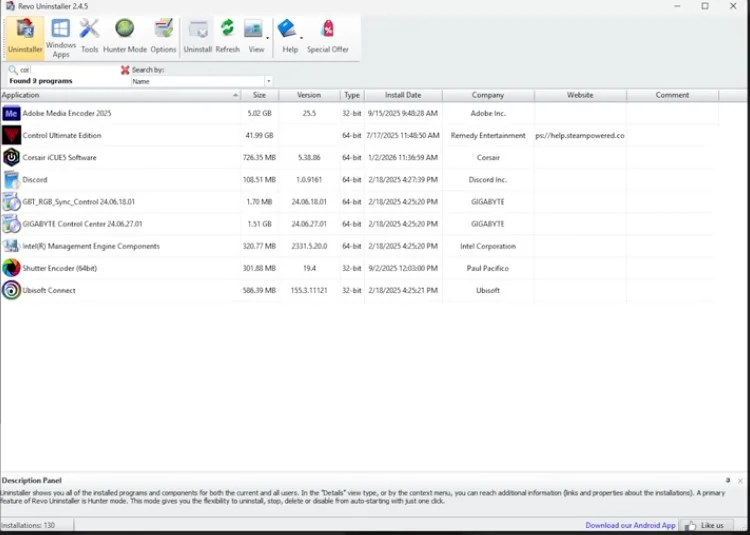
2. Perform a Deep Clean with Revo Uninstaller 【Download Link】
The standard Windows uninstaller is like sweeping dust under a rug. Revo digs deep into the registry to remove every last trace.
Recommendation: The free version is more than enough. After uninstalling, run the “Advanced” scan to scrub residual files.

3. Enable XMP/EXPO: Get Your RAM Running at Full Speed
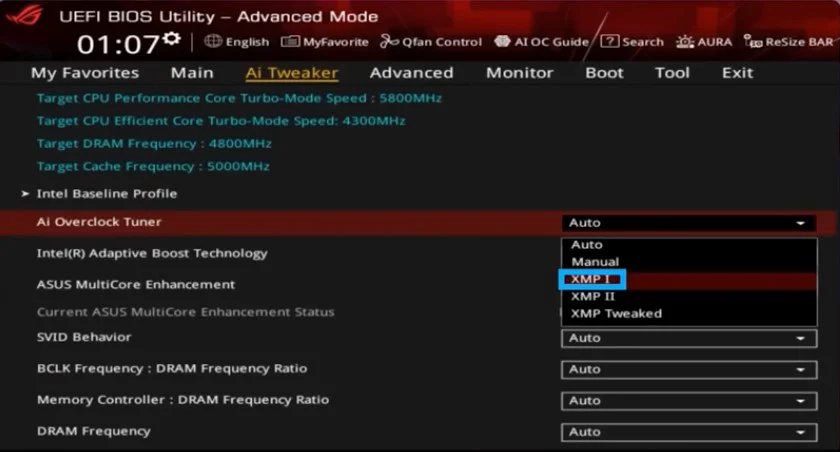
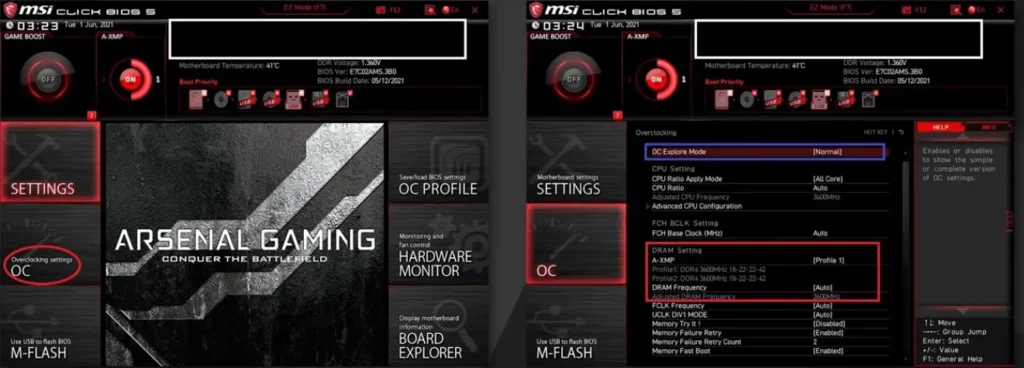
If you paid for 6000MHz DDR5 but left it at the default 4800MHz, you’re basically burning money.
Steps:
- Reboot and enter BIOS (usually Del or F2).
- Find XMP (Intel), EXPO (AMD), or DOCP settings → Enable Profile 1.
- Save your current BIOS settings to a User Profile first—it’s a safety net.
- Save and exit. Test for stability.
Note: If it’s unstable, dial the speed down one notch. No need to touch voltages; keep it beginner-friendly.
4. Don’t Force “High Performance” Power Plans on AMD X3D Chips
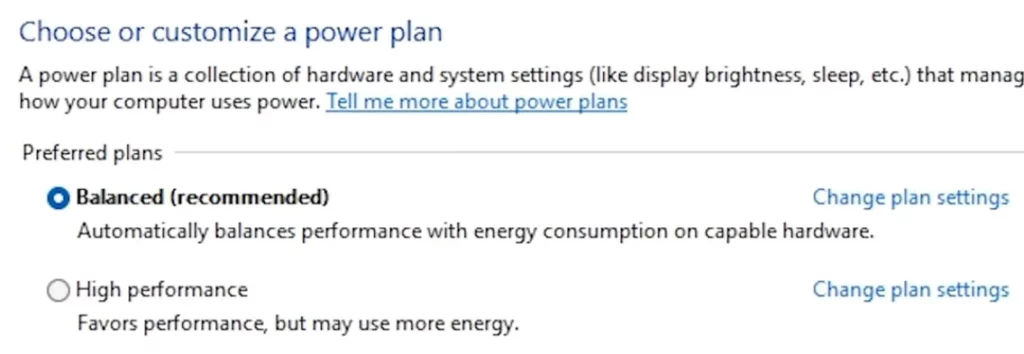
For chips like the 7950X3D or 9950X3D, games need to run on the CCD with the 3D V-Cache.
The Fix:
- Stick to the “Balanced” power plan.
- Avoid “High Performance.” It confuses the Windows scheduler, often pushing games to the frequency-favored CCD instead of the cache-heavy one, hurting performance.
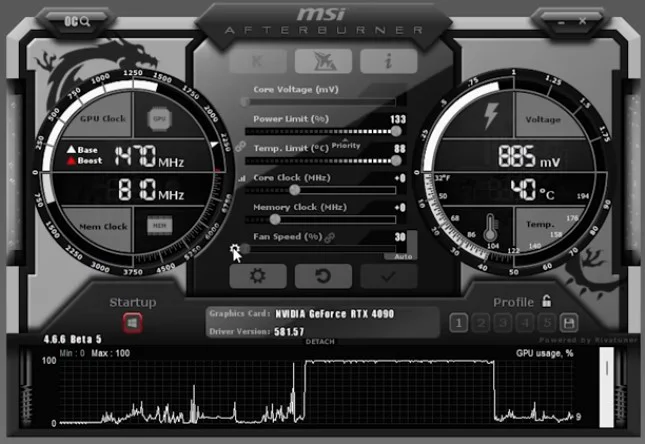
5. Juice Your GPU with MSI Afterburner 【Official Site】
Want 10-20% more performance out of an aging card? A light overclock goes a long way.
Basic Overclocking Steps:
- Download MSI Afterburner + RTSS.
- Max out your Power Limit.
- Set a more aggressive fan curve (noise for performance).
- Increment the core clock by +100~150MHz and test stability.
- Keep temps under 75°C.
6. Check CPU Temps and Repaste If Necessary
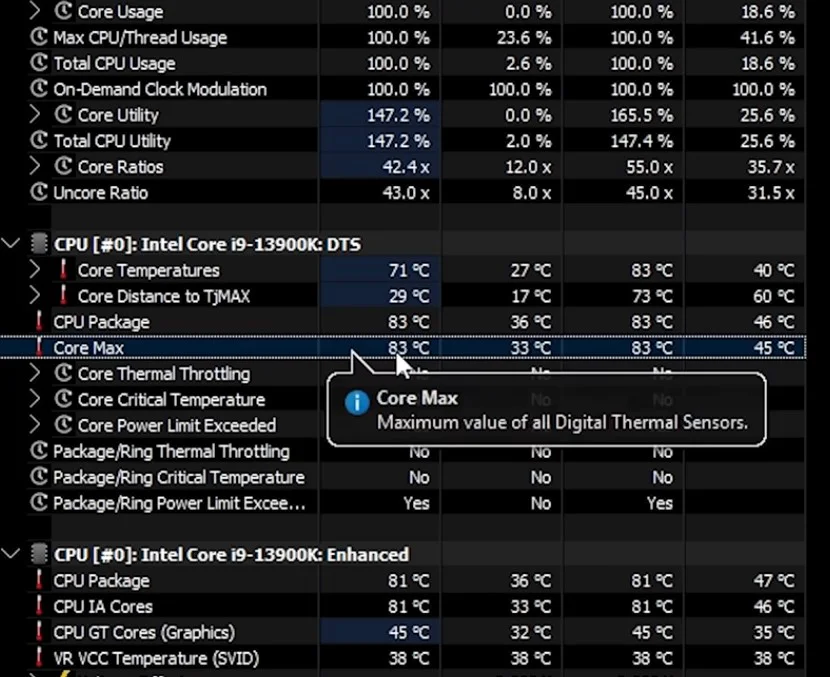
Is your old PC hitting 90°C+? That’s thermal throttling in action.
Monitoring Tools: Hardware Info or MSI Afterburner.
- If you see red numbers near TjMax, it’s time to intervene.
- Thermal paste is cheap, and after 5 years, it’s almost certainly dried out. A fresh application can drop your temps by 10-20°C.
7. Keep SSD Usage Below 90%
SSDs need breathing room. Once they get too full, read/write speeds tank.
- Offload movies or photos to a mechanical drive or external storage.
- Leave 15-20% of your SSD space free for cache operations.
8. Ongoing Monitoring
Make it a habit. Keep Afterburner’s overlay on while gaming to spot spikes in temp, frequency, or usage. If something looks off, you’ll know exactly where to troubleshoot.
Final Thoughts: Small Tweaks, Big Payoff
Follow these 8 steps—especially the “Startup Cleanup + XMP + SSD Space” trifecta—and your old PC will feel snappy again. Many people who try this say it feels like using a brand-new machine.
The hardware market will likely remain volatile through 2026. Instead of stressing about an upgrade, get the most out of what you already have. When the price is right, you’ll be ready to swap out your optimized machine.
Let me know how it goes in the comments!
FAQ
Q1: Does enabling XMP/EXPO void my warranty? A: Generally, no. Neither Intel nor AMD void warranties for standard XMP/EXPO profiles. Just don’t go pushing manual voltages into the danger zone.
Q2: If I’m not on an AMD X3D chip, is “High Performance” okay? A: It’s fine for daily use, but “Balanced” is cooler and more efficient. Unless you’re running heavy, non-stop rendering, “Balanced” is perfectly adequate.
Q3: Is repasting the CPU hard? A: Not at all! Clean off the old paste, apply a pea-sized dot of new thermal compound, and reseat the cooler. There are tons of 5-minute tutorials online. All you need is some rubbing alcohol and a plastic card.
Get to work, friend—your PC is waiting to be saved! 🚀 Toolkit download here【Quark Drive】