
Just unboxed your new Meta Quest 3? Don’t dive straight into gaming just yet! Follow these 12 essential setup steps to boost your experience by 200%. These tweaks are field-tested, easy to follow, and guaranteed to level up your VR game.
1. Personalize Your Home Environment
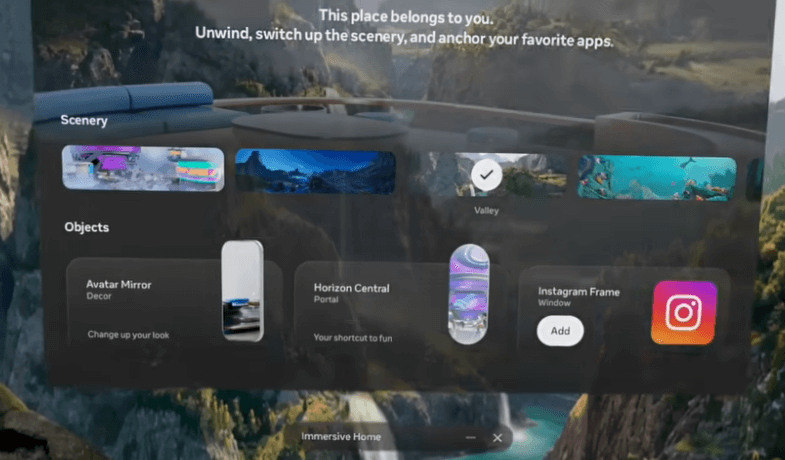
The default Horizon home can feel a bit stale. Change it up!
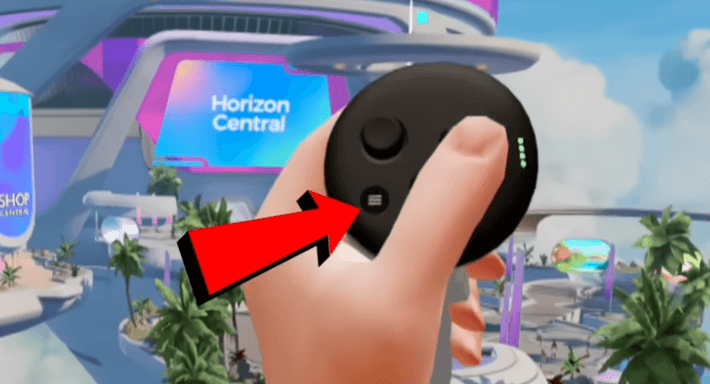
How to: Open the menu with your left controller → Home Environments → Select your preferred scene (Space Station, Forest, etc.) to apply it instantly.
2. Adjust the IPD for Crystal Clear Visuals
Blurry visuals are usually caused by an incorrect IPD (Interpupillary Distance).
How to: Use the wheel on the bottom of the headset to adjust until the text is perfectly sharp. Once you hit that sweet spot, you’re good to go.
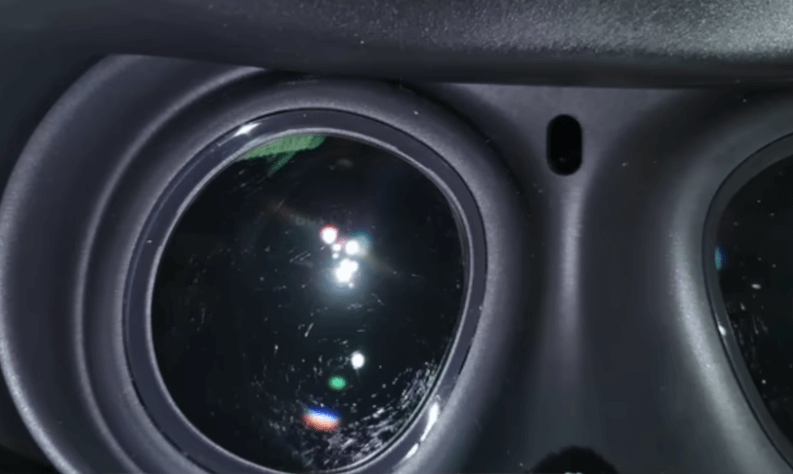
Pro-tip: Always clean your lenses with a clean microfiber cloth before use. Never use clothing or paper towels, as these can scratch the optics.
3. Essential for Eyeglass Wearers: Magnetic Prescription Inserts
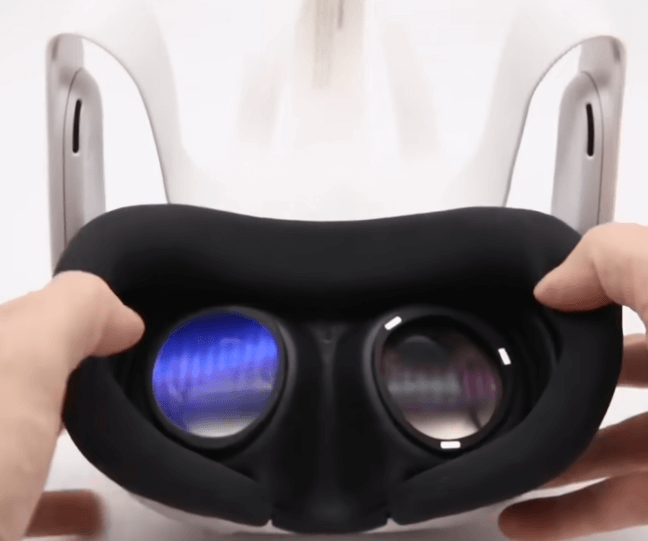
If you wear glasses, I highly recommend magnetic prescription inserts (like VR Wave):
- Half the price of official accessories
- Magnetic design allows for a 3-second, hassle-free installation
- Often includes blue-light filters and anti-glare coatings for a more comfortable, crisp viewing experience.
4. Expand Your Guardian Boundary
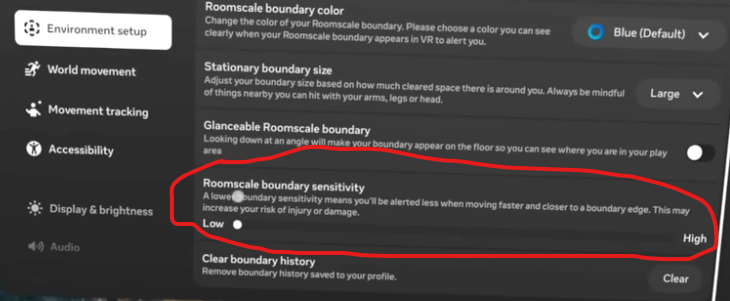
The default grid can be overly sensitive. Give yourself some extra room.
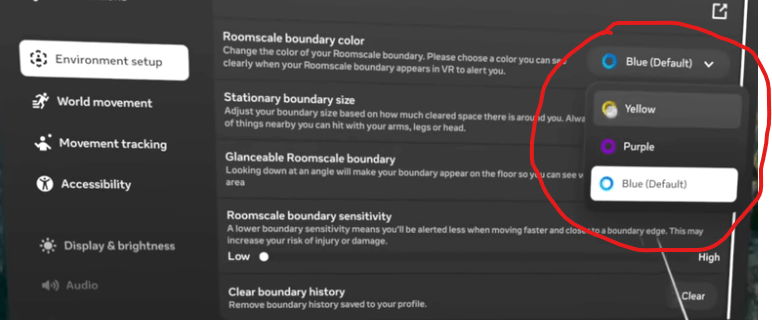
Path: Settings → Boundary → Roomscale Boundary Sensitivity → Slide to the far left. You can also customize the grid color here.
5. Enable the New Navigator UI
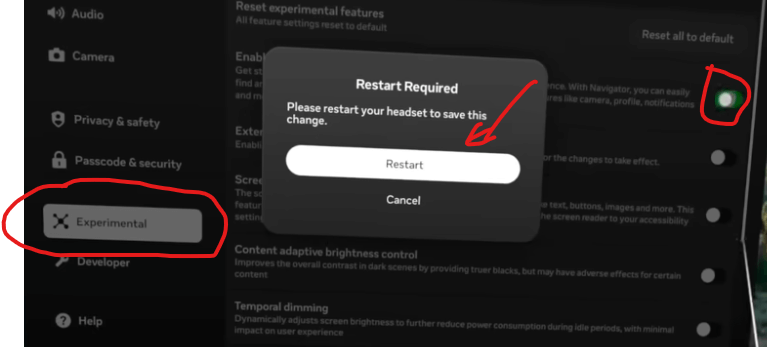
Experience a cleaner, more modern interface similar to the Vision Pro.
Settings → Experimental → Enable Navigator → Restart your headset.
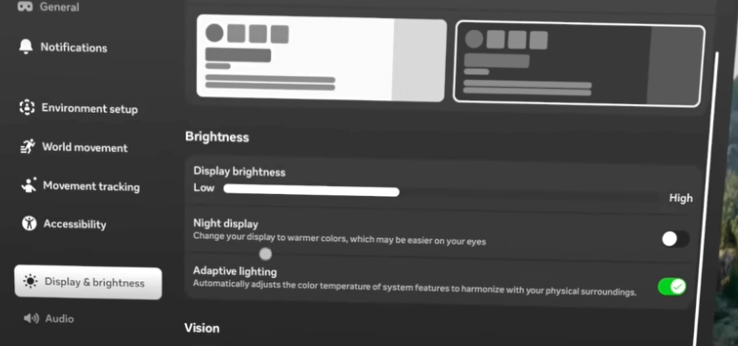
6. Optimize Display Brightness and Text Size
Settings → Display & Brightness:
- Toggle Dark/Light mode
- Enable Night Mode and Adaptive Brightness
- Too small to read? You can increase the system-wide font size here.
7. Start with Official Tutorial Games
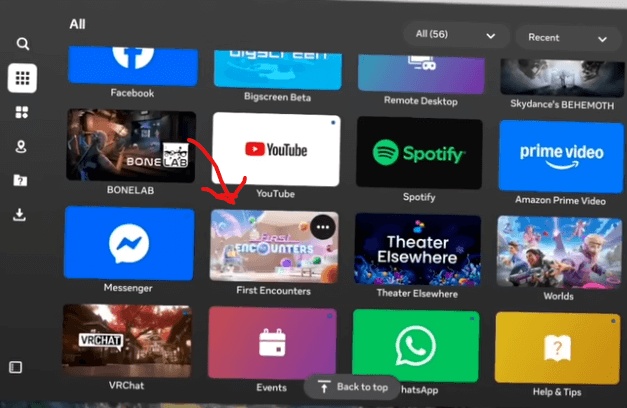
- First Encounters: A mixed-reality shooter to master controller inputs.
- First Hand: A perfect introduction to hand-tracking controls.
Both are pre-installed and perfect for VR beginners.

8. Prevent Motion Sickness: Start Slow
Don’t jump into high-intensity games right away! Try these comfortable entry-level titles:
- Beat Saber (The gold standard)
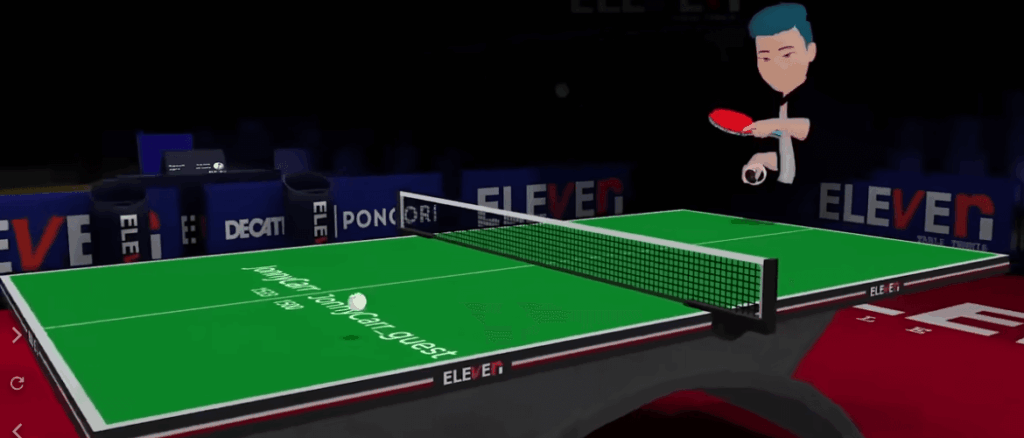
- Eleven Table Tennis
- All-in-One Sports VR (Free, similar to Wii Sports)

9. Claim Your Credits and Discounts
- Use referral codes for up to 25% off games in the Meta Store.
- Check for activation bonuses like $30 in store credit!
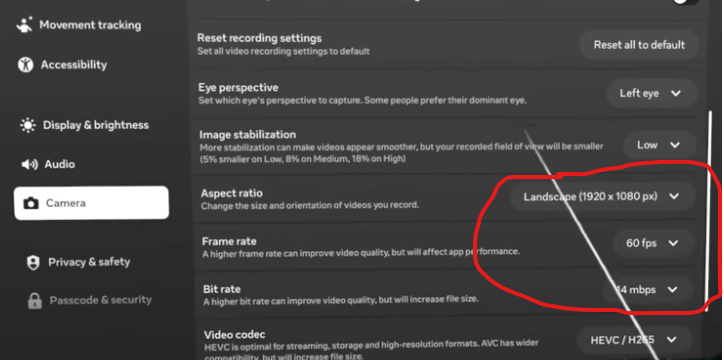
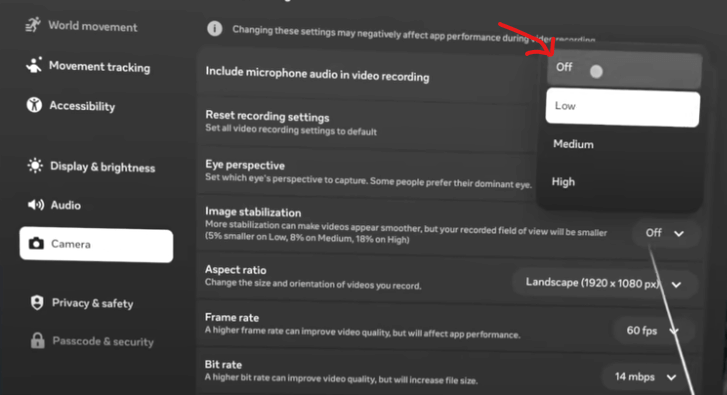
10. Best Settings for Screen Recording
Settings → Camera & Microphone:
- Aspect Ratio: Landscape
- Bitrate: Max it out to 14
- Frame Rate: 60fps
- Image Stabilization: Off (Turn this off to avoid the annoying black borders)
11. Casting to TV/PC/Phone
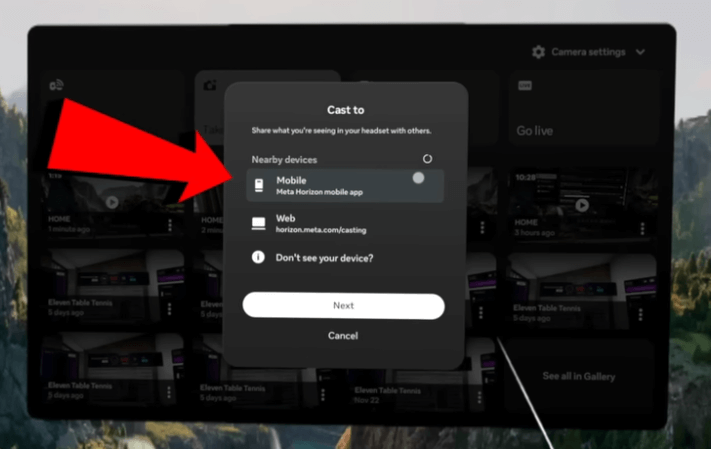
Method 1: Click the Camera icon inside the headset → Cast → Select device.
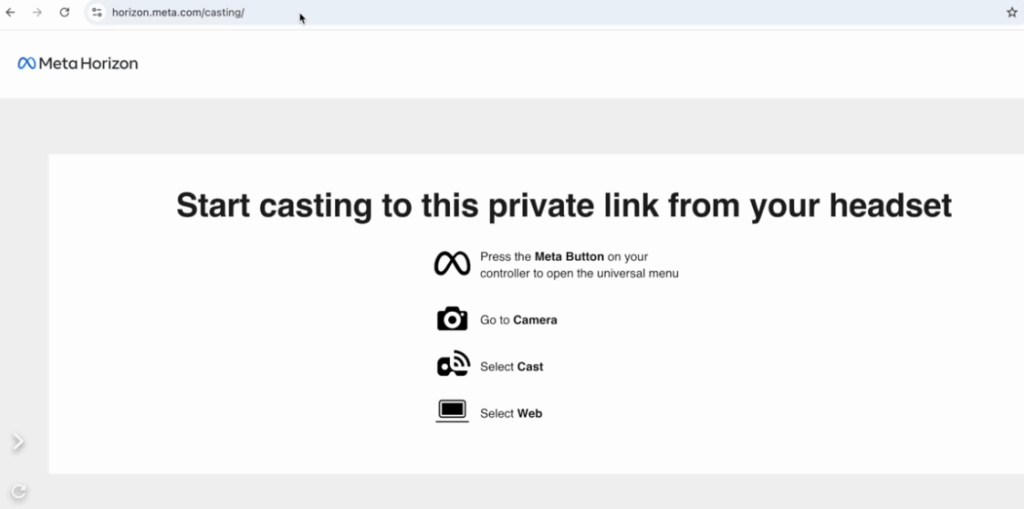
Method 2: Open horizon.meta.com/cast in your browser for manual connection.
12. The Ultimate Movie Watching Experience
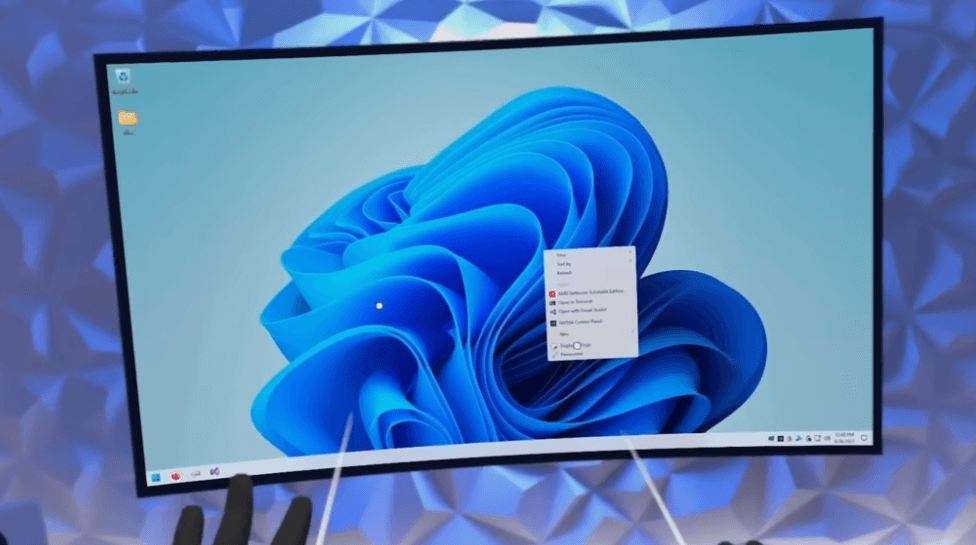
- Simple: Open your browser to Netflix/YouTube, click the “Expand” icon for a curved, theater-like screen.
- Advanced: Purchase Virtual Desktop for seamless PC streaming, PCVR gaming, and multi-monitor workspace capabilities.
Now that you’ve configured your Quest 3, it’s truly a next-level device. Bookmark this guide to quickly re-optimize your settings whenever you reset your headset!