

You just spent a small fortune building your dream rig, slapped an RTX 5090 in it, and installed the latest, top-tier Gen5 NVMe SSD. You fire up GPU-Z, and there it is: “PCIe Link Width” is only showing x8 instead of x16. You immediately panic—did you get ripped off? Wasn’t this card supposed to be Gen5 x16? Is your performance cut in half?
Don’t panic! Your hardware isn’t broken, and you didn’t get scammed. It’s just a case of your PCIe lanes being “bifurcated.” Today, we’re going to break down this common frustration for 5090 owners in plain English, so you can check your own configuration and optimize your build without ever having to complain to a shop that your 5090 is underperforming.
What are PCIe lanes? Think of it like a highway
Imagine the connection between your CPU and your components (GPU, NVMe SSD, NIC, sound card, etc.) as a high-speed highway called PCIe.
- Lane Count (lanes): x16 means 16 lanes, x8 means 8 lanes, and x4 means 4 lanes.
- Generation (Gen): Gen5 is like a 300 km/h bullet train, Gen4 is 200 km/h, and Gen3 is only 100 km/h.
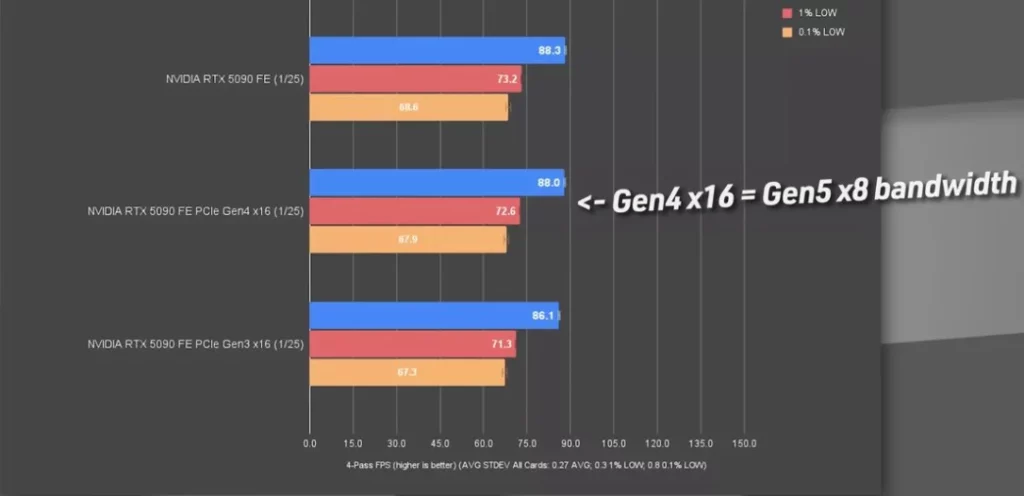
- Total Bandwidth: Gen5 x16 is roughly 128 GB/s, Gen5 x8 is 64 GB/s, and Gen4 x16 is about 64 GB/s (which is identical to Gen5 x8).
Here’s the catch: Highway lanes aren’t infinite. Your CPU provides a fixed number of lanes, and your components have to compete for them.
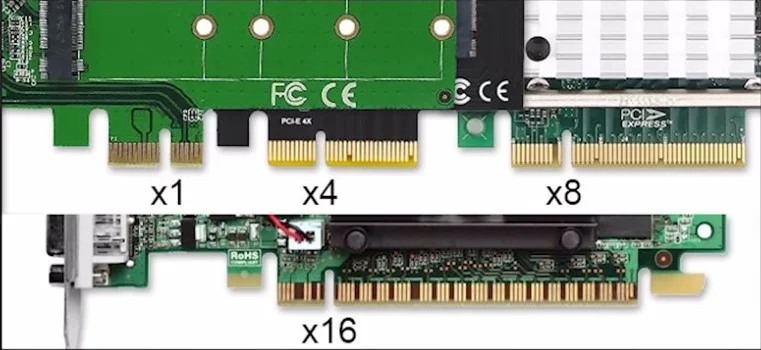
The Pain Point: Why does my 5090 drop to x8 when using a Gen5 NVMe?
On mainstream 2025–2026 platforms, the CPU-direct PCIe 5.0 lanes generally look like this:
- Intel Core i9-14900K / 14th & 13th Gen: 16 Gen5 lanes + 4 Gen4 lanes (20 lanes direct to CPU).
- AMD Ryzen 9000 Series (including 9950X / 9800X3D): 24 lanes direct to CPU (16 Gen5 + 4 Gen5 + 4 Gen4).
The typical tragic scenario (especially common on Intel platforms):
- You put the RTX 5090 in the top PCIe x16 slot, and it claims all 16 Gen5 lanes.
- You buy an expensive Gen5 NVMe (like a Crucial T705 or Samsung 9100 Pro) and plug it into the “CPU-direct M.2 slot” for maximum speed.
- The motherboard realizes it’s out of lanes and is forced to split the GPU’s 16 lanes into 8+8 (or 8+4+4).
- Result: The GPU drops to Gen5 x8, the NVMe gets its full Gen5 x4 speed, but your GPU performance looks cut in half.
AMD handles this much better: Those extra 4 Gen5 lanes are usually dedicated to the first M.2 slot, allowing you to run a 5090 at Gen5 x16 and a Gen5 NVMe at x4 simultaneously without conflict.

The Solution: Stop guessing and check these three things
- Confirm your status with GPU-Z: Download GPU-Z, click the “?” icon next to “Bus Interface,” and it will show your current PCIe version and width (e.g., PCIe 5.0 @ x8). Run a 3DMark benchmark to see if you’re actually losing frame rates.
- Read the Motherboard Manual (Crucial!): Download the PDF from the manufacturer’s website. Look for the “PCIe / M.2 Configuration Table.” It will show you:
- Which M.2 slot is direct-to-CPU Gen5 x4.
- Whether installing an M.2 drops your top x16 slot to x8.
- The specific bifurcation rules for your motherboard.
- Recommended Build Strategies (2026):
- AMD Platform (Top Pick): 5090 in the top x16 slot, Gen5 NVMe in the dedicated M.2_1 slot. Perfect: GPU runs Gen5 x16, SSD at full speed.
- Intel Platform (Caution): If you install a Gen5 SSD in a CPU-direct slot, your GPU will likely drop to x8. If you want full GPU performance, stick with a high-end Gen4 SSD (like a 990 Pro) or just use one large-capacity Gen5 drive and accept the lane split.
Does falling to Gen5 x8 really cut performance in half?
Good news: The impact on the RTX 5090 running at Gen5 x8 is currently minimal.
According to tests from 2025–2026 (TechPowerUp, Gamers Nexus, Hardware Unboxed, etc.):
- Average 4K gaming frame drop: 1–3.5% (in worst-case scenarios).
- 1440p high-refresh gaming: 0.5–2% drop.
- Pure ray tracing or 8K rendering: A slightly larger impact, but only 4–5%.
Why is the impact so small? Because current games and drivers don’t fully saturate the 128 GB/s bandwidth of Gen5 x16 yet. You’ll only see a significant difference when the RTX 60 series or next-gen titles arrive.
Summary: Don’t waste your money—optimize your configuration
- Now: Gen5 x8 is perfectly acceptable for the 5090; the performance loss is smaller than you think.
- Future: As GPUs get more powerful and resolutions increase, the x16 advantage will become more apparent.
- Best Practice: Go with an AMD platform and a single large-capacity Gen5 SSD (4TB+) so both your GPU and SSD run at full speed.
Before your next build, download that motherboard manual and check the configuration table—don’t let your RTX 5090 get stuck in a construction zone of limited PCIe lanes!
Still have questions or need specific advice for your Intel/AMD build? Let me know in the comments, and let’s keep the discussion going!
3 Common FAQs
Q1: Will my 5090 lose half its FPS at x8?
A: No. Testing shows a maximum loss of 3–4%, which is barely noticeable in 4K gaming. You won’t feel real pressure until the next GPU generation.
Q2: Should I give up on Gen5 SSDs on Intel platforms?
A: Not necessarily. If you only use one Gen5 SSD and don’t mind the GPU running at x8, go for it. Otherwise, use a Gen4 SSD or wait for newer Core Ultra platforms.
Q3: How do I know what my motherboard supports?
A: Download the PDF manual and search for “PCIe lane configuration” or “M.2 bifurcation table.” Don’t just take the salesperson’s word for it—the manual is the ultimate source of truth.