

LTX Video is currently one of the most powerful open-source video generation models, but its hardware requirements often leave owners of 4070 or 4080 cards feeling left out. The good news? Thanks to GGUF quantization, we can push memory usage to the limit and run it smoothly on hardware with 12GB-16GB of VRAM (tested and confirmed working on a 3060 12GB).
This guide will walk you through setting up this “budget-friendly” LTX Video workflow from scratch.
🛠️ Phase 1: Environment & Plugin Setup
Before grabbing the models, we need to install the essential “drivers” for ComfyUI.
1. Launch ComfyUI Manager
Open ComfyUI and click the “Manager” button in the right-hand menu.
2. Install Core Nodes
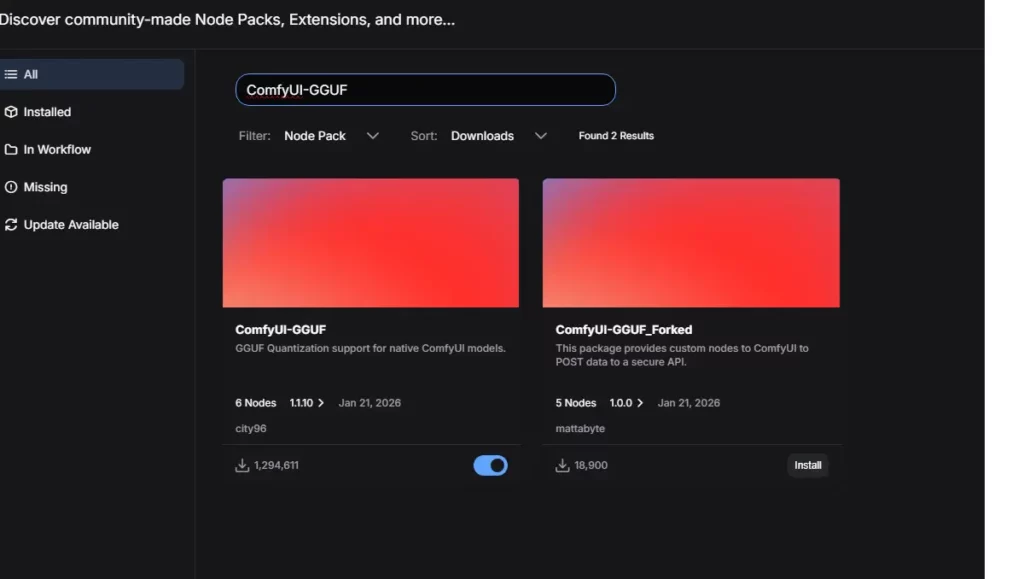
Inside the Manager, click “Install Custom Nodes” and search for the following:
- Search Keyword:
GGUF- Plugin Name:
ComfyUI-GGUF - Author: City96
- Purpose: This core plugin allows ComfyUI to load and utilize .gguf lightweight models.
- Plugin Name:
- Search Keyword:
KJNodes- Plugin Name:
ComfyUI-KJNodes - Author: Lijai
- Purpose: Provides the necessary Audio/Video VAE helper nodes for LTX Video.
- Plugin Name:
⚠️ Important: You must click “Restart” in ComfyUI after installation for changes to take effect. [LTX-2 GitHub Repository]
📂 Phase 2: Model Downloads & Directory Structure
This is where things usually go wrong. Follow the checklist below strictly and ensure files end up in the correct folders (create them manually if they don’t exist).
1. Core Model Checklist
All models are available via HuggingFace (LTX-2 HuggingFace Repository).
| Model Type | Filename (Recommended) | Path (Under ComfyUI folder) | Note |
| Unet (Main) | ltx-2-19b-distilled_Q4_K_M.gguf |
models/unet/ |
Q4 offers the best quality; Q2 is the fastest. |
| Text Encoder | gemma-3-12b-it-Q2_K.gguf |
models/clip/ |
CRITICAL! Use the Q2_K version (~4GB) or you will run out of VRAM. |
| Connector | ltx-2-19b-embeddings_connector_dev_bf16.safetensors |
models/clip/ |
Note: Most workflows use the dev version. |
| VAE | LTX2_video_vae_bf16.safetensors |
models/vae/ |
Video decoder affecting color and clarity. |
2. Folder Structure
Your directory structure should look like this:
ComfyUI/
└── models/
    ├── unet/
    │   └── ltx-2-19b-distilled_Q4_K_M.gguf  <-- Place main model here
    ├── clip/
    │   ├── gemma-3-12b-it-Q2_K.gguf         <-- Place LLM here
    │   └── ltx-2-19b...connector...safetensors <-- Place connector here
    └── vae/
        └── LTX2_video_vae_bf16.safetensors  <-- Place VAE here
🔌 Phase 3: Workflow Assembly
Standard LTX workflows downloaded from the web will likely throw errors. We need to perform a little “surgery” to swap the standard loader for the GGUF loader.
1. Remove Old Nodes
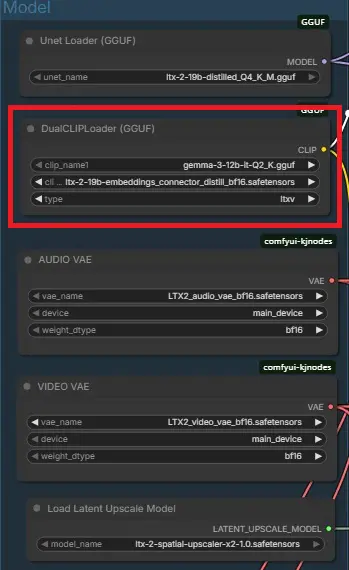
Find the red error-prone DualCLIPLoader node in the graph and press Delete.
2. Add New Nodes
- Double-click on the empty workspace and search for
DualCLIP. - Select
DualCLIPLoader (GGUF).
3. Configure Parameters (Crucial!)
Set up the new node as follows:
- clip_name1: Select
gemma-3-12b-it-Q2_K.gguf - clip_name2: Select
ltx-2...connector...safetensors - type: Must be set to
ltxvmanually- Warning: It might default to
sd3; if you don’t change this, your video will be full of static!
- Warning: It might default to
4. Connect Nodes
- Output: Drag a line from the yellow
CLIPport on theDualCLIPLoader (GGUF). - Input: Connect it to the
clipports of your Positive and Negative Prompts.
🎬 Phase 4: Troubleshooting & Settings
1. Frame Settings (Length)
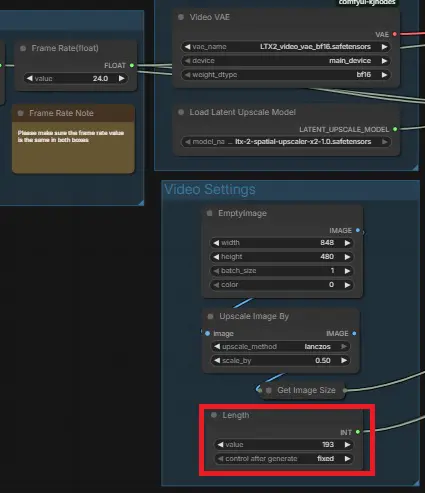
LTX models are sensitive to frame counts. Use the formula: (8 × N) + 1.
- Initial Test: 97 frames (~4 seconds).
- Advanced: 129 frames (~5 seconds).
- Hardware Limit: 193 frames (~8 seconds).
- Warning: Avoid setting values like 243; 16GB of VRAM will overflow, crashing your system.
2. Handling “Freezes” and Errors
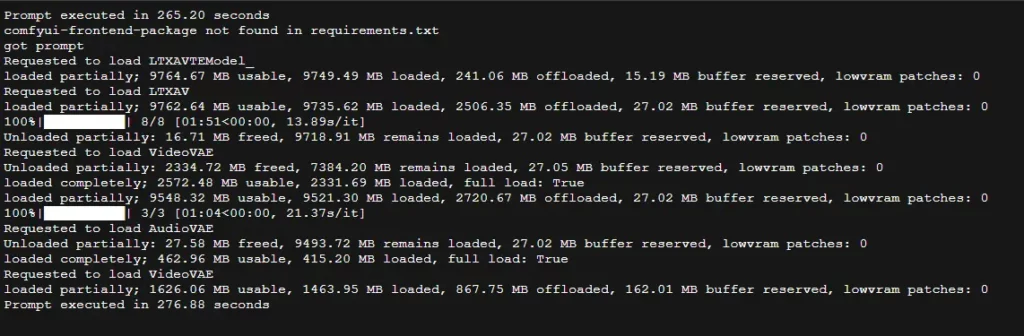
- If the console says
loaded partially... offloaded to RAM: This is normal! It means your VRAM is full and the system is utilizing your RAM. - If you see
ConnectionResetErrorin the terminal: Don’t panic! If you seePrompt executedat the end, your video is finished. Check youroutputfolder.
❓ FAQ
Q1: Why is my DualCLIPLoader node red?
A: Usually an incorrect node type or file selection. Double-check that the node is specifically DualCLIPLoader (GGUF) and the type is set to ltxv.
Q2: How many frames can a 12GB card handle?
A: 97 frames is the sweet spot. 129 frames might work but will likely offload to your system RAM, slowing things down.
Q3: Why is generation extremely slow (5-10 minutes)?
A: If you see offloaded to RAM in the console, your VRAM is maxed out. Reducing frame counts or disabling upscaling will significantly improve speed.
Q4: How much RAM is needed?
A: 32GB+ is recommended. Even with GGUF, models occupy significant RAM during load/unload operations.
Conclusion
You’ve now deployed a low-VRAM friendly LTX Video workflow. While GGUF might be slightly slower than native FP16 execution, it opens the door to cinematic AI video generation for everyone. Happy prompting!