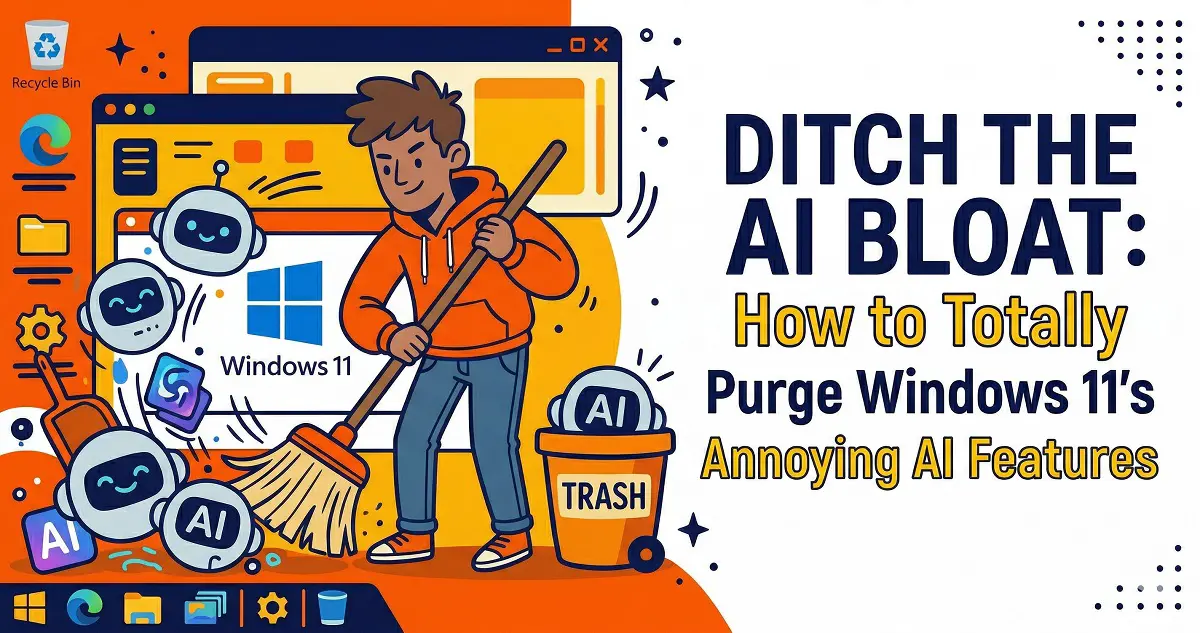
Microsoft is stuffing Windows 11 25H2 with AI features, and it’s becoming invasive: Copilot is always in your face, Recall is essentially a screenshot logger, and AI is creeping into Notepad, Paint, and beyond. Turning these off in Settings often proves futile—they just keep coming back after updates, leading to system lag and privacy concerns. If you’re fed up with this forced integration, you aren’t alone.
RemoveWindowsAI (with over 7.5k stars on GitHub and active maintenance through 2026) is the ultimate solution. It acts like a surgical strike, performing a “physical removal” of these AI components to ensure they stay gone. [GitHub Repository]
What Can It Actually Strip Out?
- Total removal of Copilot, Recall, and Input Insights (keylogger functionality)
- Cleans up Edge’s Copilot integration, Paint AI, Notepad rewrite features, Voice Access, and AI audio effects
- Forces deletion of “undeletable” Appx packages
- Cleans up hidden CBS AI components and residual files
- Installs custom update policies to prevent Windows Update from silently reinstalling them
- Hides AI settings pages and kills Recall background tasks
How to Use It Safely (Step-by-Step)
Before you start, do not skip these precautions:
- Run PowerShell as Administrator
- Create a System Restore point
- Back up your system or test this in a virtual machine first
Choose from these three methods:
1. The Easiest Way (GUI-based)
& ([scriptblock]::Create((irm "https://raw.githubusercontent.com/zoicware/RemoveWindowsAI/main/RemoveWindowsAi.ps1")))A GUI will pop up, allowing you to check the features you want to remove and apply them with one click.
2. The “Nuke It All” Approach
& ([scriptblock]::Create((irm "https://raw.githubusercontent.com/zoicware/RemoveWindowsAI/main/RemoveWindowsAi.ps1"))) nonInteractive AllOptions3. Precision Stripping (Custom Selection)
& ([scriptblock]::Create((irm "https://raw.githubusercontent.com/zoicware/RemoveWindowsAI/main/RemoveWindowsAi.ps1"))) nonInteractive Options DisableRegKeys,RemoveAppxPackages,DisableCopilotPoliciesPro tip: Always enable backup mode first. Use backupMode AllOptions before running, and if you change your mind, use revertMode AllOptions to restore.
Enabling Backup Mode for Full Restore Capability
& ([scriptblock]::Create((irm "https://raw.githubusercontent.com/zoicware/RemoveWindowsAI/main/RemoveWindowsAi.ps1"))) -nonInteractive -backupMode -AllOptionsReverting Changes
& ([scriptblock]::Create((irm "https://raw.githubusercontent.com/zoicware/RemoveWindowsAI/main/RemoveWindowsAi.ps1"))) -nonInteractive -revertMode -AllOptionsThe Verdict: Community feedback on Reddit, X, and Tom’s Hardware is overwhelmingly positive. Users report a quieter background, a cleaner UI, and significant drops in memory and CPU usage. However, be aware of the trade-offs:
- Some AI features (like those in Office) may require manual intervention (see the project’s OtherAIFeatures.md)
- Major OS updates might require re-running the script
- This is advanced surgery: Touching CBS and system files can occasionally cause minor bugs (e.g., voice features stopping). Avoid using this on critical production machines if you are hesitant.
Summary: If you hate the forced AI creep and want your privacy and performance back, RemoveWindowsAI is your scalpel of choice. Microsoft wants AI-powered slaves, but we prefer a native, human-controlled OS.
3 FAQ
Q1: Is this safe? Could it brick my system?
A: The code is open-source and widely vetted, but since you are modifying core system files, you must have a backup/restore point. Test in a VM first before putting it on your primary rig.
Q2: Will the AI come back after an update?
A: The script installs custom policy blocks, but major Microsoft version updates might occasionally bypass them. The developer keeps the project updated, so keep an eye on the GitHub commits.
Q3: Can I only remove Copilot and Recall?
A: Absolutely. Use nonInteractive Options to pick specific modules like DisableRegKeys, RemoveRecallFeature, or RemoveRecallTasks for total control.