
You just dropped a fortune on a new GPU, fired up your favorite game, and felt like you needed a PhD to understand the graphics menu—should you toggle Ray Tracing? Which DLSS mode is best? Why does your FPS look like a roller coaster? Don’t panic; this guide is built just for you. Based on a super practical GPU breakdown (originally transcribed from a technical deep-dive), I’m going to demystify these settings. Read this in 10 minutes, and you’ll be tweaking your rig like a pro. Let’s go!
The Main Pain Point: Why Does Your Gameplay Feel “Off”?
Let’s address the common newbie hurdles. Bought a high-end rig but can’t get that cinematic look? Or maybe the game looks beautiful but runs like a slideshow? These issues are all too common:
- Plastic-looking lighting: Traditional games use tricks to simulate reflections and shadows, often resulting in puddles that reflect generic pre-rendered images rather than the environment behind you. It just feels cheap.
- FPS tanking at high resolutions: Dreaming of 4K? Your GPU hits a wall, frame rates plummet to 30, and the experience turns into slow motion.
- Aliasing and blurriness: Jaggies on edges and blurry floor textures ruin your immersion instantly.
- Screen tearing and input lag: Unstable FPS leads to screen tearing; trying to record or stream then makes the game stutter even more.
- Legacy hardware struggling: If you’re running newer titles on an older card, maxing out settings leads to stuttering and agonizingly slow texture loading.
These issues essentially stem from the “primitive” way older GPUs handled rendering. Fortunately, modern tech allows you to level up your visual experience without necessarily breaking the bank.
The Core Solution: How GPU Tech Saves the Day
Don’t worry, these features aren’t sci-fi; they are the power tools from Nvidia, AMD, and others. Simply put, they fall into categories: enhancing realism, boosting performance, sharpening visuals, synchronizing fluidity, and utility tools. The core concept is “smart rendering”—using AI or hardware tricks to make the GPU work smarter, not harder.
- The Realism Squad: Ray Tracing simulates light rays just like a physics textbook.
- The Performance Saviors: DLSS, FSR, and Frame Generation use lower rendering resolutions to “cheat” into high-fidelity visuals, often doubling your frame rate.
- The Visual Stylists: Anti-Aliasing and Anisotropic Filtering smooth out jaggies and sharpen textures.
- The Fluidity Guardians: G-Sync, FreeSync, and VSYNC keep your display and GPU in sync to eliminate tearing.
- The Behind-the-Scenes Heroes: VRAM for data storage, Shaders for effects, and NVENC for smooth recording without impacting performance.
Combined, these features take your gaming from “passable” to “premium,” whether you’re playing single-player campaigns or streaming to your community.
Feature Breakdown: Usage and Gotchas
Now, let’s break them down one by one. I’ll include the “how it works,” the “why use it,” and the “when to use it” for each feature.
Ray Tracing: Light Rays as Projectiles
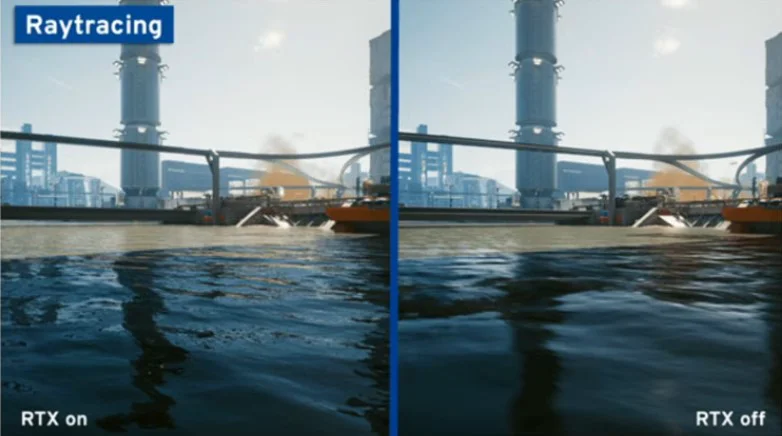
- How it works: Unlike old-school shortcuts, Ray Tracing simulates real-world light behavior—bouncing off mirrors, refracting through glass, and casting soft shadows. The GPU calculates these paths to generate perfectly accurate reflections and lighting.
- Why use it: Next-level immersion! Think of puddles actually reflecting enemies behind you rather than generic map data. The lighting feels natural, just like a movie.
- When to use it: For single-player masterpieces like Cyberpunk 2077, turn it on to enjoy the visual feast. It doesn’t improve your reaction time—it’s strictly for beauty—so avoid it in competitive shooters where frame rate is king.
- The Gotcha: It’s heavy on performance; you’ll need a modern high-end GPU.
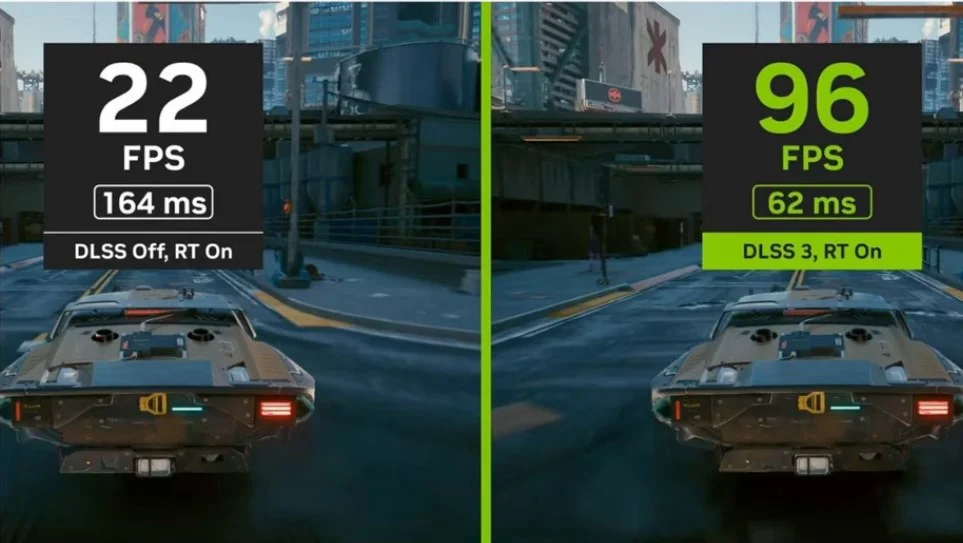
DLSS: The AI Magician
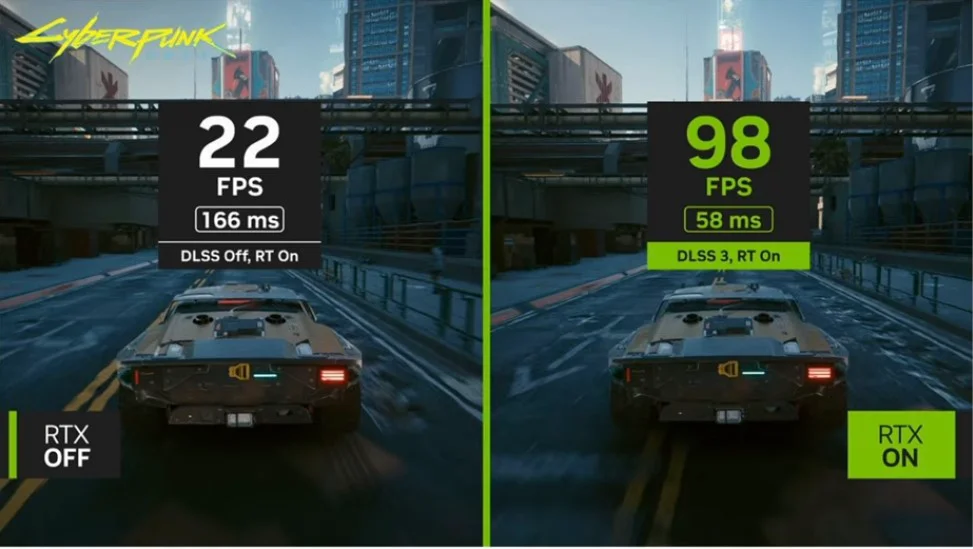
- How it works: The game renders at a lower, easier-to-manage resolution, and AI “guesses” the missing details to upscale to a higher resolution. It’s an Nvidia exclusive that uses deep learning to fill in pixels.
- Why use it: Massive FPS gains, often resulting in a cleaner image than native resolution (by reducing shimmering). It’s a godsend when playing at 4K or with Ray Tracing enabled.
- When to use it: If you have an Nvidia card, use it to push higher visual settings. Choose ‘Quality’ for clarity or ‘Performance’ for maximum frame rates.
FSR: The Universal Performance Booster
- How it works: Similar to DLSS, it renders at a lower resolution and upscales, but instead of AI-specific hardware, it uses smart algorithms.
- Why use it: It’s cross-platform! It works on AMD, Nvidia, and even older consoles. It’s a lifesaver for building rigs on a budget.
- When to use it: When playing modern games on an aging GPU. It’s slightly less sharp than DLSS, especially in motion, but the price-to-performance ratio is unbeatable.
Frame Generation: AI Fabricating Frames
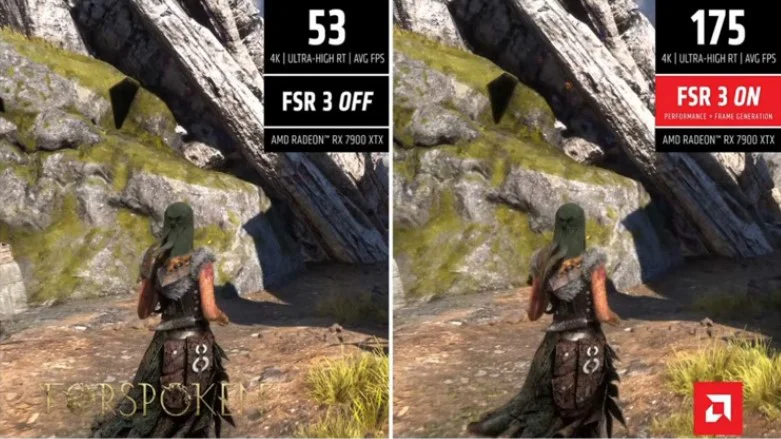
- How it works: Using motion data from previous frames, AI generates entirely new intermediate frames. This skips heavy rendering and can effectively double your frame rate.
- Why use it: Incredibly fluid motion; perfect for visually demanding action games.
- When to use it: Use for single-player titles. Be cautious in competitive multiplayer—it can introduce slight input latency, making controls feel less crisp.
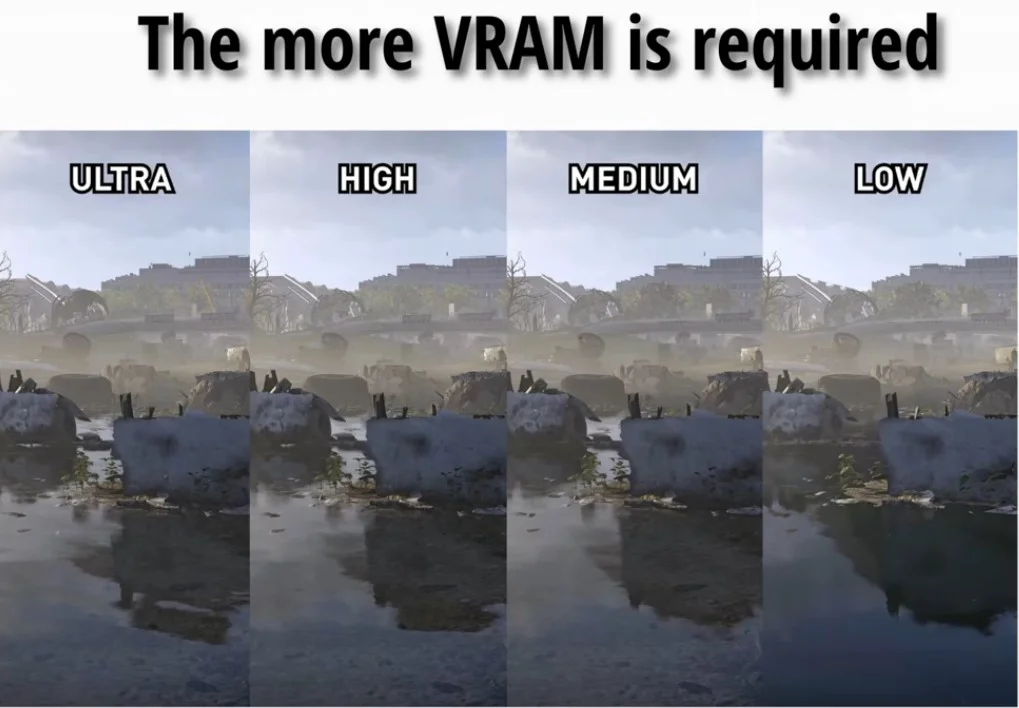
VRAM: The GPU’s “Short-term Memory”
- How it works: Stores textures, models, and data. High resolutions or high-res texture packs consume VRAM quickly.
- Why use it: Having enough prevents stuttering and texture pop-in.
- When to use it: For 4K gaming or heavy modded textures, check your VRAM usage (8GB+ recommended). If you’re running out, turn down the settings.
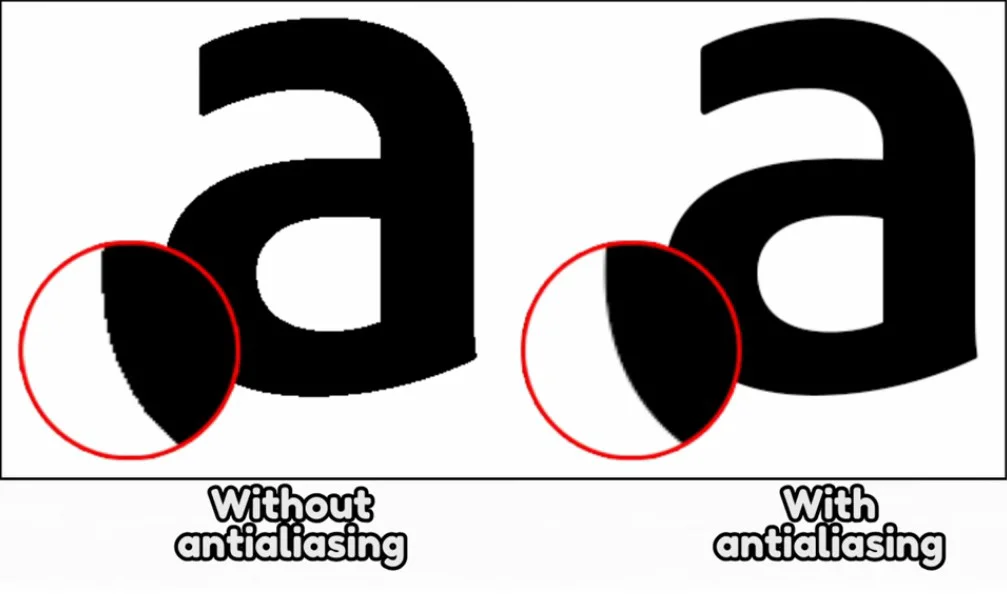
Anti-Aliasing: The Beauty Filter for Edges
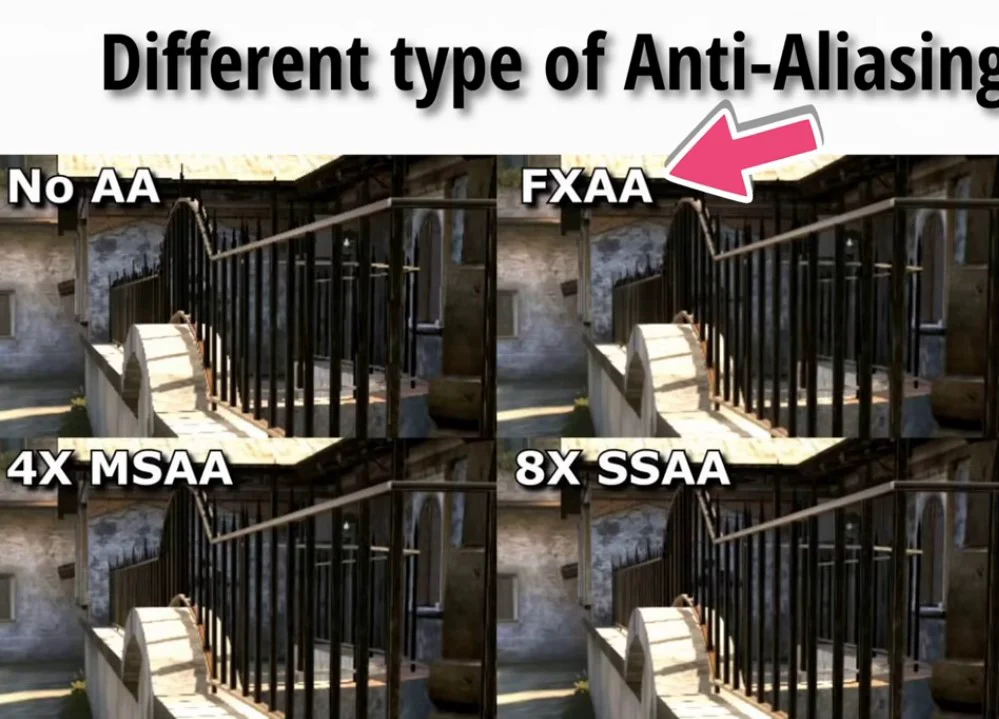
- How it works: Blends pixels at object edges to smooth out jagged lines. Types include MSAA (high quality) and TAA (performance friendly).
- Why use it: Objects look natural instead of pixelated.
- When to use it: Keep it on for all games, but don’t overdo it—some high-level modes can cause blurriness.
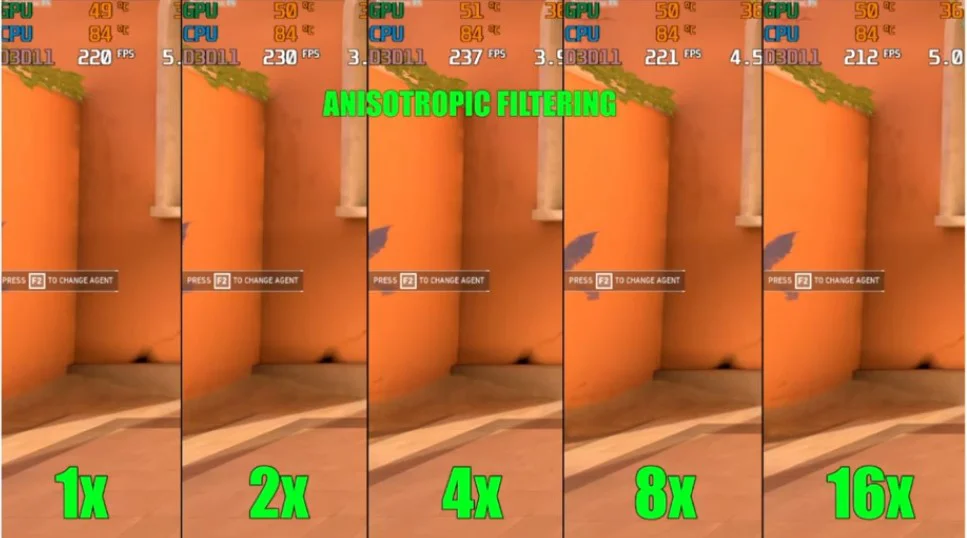
Anisotropic Filtering: Crystal Clear Distant Textures
- How it works: Prevents textures from becoming blurry when viewed at an angle; keeps floor/wall textures sharp regardless of distance. Modern GPUs handle this with almost zero performance penalty.
- Why use it: Visual clarity is significantly improved; set to max (16x).
- When to use it: Essential for open-world games. Always keep it on.
G-Sync / FreeSync: The GPU-Monitor Romance
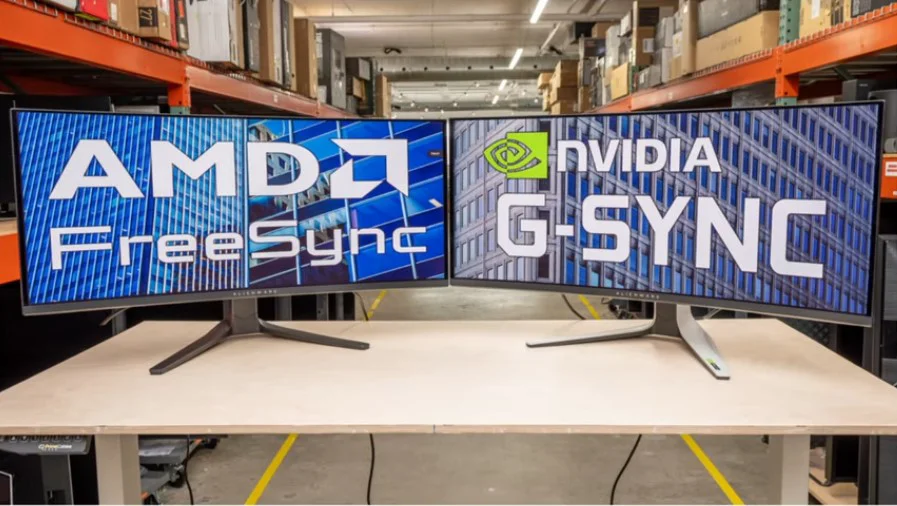
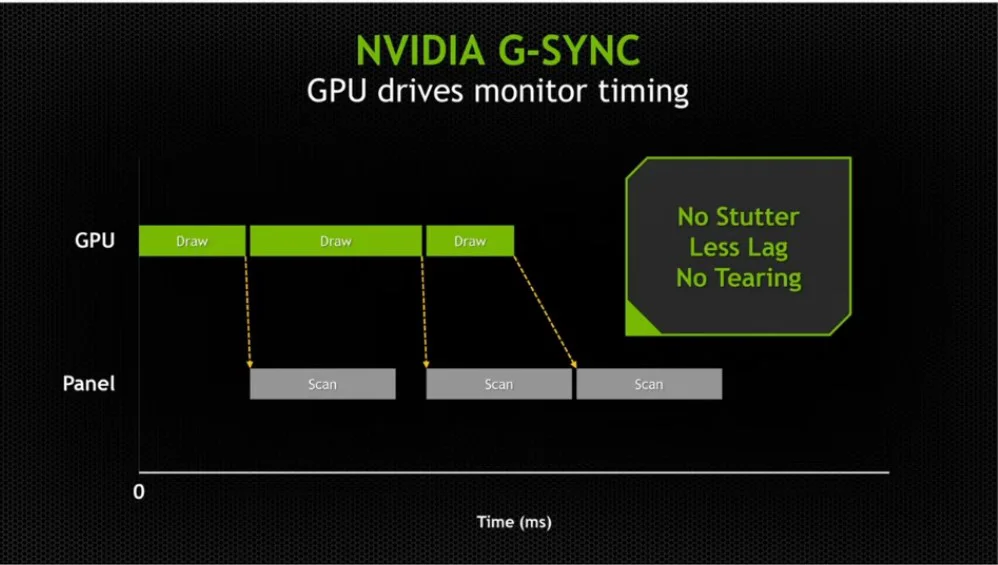
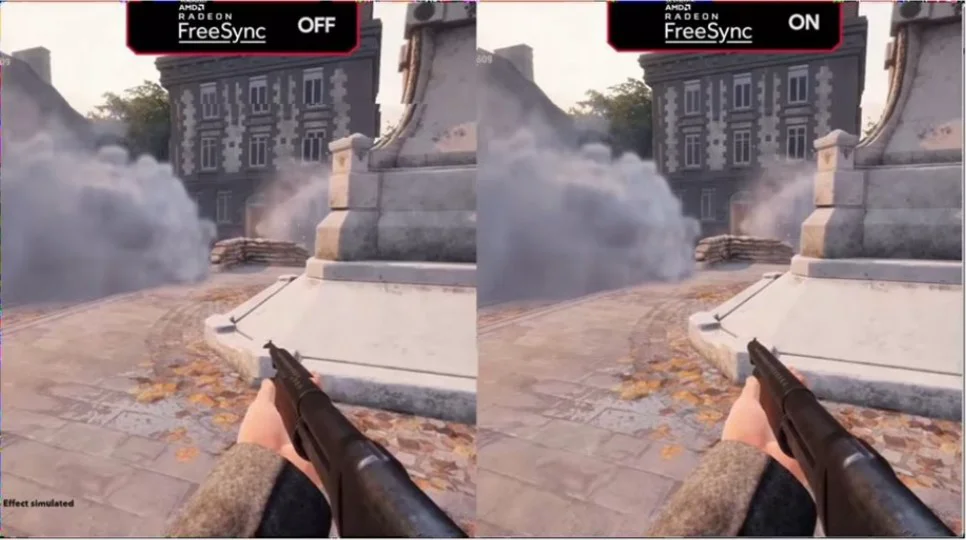
- How it works: Dynamically adjusts the monitor refresh rate to match the frame rate. Nvidia has G-Sync; AMD has FreeSync.
- Why use it: Zero tearing, no stuttering. FreeSync is generally more affordable and widely compatible.
- When to use it: Crucial when FPS fluctuates. Ensure your monitor supports the specific feature.
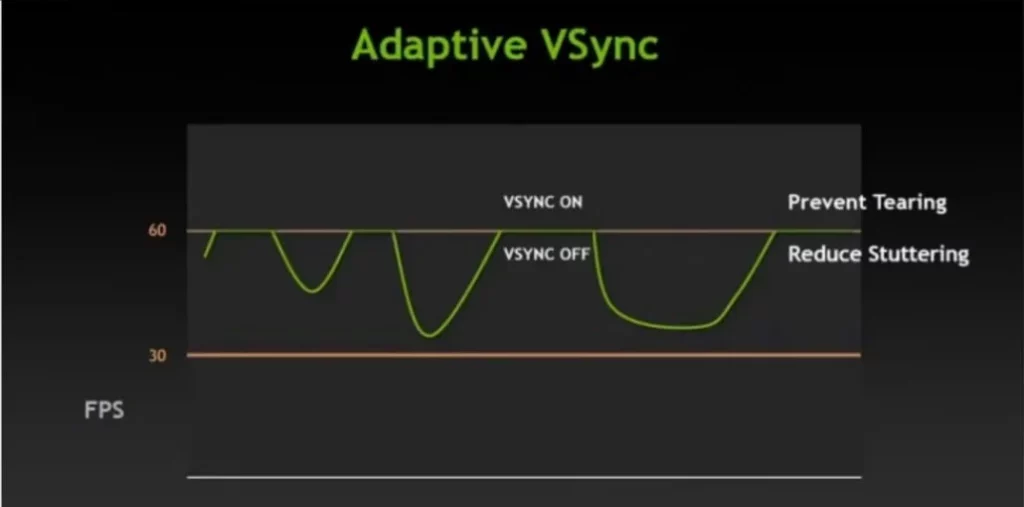
VSYNC: The Old School Tear Prevention
- How it works: Locks your FPS to your monitor’s refresh rate, waiting for the frame to be ready before displaying it.
- Why use it: Simplest way to prevent tearing.
- When to use it: Good for slow-paced games. Avoid in fast-paced shooters—it introduces noticeable input lag.
Shaders: The Digital Sous-Chef
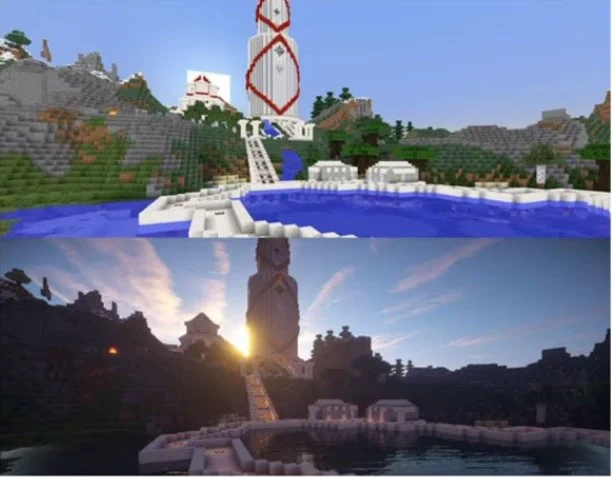
- How it works: Tiny GPU programs that calculate light, smoke, and water effects. These are compiled when the game loads; initial stutter is normal.
- Why use it: Essential for modern visual effects.
- When to use it: Be patient during first-time loading on high-setting games.
NVENC: Streaming Without the Performance Hit
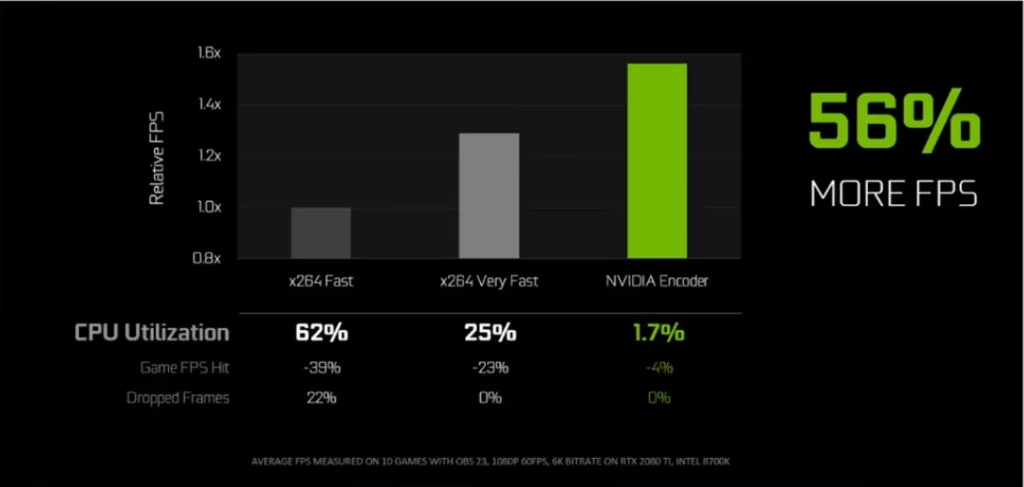
- How it works: A dedicated hardware encoder built into Nvidia GPUs that handles video recording/encoding, offloading work from the CPU/GPU.
- Why use it: Allows for smooth recording and streaming without dropping game performance.
- When to use it: Essential for content creators.
Summary and Pro Tips: The Ideal Setup
Now that you’ve mastered these, you can optimize your own settings.
Newbie Template: Ray Tracing + DLSS/FSR (Balanced) + Anti-Aliasing (Medium) + Anisotropic (High) + FreeSync. On a budget? Prioritize FSR and ensure your VRAM capacity is sufficient.
Future Trend: AI will continue to evolve, making upscaling the standard.
Unsure about specific details, like the latest GPU compatibility? I recommend checking the official manufacturer website.
3 FAQ
Q1: Is it worth turning on Ray Tracing?
A: If you value immersion, yes. But turn it off for competitive shooters—it won’t help you aim, it just eats performance.
Q2: Which is better, DLSS or FSR?
A: DLSS offers cleaner image quality (Nvidia exclusive), while FSR is more compatible (AMD/Nvidia/Old cards). Choose based on your hardware.
Q3: Why does my game stutter on the first load?
A: It’s usually the shaders compiling. It will smooth out the second time—be patient!